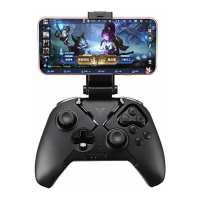
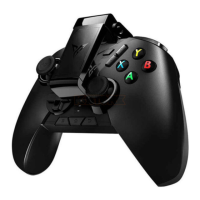
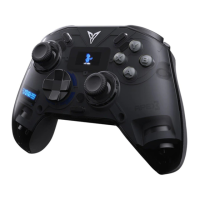
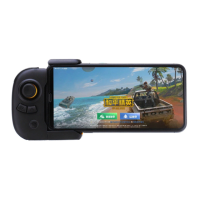
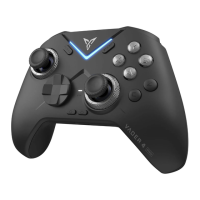
The Flydigi Apex Wireless Controller is a versatile gaming peripheral designed for use across multiple platforms, including Android cellphones and tablets, Set-top Boxes, Smart TVs, PC Android Simulators, and Windows PCs. It offers a comprehensive set of controls and features to enhance the gaming experience, with a focus on adaptability and user convenience.
Function Description:
The controller functions as a primary input device for gaming, providing tactile feedback and precise control. It features a standard gamepad layout with two joysticks, a D-Pad, ABXYCZ buttons, SELECT, START, RB, LB, RT, and LT buttons, as well as M1, M2, M3, and M4 buttons for additional customization. Mode indicators and a power indicator keep the user informed about the controller's status. A customizable colorful indicator adds a personalized touch. The controller supports different operation modes: Bluetooth Mode for Android cellphones and tablets, Wireless Android Mode for Set-top Boxes, Smart TVs, and PC Android Simulators, and Xinput Mode for Windows PCs.
A unique feature of the Flydigi Apex controller is its Air Mouse function, available specifically in Wireless Android Mode. This allows the controller to simulate mouse operations, enabling users to navigate and click on screens as if using a traditional mouse. The Pair button activates/deactivates the Air Mouse, and the M1 button serves as the left mouse button in this mode. The controller's orientation and movement are used to control the mouse cursor.
The controller also includes a detachable stand, which can be slid out from a slot to accommodate phones ranging from 52.8mm to 100mm. This bracket allows smartphones to stand on a desk, providing a convenient setup for mobile gaming.
Usage Features:
Power Management:
- Power On: To turn on the controller, slide the power switch at the bottom to "ON." The power indicator will flash green twice, indicating the controller is active.
- Power Off: To turn off the controller, slide the power switch to "OFF."
- Energy Saving Mode: This mode can be activated by sliding the power switch to the back, which turns off the customizable colorful indicator to conserve battery.
- Charging: The controller is charged via a charging port. During charging, the power indicator stays red. Once charging is complete, the power indicator turns off.
- Low Power Indication: When the battery level drops to 20% remaining, the power indicator slowly flashes green. At 5% remaining, it flashes green quickly, signaling the need for recharging.
Connectivity and Pairing:
- Bluetooth Mode (Android Cellphones/Tablets): To connect via Bluetooth, turn on the power switch and press and hold the Pair button for 5 seconds until the Bluetooth indicator flashes quickly, indicating pairing mode. On the phone, navigate to Settings > Bluetooth, turn on Bluetooth, and select "FeiZhiApex" from the available devices. The Bluetooth indicator will stay steadily on upon successful pairing. For re-connecting paired controllers, simply click the Pair button.
- Wireless Android Mode (Set-top Box/Smart TV/PC Android Simulator): Plug the USB wireless receiver into the USB port of the target device. Turn on the controller's power switch, then press and hold the A + Pair buttons for over 5 seconds. The controller will switch to Wireless Android Mode, with the mode indicator staying steadily on, and connect to the USB wireless receiver. For re-connecting, only the Pair button needs to be clicked. If connection issues arise (slowly flashing mode indicator), unplug the receiver, power cycle the controller, press and hold Pair, and then re-plug the receiver, keeping it within 20cm of the controller.
- Xinput Mode (Windows PC): Plug the USB wireless receiver into the PC's USB port. Turn on the controller's power switch, then press and hold the X + Pair buttons for over 5 seconds. The controller will switch to Xinput Mode, with the mode indicator staying steadily on, and connect to the receiver. For re-connecting, only the Pair button needs to be clicked. Troubleshooting for connection issues is similar to Wireless Android Mode.
Flymapping Activation (for Android):
The Flydigi Utool is a custom-designed tool that enables Flymapping functionality on Android smartphones and tablets without requiring root access or a PC.
- Open the Flydigi Controller Assistant app and navigate to Settings > Enable USB debugging.
- Connect the Flydigi Utool as illustrated in the manual, ensuring the power port is connected to a 5V USB power source, and the data port is connected to the smartphone/tablet. The Utool's indicator will stay red upon proper connection.
- If prompted for USB debugging authorization on the phone, select "OK" and "Always allow from this computer."
- After activation is complete, unplug the Flydigi Utool.
Customizable Color Light:
The controller features a customizable colorful indicator.
- When the power switch is "ON," the light will turn on.
- Switching to Energy Saving Mode will turn off the light.
- Lighting effects, brightness, and color can be configured to individual preferences using the Flydigi Controller Assistant app on Android devices.
Maintenance Features:
Firmware Update:
While the controller is shipped with stable firmware, Flydigi periodically releases update applications to enhance product compatibility. Users can visit "down.flydigi.com" to download the update tool.
Troubleshooting:
- Motion Shooting Crosshair/Air Mouse Drifting: If the view angle cannot be controlled by pressing the LB button and shaking the controller, or if the air mouse loses control, place the controller on a flat surface for 10 seconds to recalibrate.
- Problems with Sticks or Buttons: The controller can be tested using the Flydigi Controller Assistant app. For stick calibration, press and hold the SELECT + START buttons for 3 seconds. Calibration is complete when the corresponding mode indicator flashes slowly twice.
- Failure to Activate Flydigi Utool:
- Red indicator always flashing: This may indicate an issue with the data cable or the phone's USB interface. Try replacing the cable or using a different USB port. (Note: Some cables only support charging, not data transmission.)
- Blue indicator flashing quickly or off: Ensure USB debugging is enabled on the phone (via Developer options).
- "Allow USB Debugging" prompt: Click "OK" in the dialog box, then plug and unplug the USB cable and try again. If the red and blue indicators remain on but activation fails, restart the phone and wait a few minutes before trying again.
- Blue indicator flashes slowly: Verify that the "Flydigi Controller Assistant" app is installed. Refer to Section 4 (Bluetooth Mode) for installation instructions.
- For any other issues, contact customer support.

 Need help?
 General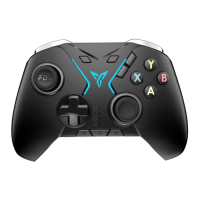

 To Next Page