20 | P a g e
NOTE:
Please ensure good internet connection for FOBO Tire 2 App to connect to
the FOBO cloud server.
Note that shared users will not be able to change settings (name, Pressure limits,
etc.) on your FOBO TIRE 2 profile using their smartphones. They can only
view the readings. At the FOBO Tire 2 App HOME page, a shared profile will
depict a “FoboShare” logo at the bottom of profile image to distinguish a shared
profile from your own profile.
5.4 Disable and Enable sensor
You may want to disable a sensor due to a missing sensor or damaged sensor,
disabling a missing or damaged sensor will remove future missing sensor alerts.
To disable a tire sensor:-
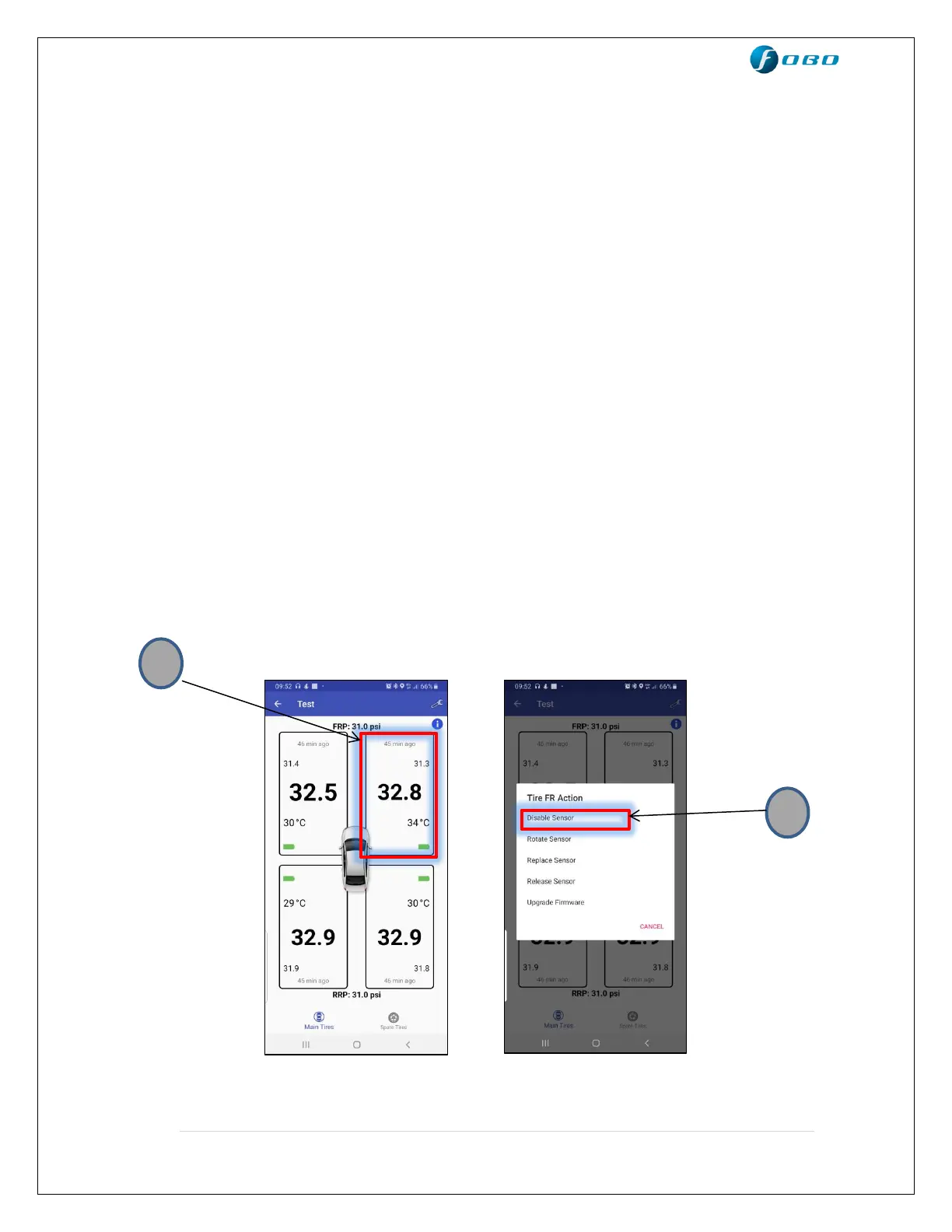
1. Tap and hold on the box corresponding to the tire position you want to
disable (Front right in the image below)
2. Click on “Disable sensor” option in the pop-up list and click proceed.
3. You will see “Disabled” inside the box corresponding to the disabled tire
position. Take note that FOBO TIRE 2 will stop monitoring tire for a
disabled sensor position.


 To Next Page