24
Output Channel
All the input channels are mixed together and routed to the output channel of
the mixer. The output channel lets you control the overall level of the entire mix.
(Remember there is a separate output channel for each.)
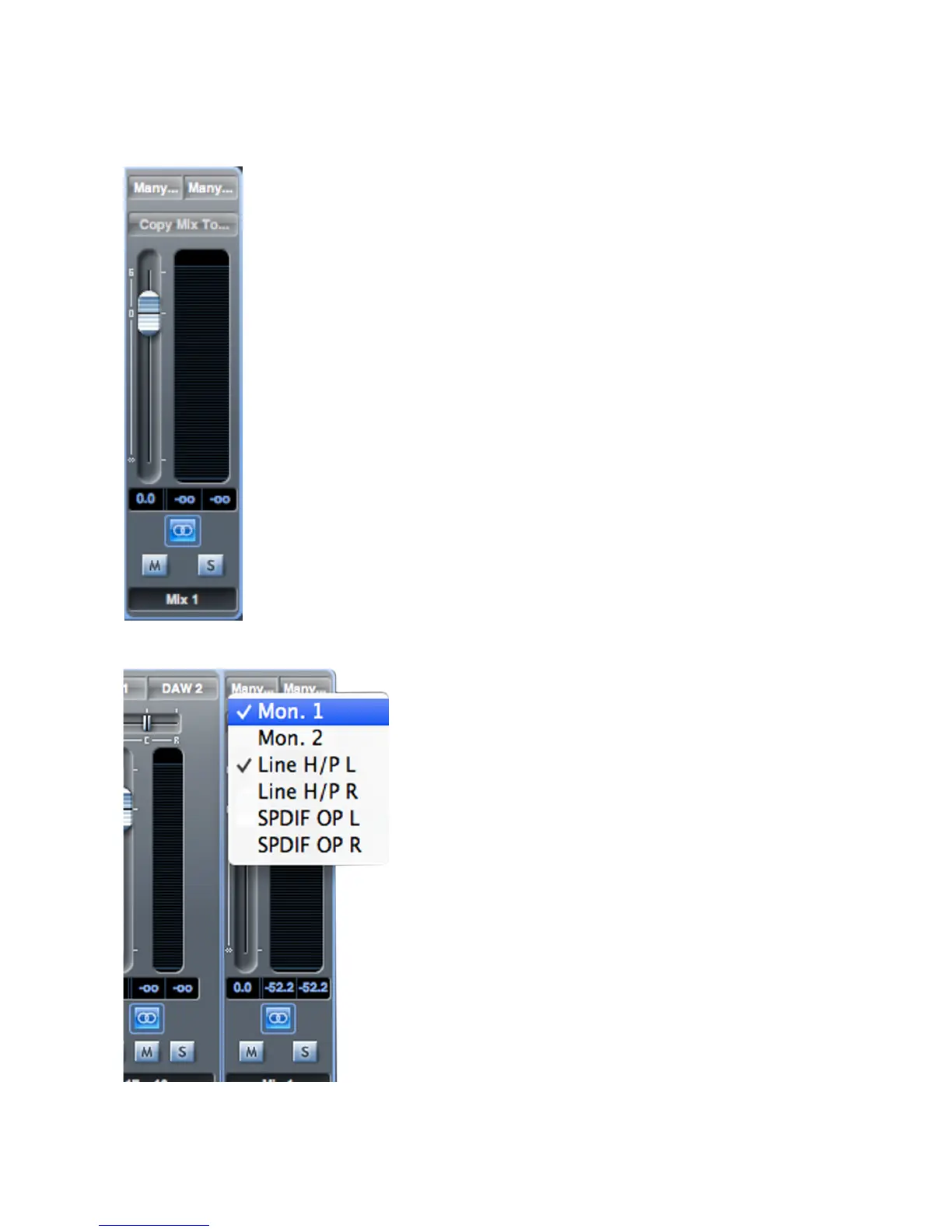
An output channel is mono by default; stereo operation may be selected by clicking
its Stereo button. When the output channel is stereo, you will note that the tab for
the mix doubles in size. This is because the stereo version takes up 2 channels of
the available total output channel count.
An output channel’s fader, meter, Mute and Solo buttons operate in the same
manner as for an input channel. Note that the solo button is non-latching and
routes the entire mix to the assigned output.
The output routing is selected by clicking on the
Sel… button
at the top of the channel strip, which opens a drop-down list
of all the available hardware outputs. You can route the mix
to any or all of the Scarlett 6i6’s physical outputs; if just one
output is selected, its name is displayed at the top of the
output channel. The text Many… will be displayed if multiple
outputs are selected.
The mix may be named; by default the name is Mix n.
Click in the text field below the output channel and enter a
more helpful name – e.g.,
Monitor Mix, or the name of the
performer who is receiving the mix as his/her foldback feed.
The name also appears on the mix tab.
You may copy an existing mix to another mix. This copies all
the fader/pan/mute/ solo settings and channel names. To do
this, click on the Copy Mix To... button and select the mix
(from the list presented) which you would like to duplicate
the current one. Note that you can only copy a mono mix to
another mono mix, and a stereo mix to another stereo mix.
Therefore you must make sure that you have correctly set up
the output channels before copying the mix.




 To Next Page