30
Device Status section
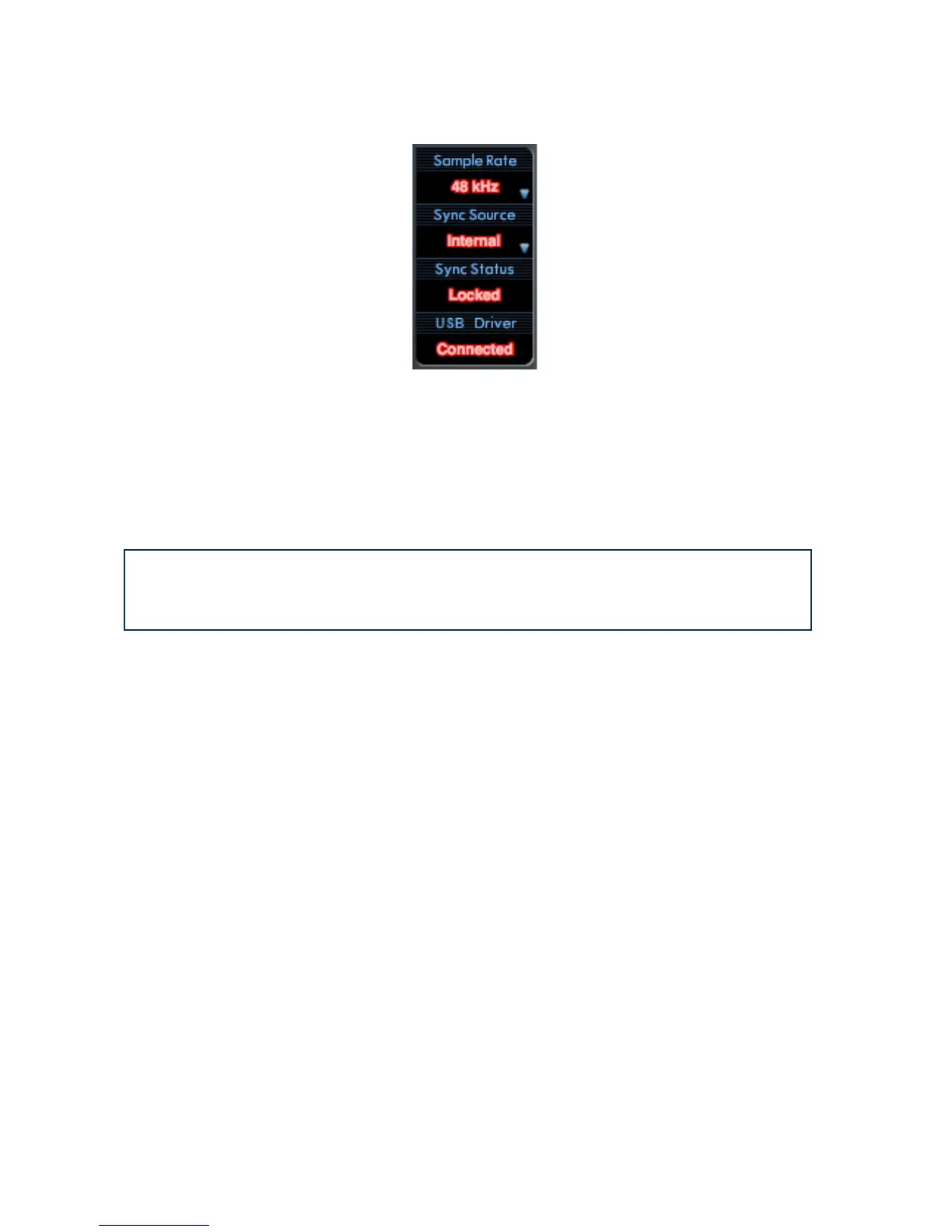
The Device Status section displays information about the sample rate, synchronisation and driver
status of the Scarlett 6i6. The sample rate and sync source can also be set here.
Sample Rate display
This displays the sample rate currently in use by the Scarlett 6i6. To change the sample rate, click on
the red displayed value and select 44.1 kHz, 48 kHz, 88.2 kHz, or 96 kHz from the list.
Note: it is advisable to quit your audio software BEFORE you make
sample rate changes to prevent any undesirable (and audible) side-effects!
Sync Source display
Displays the currently selected sync source. To change the sync source, click on the red sync source
text and select from the list:
•
Internal – the Scarlett 6i6 uses its own internal generator for word clock
•
S/PDIF – word clock is derived from the signal at the S/PDIF input
Sync Status display
Displays
Locked when the Scarlett 6i6 has successfully locked to the specified Sync Source. If No
Lock is displayed, the unit cannot lock to an external synchronisation source. If this occurs, please
check that the cables are properly connected, and that the external digital devices have been set up
as master devices and have been set to the same sample rate as the Scarlett 6i6.
USB Driver
This should display
Connected at all times when the Scarlett 6i6 is connected to the computer via
USB. If Disconnected is displayed, please check the USB connections and that the unit is switched
on. If it continues to show
Disconnected, restart the computer and re-launch Scarlett MixControl.
Settings Menu
The
Settings... button is only available on the Windows version of Scarlett MixControl. It allows
you set the size of the ASIO buffer.




 To Next Page