EasyManua.ls Logo

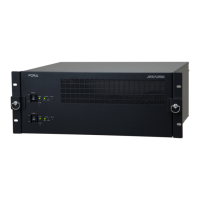
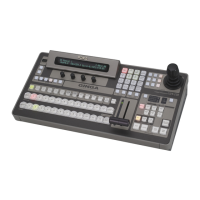
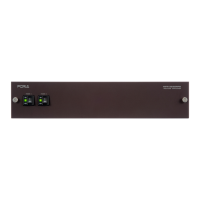
FOR-A MFR-1616 - User Manual

FOR-A MFR-1616
105 pages
Print Icon
To Next Page IconTo Next Page
Loading...
MFR SERIES
Web-Based Control
MFR-1616/1616R/3216/3232/1616A
MFR-3216RPS/3232RPS
MFR-1000/3000/5000/8000
Version 2.13 - Higher (Rev.1)
OPERATION
MANUAL

Table of Contents

Other manuals for FOR-A MFR-1616

Questions and Answers

  • T
    Terri KellerAug 19, 2025
    How to fix FOR-A MFR-1616 when there is no image output?
    • S
      Sarah FischerAug 19, 2025
      If you're experiencing no image output on your FOR-A Switch, first ensure that video signals are being input to the video input connectors. Check that the cables are correctly connected for the signal inputs. Finally, verify that the crosspoint is set properly.
  • B
    Benjamin EricksonAug 21, 2025
    What to do if there is no image output from FOR-A Network Router?
    • B
      bryantangelaAug 21, 2025
      If you're experiencing no image output on your FOR-A Network Router, first ensure that video signals are being input to the video input connectors. Next, verify that the cables are properly connected for these signal inputs. Finally, check that the crosspoint settings are correct.
  • B
    Brenda SingletonAug 23, 2025
    Why I am unable to control FOR-A Network Router using the remote control panel?
    • H
      huffmanjonAug 23, 2025
      If you can't control your FOR-A Network Router using the remote control panel, start by ensuring the LAN cable is properly connected. Then, check the RU Info page in the Web-based Control to see if it indicates 'NG' for any items. If 'NG' is indicated for Voltage, contact your FOR-A agent. For other items, consult the Web-based Control Operation Manual for details.
  • D
    Dr. Tracy SalasAug 26, 2025
    What to do if the secondary CPU is active on FOR-A Network Router?
    • S
      Stephanie GeorgeAug 26, 2025
      If the secondary CPU is active on your FOR-A Network Router, first ensure that both MFR-LAN (CPU1) and MFR-LAN (CPU2) are correctly connected to the network by checking the cable and Ethernet hub connections. If the network connections are properly made, turn the unit power OFF, and then ON again. If the secondary CPU is still active after restarting, consult your FOR-A reseller.
  • L
    Lori RobinsonAug 27, 2025
    Why is there no image output from my FOR-A MFR-1616 Switch?
    • P
      Peter BlakeAug 28, 2025
      If there's no image output from your FOR-A Switch, first ensure video signals are being input to the video input connectors. Next, verify that the cables are correctly connected for these signal inputs. Finally, confirm that the crosspoint is properly set. If the video input connectors don't have input video signals, input them. If the cables aren't properly connected, connect them correctly. If the crosspoint isn't set properly, set it correctly.
  • J
    johnsoncindyAug 30, 2025
    What to do if I'm unable to control FOR-A MFR-1616 Switch using the remote control panel?
    • C
      Caitlin SwansonAug 30, 2025
      If you are unable to control your FOR-A Switch using the remote control panel, check if the LAN cable is properly connected. If it is not, properly connect the LAN cable. Also, check the RU Info page in the Web-based Control to see if it indicates 'NG'. If it does, check the item indicated as NG. However, if the Voltage is indicated as NG, contact your FOR-A agent.
  • N
    ngonzalezSep 1, 2025
    How to fix the issue when the secondary CPU is active on FOR-A Switch?
    • A
      andrewgriffinSep 1, 2025
      If the secondary CPU is active on your FOR-A Switch, make sure both MFR-LAN (CPU1) and MFR-LAN (CPU2) are correctly connected to the network by checking the cable and Ethernet hub connections. If network connections are properly made, turn the unit power OFF then ON again. If the secondary CPU is still active after restarting, consult your FOR-A reseller.
  • T
    Teresa DyerSep 4, 2025
    How to fix FOR-A Switch when I cannot control it via Web-Based Control?
    • R
      Rebecca MunozSep 4, 2025
      If you're having trouble controlling your FOR-A Switch via web, first use commands like 'ping' to check the connection. If pings fail, verify that the PC's IP address doesn't conflict with another unit, MASK is set to 255.255.255.0, and Gateway is either None or 192.168.1.1. Also, try turning off all security software like firewalls and reconnecting. Restarting your browser may also help. Make sure that the login dialog box appears. Finally, check your browser and security settings to ensure that Active X controls and active scripting are enabled.
  • J
    Jessica NguyenSep 6, 2025
    What to do if an internal error message appears on FOR-A Switch (Error code: 1001)?
    • R
      rodneyarellanoSep 6, 2025
      If you see the message “An internal error has occurred. The server will restart.” with error code 1001 on your FOR-A Switch, click OK and then restart your web browser.
  • D
    David PatelSep 8, 2025
    Why channel names are not displayed on FOR-A Switch for the HVS or MV series unit?
    • R
      Ronnie LittleSep 8, 2025
      If channel names aren't showing up on your FOR-A Switch for the HVS or MV series unit, it might be because of the character encoding. To display names correctly, ensure that the names are set under Name (ASCII).

FOR-A MFR-1616 Specifications

General IconGeneral
Size1 RU
Video Inputs16
Video Outputs16
Control InterfaceEthernet
Frame SynchronizerYes
Supported FormatsHD-SDI, SD-SDI
Power SupplyAC 100-240V, 50/60Hz
Weight15 kg

Related product manuals