ProCal 3
Instructions
NO PART OF THIS DOCUMENT MAY BE REPRODUCED WITHOUT PRIOR AGREEMENT AND WRITTEN PERMISSION OF
FORD PERFORMANCE PARTS.
Questions? http://bit.ly/1KdPDjy or (800) FORD788
Factory Ford shop manuals are available from Helm Publications, 1-800-782-4356
Page 3 of 14
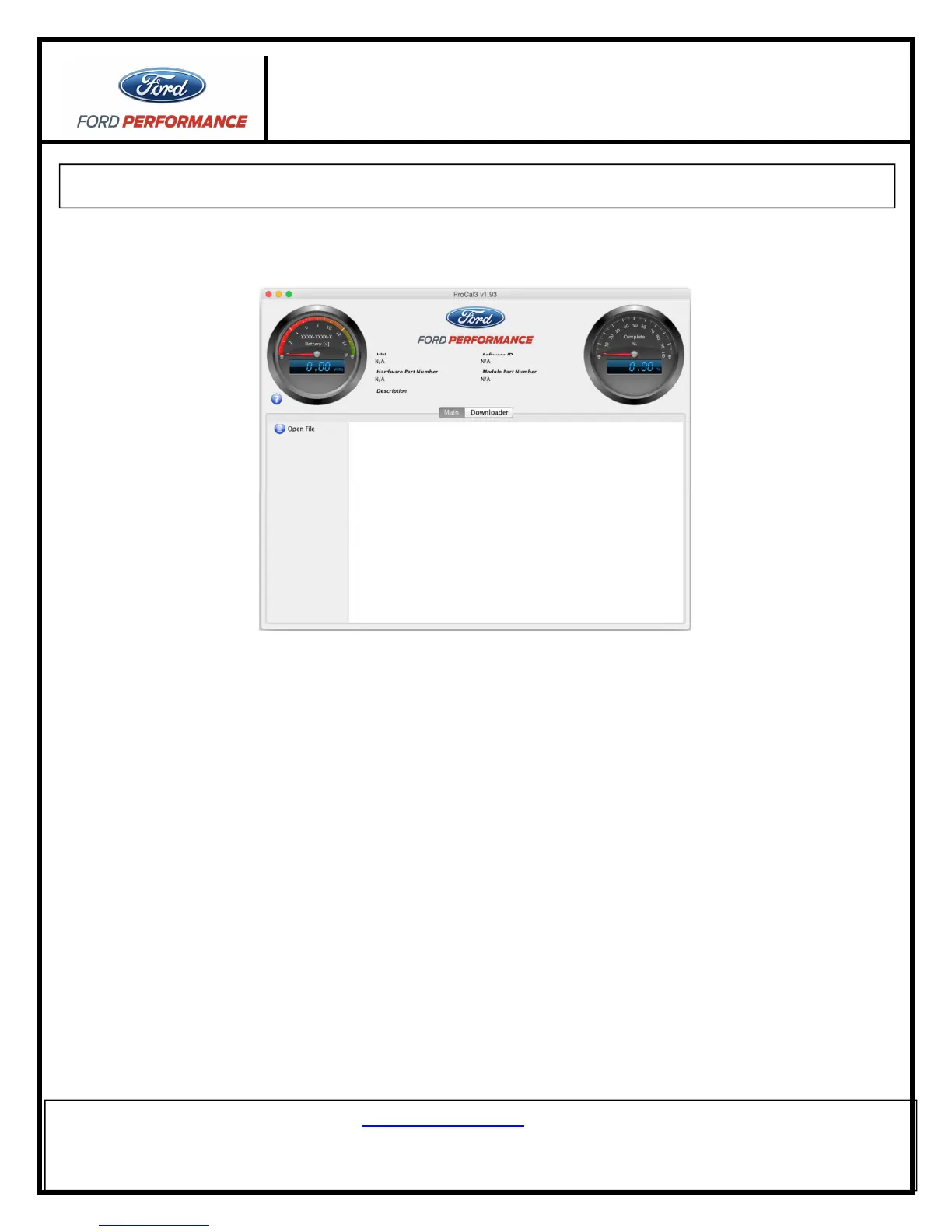
Getting to Know the ProCal 3 Software
On the MAIN screen, note the following:
a.
Battery gauge
in the top left-hand corner of the screen displays the current battery voltage.
i. Located directly below the "Battery [v]" text on the
Battery gauge
is a sequence of numbers:
1. The first four digits are the
ProCal 3 Customer Number
2. The next four digits are the
ProCal 3 Vehicle Interface Serial Number
b.
Vehicle specific data
– VIN, Software ID, Hardware Part Number and Module Part Number
located in the top-center of the screen is automatically populated when ProCal 3 is plugged-in and
communicating with the vehicle. Note: the ignition does have to be turned “ON” to communicate
with the vehicle.
c.
Description
– Description of the PC3 file that is currently open. The filename of the currently open
PC3 file will be displayed in the title bar of the ProCal application.
d.
Progress gauge
in the top right-hand corner of the screen displays the % complete of the current
task. NOTE: The % complete gauge will make multiple sweeps from 0%-100% during the
programming process.



 To Next Page