ProCal 3
Instructions
NO PART OF THIS DOCUMENT MAY BE REPRODUCED WITHOUT PRIOR AGREEMENT AND WRITTEN PERMISSION OF
FORD PERFORMANCE PARTS.
Questions? http://bit.ly/1KdPDjy or (800) FORD788
Factory Ford shop manuals are available from Helm Publications, 1-800-782-4356
Page 9 of 14
Download Calibration File
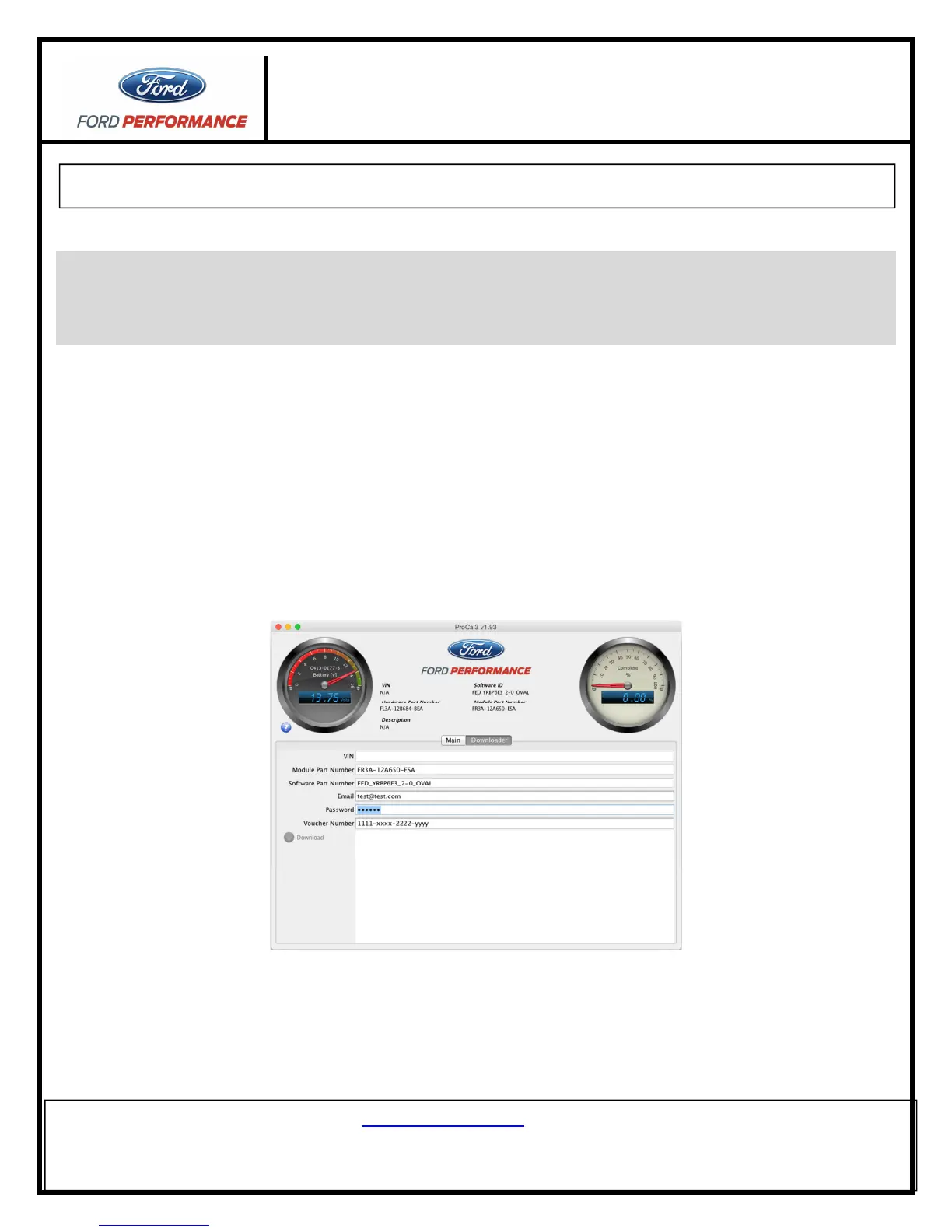
STEP 1: Navigate to the “Downloader” tab and verify that the proper VIN is displayed and Module Part Number
field is populated. NOTE: If working from a previously obtained calibration file, skip to
Programming
Your Vehicle
STEP 1.
STEP 2: Enter your EMAIL, Password, and Voucher Number; all fields on the “Downloader” tab should now be
populated.
STEP 3: Click the “Download” button to begin downloading your performance calibration.
STEP 4: Upon successfully downloading the performance calibration, ProCal 3 will automatically open the
downloaded file and switch to the Main Tab. The downloaded file will be saved for future reference in
your “Documents/ProCal3/calibrations” folder on a Windows computer or “home/ProCal3/calibrations” on
Mac OSX based computers. The Downloader tab should appear similar to this:
NOTE: If flashing vehicle now, skip to Programming Your Vehicle Step 3. If flashing will be completed
later, start at
Programming Your Vehicle
STEP 1.
!!! Your computer must be connected to the internet in order to download the performance calibration. If your
vehicle is not located in an area where internet access is available, you can unplug your computer from the
vehicle, but do not shutdown the ProCal 3 application. Do NOT disconnect the ProCal 3 Vehicle Interface unit
from your computer—this is required to be connected for downloading !!!



 To Next Page