ProCal 3
Instructions
NO PART OF THIS DOCUMENT MAY BE REPRODUCED WITHOUT PRIOR AGREEMENT AND WRITTEN PERMISSION OF
FORD PERFORMANCE PARTS.
Questions? http://bit.ly/1KdPDjy or (800) FORD788
Factory Ford shop manuals are available from Helm Publications, 1-800-782-4356
Page 4 of 14
c.
Main Tab
• Open File Button – Click this button to navigate to and open a Procal 3 file, ProCal3 files have a “PC3”
file extension. The PC3 files can be located anywhere on your hard disk, but are located in the
“Documents\ProCal3\calibrations” folder.
• Close File Button – Click this button to close the calibration file that is currently open. This button will
only appear when a PC3 file is open.
• Program Button – Click this button to flash the currently open calibration file to your vehicle’s PCM. This
button will only appear when a PC3 file is open.
• Restore – Only visible when a PC3 file is open and after initial programming has taken place; clicking this
button will restore the calibration that was on your vehicle before it was flashed with a performance
calibration.
d.
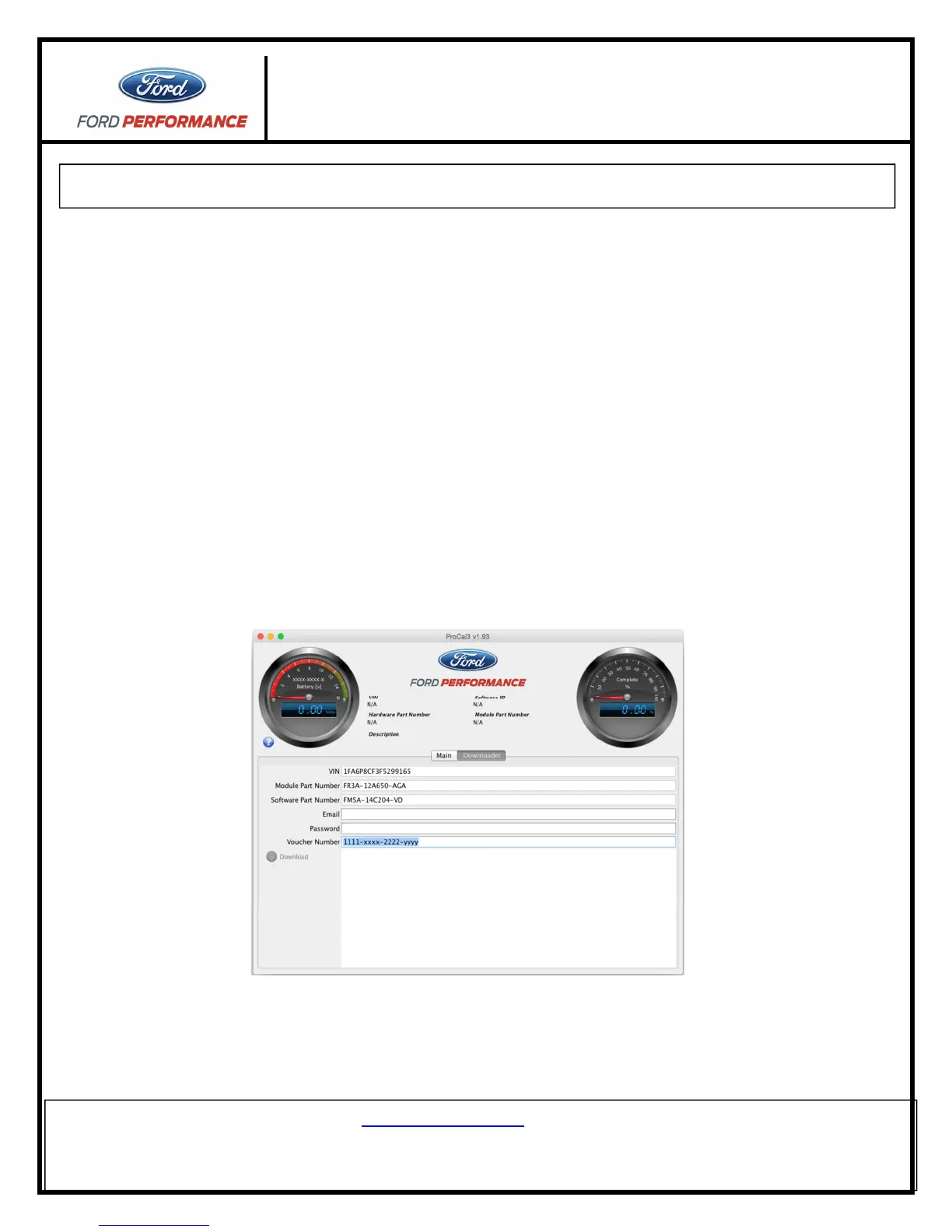
Downloader Tab
The downloader tab is used to obtain the correct calibration for the vehicle from Ford Performance. When
downloading the PC3 file will be personalized to your vehicle using the VIN and Procal Unit serial number.
When downloading a PC3 file, it will be stored in the “Documents/ProCal3/calibrations” folder on a Windows
computer or “home/ProCal3/calibrations” on Mac OSX based computers. The file will be named based on the
calibration, VIN and Procal unit serial number, eg. <calibration>_<VIN>_<SN>.pc3. This makes it easy to
identify which file belongs to a specific vehicle.
•
••
• VIN – This field automatically populates with your Vehicle Identification Number when the ProCal 3 unit is
plugged-in and the vehicle is powered.
•
••
• Module Part Number – This field automatically populates with your Powertrain Control Module’s part
number when the ProCal 3 unit is plugged-in and the vehicle is powered.



 To Next Page