EasyManua.ls Logo

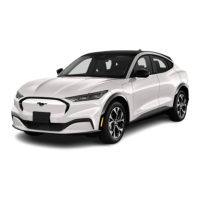
Ford MUSTANG MACH-E 2024 - User Manual

Ford MUSTANG MACH-E 2024
28 pages
Print Icon
To Next Page IconTo Next Page
Loading...
UNITED STATES
Ford Customer Relationship Center
1-800-392-3673 (FORD)
TDD for the hearing impaired: 7-1-1 (where
oered by your telephone service provider)
owner.ford.com
@FordService
CANADA
Ford Customer Relationship Centre
1-800-565-3673 (FORD)
TDD for the hearing impaired: 7-1-1 (where
oered by your telephone service provider)
ford.ca
@FordServiceCA
OCTOBER 2023 / FIRST PRINTING / LITHO IN U.S.A. / RJ8J 19G217 AA
WARRANTY INFORMATION:
Your vehicle comes with a New Vehicle Limited Warranty. The express warranties of the New Vehicle
Limited Warranty are in substitution for and exclude all other liabilities of any kind whether arising
under statute, in tort, by implication of law or otherwise including, to the full extent as may be
allowed by law, liability for any other representations respecting the vehicle, statutory warranties or
implied warranties or conditions as to its merchantability or fitness.
Download a FREE electronic copy or order one FREE printed copy of the most up-to-date Warranty
Guide by visiting the Owner Manuals section of owner.ford.com. (United States)
For Canada, visit ford.ca/warranty.
For Limo/Livery/Hearse vehicles: View and download your Warranty Guide by visiting the Warranty
Information section of the Fleet website, eet.ford.com/limo. (United States only)
This Quick Reference Guide is not intended to replace your vehicle Owner’s Manual, which
contains more detailed information concerning the features of your vehicle, as well as important
safety warnings designed to help reduce the risk of injury to you and your passengers. Read your
entire Owner’s Manual carefully as you begin learning about your new vehicle and refer to the
appropriate chapters when questions arise. All information contained in this Quick Reference
Guide was accurate at the time of duplication. We reserve the right to change features, operation
and/or functionality of any vehicle specification at any time. Your Ford dealer is the best source
for the most current information. For detailed operating and safety information, consult your
Owner’s Manual.
Question and Answer IconNeed help?

Do you have a question about the Ford MUSTANG MACH-E 2024 and is the answer not in the manual?

Summary

Instrument Panel Controls and Displays

Exterior Lighting Control

Controls for headlamps, parking lamps, and autolamps based on daylight.

Autowipers System

System controls windshield wiper speed and frequency based on rain sensor.

Adaptive Cruise Control with Stop and Go

Adjusts speed to maintain distance. Features gap settings and SET+/- buttons.

Instrument Cluster Display

Provides information about vehicle systems, customizable layouts via touchscreen.

Push Button Start

Start the electric motor by pressing the brake pedal and the Start Stop button.

Touchscreen Display Overview

Displays unique vehicle information, refer to page 6 and Owner's Manual.

Center Display Overview and Features

Phone and Connectivity Features

Guides for pairing devices, managing calls, texts, and using CarPlay/Android Auto.

Voice Interaction Guide

Control vehicle features using conversational requests with wake word or button.

Navigation System

Set destination via text or map screen, adjust guidance, and repeat instructions.

Comfort and Interior Features

Power Seat Adjustment

Adjust seat height, backrest angle, lower back firmness, and cushion angle.

Electric Vehicle Information

Starting and Stopping the Electric Motor

Procedures for starting the electric motor and stopping it while moving or stationary.

Charging the High Voltage Battery

Steps for charging the battery using the mobile power cord or DC charging.

Technology and Driver Assistance

Blind Spot Information System

Detects vehicles in blind spot zones using sensors; can be switched on/off.

Pre-Collision Assist System

Detects potential collisions and may activate automatic emergency braking.

BlueCruise Hands-Free Driving

Hands-free highway driving feature with lane assist and speed adjustment.

Post-Crash Alert System

Activates hazard flashers, courtesy lamps, horn, and unlocks doors after a serious impact.

Reverse Braking Assist

Uses sensors to reduce impact damage or avoid collisions when reversing.

One Pedal Drive Mode

Accelerate, slow, and stop using only the accelerator pedal.

Overview

This document is a Quick Reference Guide for the 2024 Ford Mustang Mach-E, providing an overview of its features, operation, and maintenance. It is not intended to replace the comprehensive Owner's Manual, which contains more detailed information and safety warnings.

Vehicle Overview and Warranty Information:

The Mustang Mach-E is an electric vehicle. It comes with a New Vehicle Limited Warranty, which replaces and excludes other liabilities, including statutory or implied warranties of merchantability or fitness. An electronic or printed copy of the Warranty Guide can be downloaded from owner.ford.com (U.S.) or ford.ca/warranty (Canada). For Limo/Livery/Hearse vehicles, the Warranty Guide is available at fleet.ford.com/limo (U.S. only).

Customer Support:

  • UNITED STATES: Ford Customer Relationship Center: 1-800-392-3673 (FORD). TDD for the hearing impaired: 7-1-1 (where offered). Website: owner.ford.com. Twitter: @FordService.
  • CANADA: Ford Customer Relationship Centre: 1-800-565-3673 (FORD). TDD for the hearing impaired: 7-1-1 (where offered). Website: ford.ca. Twitter: @FordServiceCA.

Learning More About Your New Vehicle:

Additional information can be accessed by scanning country-appropriate QR codes with a smartphone (scanner app required) for owner.ford.com (U.S.) or ford.ca (Canada).

Accessing the Digital Owner's Manual:

  1. Go to the center display in the vehicle.
  2. Press the application drawer icon.
  3. Select the "Owner's Manual" application button. The digital manual includes visual and full text search functions, and how-to videos.

WARNING: Driving while distracted can lead to loss of vehicle control, crashes, and injury. Users are strongly recommended to exercise extreme caution and maintain focus on the road. Handheld devices are discouraged; voice-operated systems should be used when possible. Users must be aware of all applicable local laws regarding electronic device use while driving.

Instrument Panel (Pages 2-5):

The instrument panel provides essential vehicle information.

  • Exterior Lighting Control (01):
    • Off: Switches off headlamps.
    • Parking Lamps: Switches on parking lamps.
    • Autolamps: Automatically switches exterior lamps on/off based on daylight.
    • Headlamps: Switches on headlamps.
  • Autowipers (02): Controls windshield wiper speed and frequency based on water presence. A rotary control adjusts rain sensor sensitivity. High sensitivity activates wipers for small amounts of water. Low sensitivity activates wipers for large amounts of water.
    • To change settings: Press the vehicle icon on the touchscreen, then "Vehicle," then "Wipers," then switch "Rain Sensing" on or off.
  • Rear Wiper (03): Operated by a switch on the end of the lever.
  • Adaptive Cruise Control with Stop and Go (04): Adjusts vehicle speed to maintain a set distance from the vehicle ahead. Four gap settings are available via the steering wheel button. To set speed: switch cruise control on, accelerate to desired speed, press SET+ or SET-. Indicators for gap setting and set speed appear in the digital cluster.
    • To cancel: Press the cruise control icon or tap the brake pedal. Set speed is retained.
    • To resume: Press the cruise control icon.
    • If stationary for >30 seconds behind a vehicle: Press the cruise control icon or accelerator pedal to follow.
    • To turn off: Press the cruise control icon or switch vehicle off. Set speed and gap settings erase when the system is off.
    • Adaptive cruise control with lane centering: Uses radar and camera to keep the vehicle centered in the lane on highways by applying steering torque. Activated/deactivated by the steering wheel button.
    • Predictive Speed Assist: Adjusts vehicle speed based on road geometry and speed limit signs.
  • Instrument Cluster Display (05): Provides information on various vehicle systems. Customizable layouts via the touchscreen. Refer to the Owner's Manual for more information.

Center Display Overview (Pages 6-8):

The SYNC 4A system features enhanced voice recognition and connected built-in navigation.

  • Status Bar (01): Top bar displaying cell phone signal strength, text message notifications, etc.
  • App Launcher (02): Icon to view a list of apps. Select an app to open.
  • Settings (03): Icon to access settings for various features.
  • Open App Area (04): Main area where apps are launched and fully functional.
  • App Bar (05): Displays applications with limited content. Selecting a card moves the app to the main app area.
  • Climate Area (06): Controls for vehicle interior climate. Audio volume knob is also located here. A dedicated button accesses additional climate controls.

Instrument Panel Features (Pages 7-8):

  • Push Button Start (06): To start the electric motor, press the brake pedal and then the Start Stop button. No motor noise will be heard.
  • Touchscreen Display (07): Displays unique vehicle information.
  • Heated Steering Wheel (08): Press the steering wheel icon on the climate control section of the touchscreen to toggle on/off.
  • Heated Seats (09): Press the seat icon, then select heat level (or off) using the audio volume knob. More indicators mean warmer temperature. Auto heated seat can be activated via touchscreen, adjusting temperature based on settings and ambient temperature.
  • Hazard Flasher Button (10): Activates hazard lights.
  • Digital Owner's Manual (11): Accessible via the touchscreen, offering visual and text search, and how-to videos.

Connecting Your Phone (Page 9):

  1. Enable Bluetooth on your device.
  2. Press the phone icon on the touchscreen.
  3. Press "Phone List."
  4. Select "Add Phone."
  5. Follow on-screen instructions to pair.
  • Phone Menu: Access contacts, recent calls, dialpad, texts, emails, phone settings, device changes, or mute notifications.
  • Receiving Calls: Accept via touchscreen or phone button on steering wheel. Reject via touchscreen.
  • Text Messages: System receives and notifies of texts. Use touchscreen to hear/see texts, call sender, or reply with standard message. Notifications can be toggled in Settings.
  • Apple CarPlay and Android Auto: Pair device and follow touchscreen instructions. Can be used simultaneously with SYNC. Some features may be unavailable. Android Auto may need to be enabled in settings.
  • Speed-Restricted Features: For safety, some features are unavailable >5 mph (8 km/h). Non-critical settings show as restricted.

Voice Interaction (Page 10):

Control vehicle features with conversational requests. Set a wake word or press the voice button on the steering wheel.

  • Set wake word: Press the settings icon, then "Ford Assistant."
  • "Voice Command Help" shows available commands.

Apps (Page 10):

First-time app use may require granting permissions. Some work without setup; others require personal settings. Access by pressing the app launcher icon.

Set destination via text entry or map screen.

  • Text Entry: Press search bar, enter destination, select from list, press "Go!"
  • Map Screen: Press and hold a location to place a pin, press "Go!"
  • Menu Button: Change map format, toggle live traffic, update map, navigate to recent/saved destinations.
  • Guidance Prompt Volume: Adjust by turning volume control when prompt plays.
  • Repeat Instruction: Press turn indicator.
  • Cancel Route Guidance: Press the navigation icon.
  • Voice Commands: Say wake word or press voice interaction button, then command (e.g., "Directions to 1234 Main Street").
  • Some services may not be available in all areas. Refer to Owner's Manual, website, or toll-free number.
    • U.S.: owner.ford.com or 1-800-392-3673.
    • Canada: syncmyride.ca or syncmaroute.ca or 1-800-565-3673.

Comfort Features (Pages 11-13):

  • Ambient Lighting*:
    • Access/Adjust: Press the settings icon, then "Ambient Light," select color, drag up/down.
    • Turn off: Press the active color once.
  • Wireless Accessory Charger: Charges compatible Qi-wireless devices on the center console. Place device with charging side down. Charging stops at full charge. Charger works in accessory mode or when vehicle is running. A lightning bolt icon appears in the status bar when actively charging.
  • Opening the Door From Inside Your Vehicle: Pull the inside door release handle. If battery is depleted, pull handle all the way back to mechanically unlatch.
  • Memory Function*: Recalls driver seat and power mirror positions. Buttons on driver door.
    • To save: Switch vehicle on, adjust features, press and hold preset button until single tone. Up to three positions can be saved.
  • Easy Entry and Exit: Moves driver seat rearward up to 2 in (5 cm) when ignition is off, returns to previous position when ignition is on.
    • To toggle: Press the settings icon, select "Vehicle," then "Easy Entry/Exit," then switch on/off.
  • Personal Profiles: Create multiple profiles to personalize settings (seats, mirrors, radio, navigation, driver assist). Recall via touchscreen or preset button. Link remote control and mobile device.
    • Guest profile: Existing settings when no driver profile is created, cannot be linked to name/button/remote.
    • To create: Switch vehicle on, park (P), press profile icon, "Add New," follow display instructions.
  • Adjusting the Power Seat:
    • Control A (up/down): Adjusts seat height.
    • Control B (backward/forward): Changes seat backrest angle.
    • Control C (sides): Increases/decreases lower back firmness.
    • Front of Control A (up/down): Adjusts seat cushion angle.
    • Knob (backward/forward): Slides entire seat backward/forward.

Convenience Features (Pages 14-16):

  • Global Opening and Closing: Operates windows with remote control when vehicle is off.
    • Opening: Press and release unlock, then press and hold unlock. Release when windows open. (Short period when unlocking vehicle with remote).
    • Closing: Press and hold lock. Release when windows close.
    • To stop: Press lock or unlock.
  • Phone As A Key*: Use smartphone as a remote control (up to four phones).
    • Functions: Remote locking/unlocking, passive entry/exit, passive start/drive, remote start, memory function recall.
    • To program:
      1. Download FordPass app.
      2. Create account or sign-in, add vehicle VIN.
      3. Complete SYNC Connect authorization.
      4. Set up phone as key in FordPass app.
      5. Set backup start passcode on touchscreen.
  • Keyless Entry Keypad: Near driver window, illuminates when touched. Locks/unlocks doors and frunk. Use factory-set 5-digit code or personal code. Press numbers within five seconds.
    • Unlock All Doors: Enter code, then press 3-4 within five seconds.
    • Lock All Doors: Press and hold 7-8 and 9-0 simultaneously with driver door closed (no code needed).
    • Open Frunk: Enter code, then press 7-8 within five seconds.
  • Remote Control Icons:
    • Lock: Press once to lock all doors (short flash of turn signals).
    • Unlock: Press once to unlock all doors.
    • Panic Alarm: Press to sound, press again or switch vehicle on to turn off (operates only when vehicle is off).
    • Locate Vehicle: Press lock button twice within three seconds (turn signals flash).
    • Liftgate: Press twice to open.
  • MyKey™: Programs keys/mobile devices with restricted driving modes.
  • Opening the Power Liftgate* From Inside Your Vehicle:
    • With vehicle in park (P), access liftgate settings on touchscreen.
    • Press the controls icon, then the liftgate icon.
  • Setting the Liftgate Opening Height:
    1. Open liftgate.
    2. Stop movement at desired height by pressing liftgate button (can manually move).
    3. Press and hold liftgate button until a tone sounds (programming complete).
    4. Liftgate now opens to programmed height. Repeat to change.
  • Heated Mirrors: Turn on with heated rear window.
  • Frunk:
    • Touchscreen: Press controls icon, then frunk icon.
    • Handle: Pull release lever on driver side footwell twice.
  • Walk Away Lock: Locks vehicle when remote control or authorized phone moves away. Vehicle must be off. Toggle on/off via touchscreen. Adjust settings to silence horn when locking.

Electric Vehicle Information (Pages 17-19):

  • Starting and Stopping the Electric Motor:
    • Start: Press brake pedal, then Start Stop button. "READY" light illuminates.
    • Stop (not moving, motor on/accessory mode): Press and release Start Stop button without brake pedal. Shuts off motor and electrical accessories.
    • Stop (moving): Press Start Stop button three times within two seconds, or press and hold for at least one second. Shift to neutral (N), use brakes to stop, then shift to park (P).
  • What is the High Voltage Battery?: Sophisticated lithium-ion battery system storing electrified energy.
  • Pedestrian Alert System: Creates a subtle sound at low speeds to alert pedestrians due to quiet electric operation. Active when running and not in park (P). Some sound may be audible in passenger compartment.
  • Locating the Charge Port: Between front left-hand door and wheel well. Press/release center right edge of door to open.
  • Charging the High Voltage Battery (with mobile power cord*):
    1. Unwrap charge cord.
    2. Park (P), open charge port door.
    3. Plug connector into control box.
    4. Plug connector into wall outlet.
    5. Plug charge coupler into vehicle receptacle.
    • Light ring illuminates when engaged, indicating normal charge cycle. Charging stops when complete or paused.
  • DC Charging: Charges battery significantly faster.
    1. Park (P).
    2. Press/release center right-hand edge of charge port door.
    3. Flip down dust cap, plug DC charge coupler into vehicle.
  • Charge Port Indicators: Five zones display state of charge in 20% increments.
    • Pulsing one zone: 0-20%.
    • Pulsing second zone: 20-40%.
    • Pulsing third zone: 40-60%.
    • Pulsing fourth zone: 60-80%.
    • Pulsing fifth zone: 80-100%.
    • All zones illuminate: 100%.
    • After charging stops: Completed zones illuminate blue for 30 seconds.
  • Colors as Indicators:
    • White: Courtesy light for plugging in/unplugging.
    • Blue: Plugged in, charging, or waiting to charge.
    • Amber: Charge faults.
    • Indicator can be switched off in vehicle settings.
    • Charging status viewable remotely via FordPass app.
  • Disconnecting the Charging Coupler:
    • AC Charger: Do not pull wall plug or connector from control box while charging (can damage outlet/cord).
      1. Push latch, remove coupler from vehicle.
      2. Remove connector plug from wall outlet.
      3. Press center right-hand edge of charge port door to close.
    • DC Charger: Do not remove coupler before unlocking or use tools.
      1. Push coupler unlock button on light ring, remove handle.
      2. Close dust cap. Press center right-hand edge of charge port door to close.
    • Cord can also be unlocked via vehicle touchscreen.
  • High Voltage Battery Gauge: In instrument cluster, displays total charge for driving. Full fill = total energy from plugging in.
  • Vehicle Range Display: Displays approximate travel range on remaining battery power.

Technology Features (Pages 20-24):

  • Connected Vehicle: Allows connection to mobile network for features like monitoring tire pressures, charge level, vehicle location (with FordPass app). Modem enabled at build, sends messages for network connection, software updates, and vehicle info (diagnostic info, vehicle ID, SIM, electronic serial number). Cell phone network providers may access additional info. Privacy policy at www.FordConnected.com.
  • Blind Spot Information System (BLIS): Detects vehicles in blind spot zone (rearward from exterior mirrors to ~13 ft (4 m) beyond rear bumper). Detection area extends to ~59 ft (18 m) beyond rear bumper for faster approaching vehicles >30 mph (48 km/h). Activates when vehicle starts, shifts to drive (D), and reaches >6 mph (10 km/h). Does not operate in park (P) or reverse (R). May not alert for fast-passing vehicles.
    • To toggle: Press controls icon, then "Driver Assistance," then switch "Blind Spot Information System" on/off. Warning lamp illuminates if off. Alert indicators flash twice when toggled. System remembers last setting.
  • Cross Traffic Alert: Alerts for vehicles approaching from sides behind vehicle when in reverse (R).
    • To toggle: Press controls icon, then "Driver Assistance," then switch "Cross Traffic Alert" on/off.
  • Pre-Collision Assist: Alerts or aids in preventing collisions with stationary vehicles, vehicles in same direction, pedestrians, or cyclists. Uses camera and radar. Automatic emergency braking may activate if collision is imminent. Active >3 mph (5 km/h). Pedestrian/cyclist detection active >50 mph (80 km/h).
  • BlueCruise: Advanced driver assistance for hands-free highway driving on divided highways.
    • Setup:
      1. Enable via touchscreen: "Driver Assistance" menu, select "Cruise Control" and "Lane Centering with Hands-Free."
      2. Ensure lane centering is on (press steering wheel button if not).
    • On the Road:
      1. Activate by pressing Adaptive Cruise Control button on steering wheel.
      2. Instrument panel turns blue, hands-free graphic appears in hands-free zone.
      3. Hands can be removed from wheel, but eyes must remain on road.
    • Monitoring: System monitors eyes/head for distraction. Prompts/chimes in speedometer cluster remind to watch road. If no response, vehicle slows. If external condition cancels (e.g., no lane markings), tone sounds, message appears, cluster icon changes to wheel with hands.
    • Features (latest version):
      • Lane Change Assist: Tap turn signal for hands-free lane switch.
      • In-Lane Repositioning: Subtly shifts away from adjacent vehicles.
      • Predictive Speed Assist: Automatically adjusts speed on curves and for speed limits.
    • Requires Connected Service plan (90-day trial or 3-year plan), map updates, FordPass App, modem activation.
  • Post Crash Alert System: Draws attention to vehicle in serious impact. Turns on hazard flashers, courtesy lamps, intermittently sounds horn, unlocks all doors if airbag deploys or seatbelt pretensioners activate. Horn may not sound based on laws.
    • To switch off: Press hazard flasher, unlock/panic button on remote, or power off/start vehicle.
  • Reverse Braking Assist: Uses rear sensors to reduce impact damage/avoid collision when in reverse (R). Applies brakes for short period during event. Message/warning indicator appears. Driver should take action to maintain control.
    • To toggle: Press controls icon, then "Driver Assistance," then switch "Reverse Brake Assist" on/off.
  • Drive Mode Control: Selectable drive modes change driving experience (touch, sound, sight).
    • To select: Press controls icon, then "Controls," then select mode.
    • Engage: Balanced acceleration/deceleration. Soft blue ambient lighting.
    • Unbridle: Aggressive throttle, vehicle sound, stronger deceleration. Orange ambient lighting.
    • Whisper: Optimal for slippery conditions. Seamless, quiet, calm drive, lighter coasting deceleration. Blue ambient lighting.
  • One Pedal Drive: Accelerate, slow, and stop using only accelerator pedal. Unavailable if: incorrect electric motor position (P), active park assist, cruise control, untame plus drive mode (GT only), stability control off. Releasing pedal may not fully stop at high speeds/steep grades.
    • To toggle: Press controls icon, then "Controls" menu, switch "One Pedal Drive" on/off. System does not automatically brake; brakes must be applied if necessary.
  • Rear View Camera: Provides video image of area behind vehicle when in reverse (R). On liftgate. Red zone = closest, green zone = farther.
    • To toggle delay: Press controls icon, then "Driver Assistance," then switch "Rear View Camera Delay" on/off.

Essential Features (Pages 25-26):

  • Electric Parking Brake: Holds vehicle on slopes/flat roads. Switch on center console.
    • Apply: Pull switch up, release.
    • Emergency Slow/Stop: Pull switch up, hold.
  • Auto Hold: Applies brakes after stopping, releases brake pedal. Helps on hills/traffic.
    • To toggle: Press controls icon, then "Driver Assistance," then switch "Auto Hold" on/off.
    • Note: Only switches on after driver door closed and vehicle powered on. System remembers last setting. Switch off before towing or automatic car wash.
  • Traction Control: Prevents drive wheel spin/loss of traction. Applies brakes to individual wheels, reduces power if sliding. Turns on each time vehicle is switched on.
    • To switch off: Press traction control off button on instrument panel.
    • Beneficial in mud/snow to allow wheels to spin.
  • Vehicle Software Updates: Over-the-air updates for new features/enhancements. Wi-Fi connection may be needed for faster downloads.
    • Ensure vehicle connectivity and automatic updates are on, and Wi-Fi is connected.
    • To set schedule: Press settings icon, then "Software Updates," then "Schedule Updates," set days/time, "Save."
  • Rear Window Buffeting: Slightly open opposite window to reduce wind/pulsing noise when one window is open.
  • Tire Pressure Monitoring System (TPMS): Displays tire pressure readings on touchscreen. Low pressure illuminates warning light in digital display. Stop and check tires, inflate to proper pressure.
  • Towing Your Vehicle: Cannot recreationally tow with all wheels on ground (risk of damage). Must tow with all four wheels off ground (e.g., car-hauling trailer). If inoperable, refer to Owner's Manual for instructions.
  • Roadside Assistance: 24-hour emergency roadside assistance.
    • United States: 1-800-241-3673.
    • Canada: 1-800-665-2006.

Ford MUSTANG MACH-E 2024 Specifications

General IconGeneral
BrandFord
ModelMUSTANG MACH-E 2024
CategoryAutomobile
LanguageEnglish

Related product manuals