EasyManua.ls Logo

Foscam FI8904W - Page 20

Foscam FI8904W
74 pages
Print Icon
To Next Page IconTo Next Page
To Previous Page IconTo Previous Page
Loading...
19
w
w
w
w
w
w
w
w
w
w
w
w
w
w
w
w
ww.foscam.co
ww.foscam.co
ww.foscam.co
ww.foscam.co
ww.foscam.co
ww.foscam.co
ww.foscam.co
ww.foscam.co
m
m
m
m
m
m
m
m
Shenzhen
Shenzhen
Shenzhen
Shenzhen
Shenzhen
Shenzhen
Shenzhen
Shenzhen
Foscam
Foscam
Foscam
Foscam
Foscam
Foscam
Foscam
Foscam
Intelligent
Intelligent
Intelligent
Intelligent
Intelligent
Intelligent
Intelligent
Intelligent
Technology
Technology
Technology
Technology
Technology
Technology
Technology
Technology
Co.,
Co.,
Co.,
Co.,
Co.,
Co.,
Co.,
Co.,
Limited
Limited
Limited
Limited
Limited
Limited
Limited
Limited
Tel:
Tel:
Tel:
Tel:
Tel:
Tel:
Tel:
Tel:
86
86
86
86
86
86
86
86
755
755
755
755
755
755
755
755
2674
2674
2674
2674
2674
2674
2674
2674
5668
5668
5668
5668
5668
5668
5668
5668
Fax:
Fax:
Fax:
Fax:
Fax:
Fax:
Fax:
Fax:
86
86
86
86
86
86
86
86
755
755
755
755
755
755
755
755
2674
2674
2674
2674
2674
2674
2674
2674
5168
5168
5168
5168
5168
5168
5168
5168
19
19
19
19
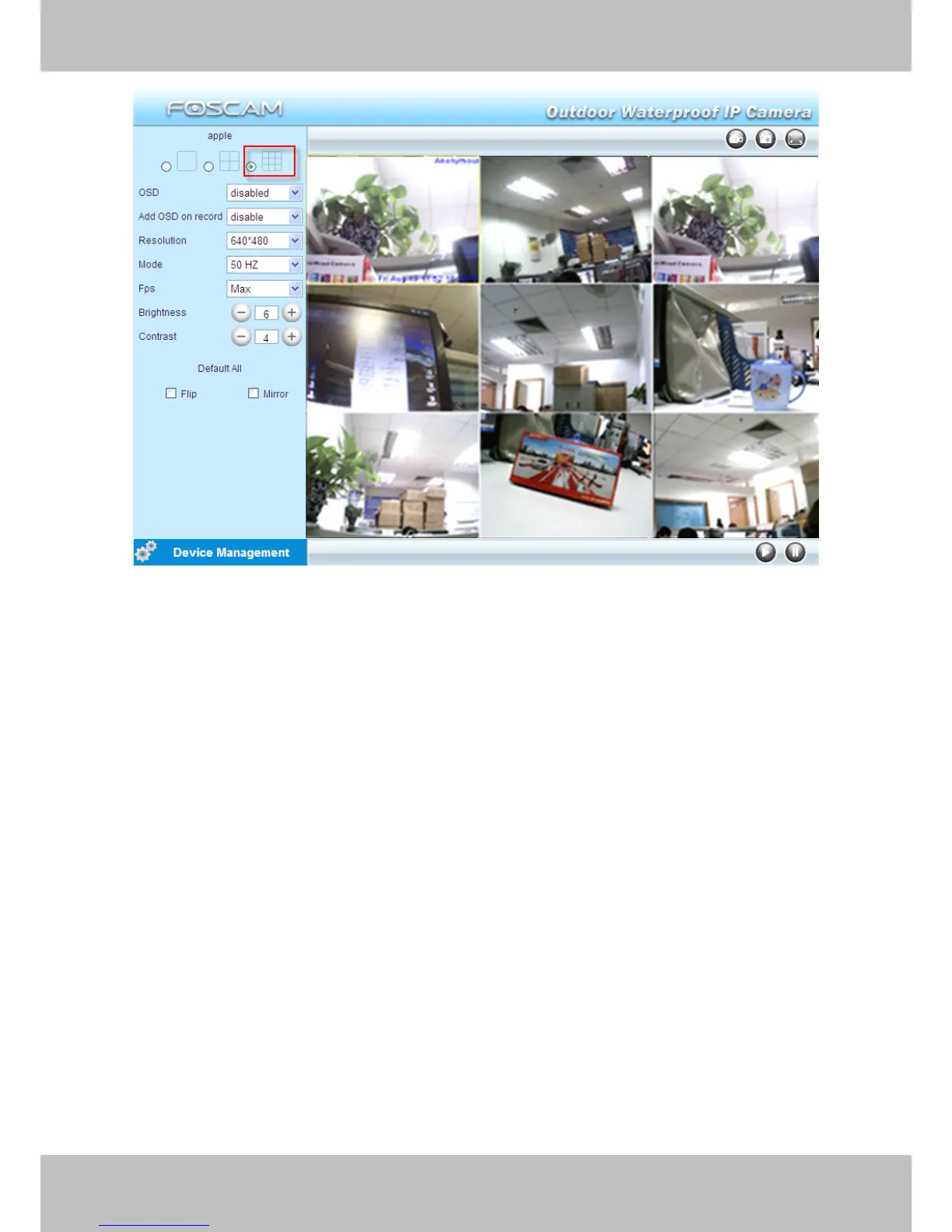
Figure 3.9
3.5.2
3.5.2
3.5.2
3.5.2 Add
Add
Add
Add cameras
cameras
cameras
cameras in
in
in
in WAN
WAN
WAN
WAN
If you want to view all cameras via the internet( remote computer), y ou will need to add them
using DDNS domain name. Firstly, make sure all of the cameras you added can be accessed
through the internet. (Read How
How
How
How to
to
to
to configure
configure
configure
configure DDNS
DDNS
DDNS
DDNS settings
settings
settings
settings in chapter
chapter
chapter
chapter 3.10
3.10
3.10
3.10 )
Login to the first camera using a DDNS domain name and port.

Other manuals for Foscam FI8904W

Related product manuals