60
w
w
w
w
w
w
w
w
w
w
w
w
w
w
w
w
ww.foscam.co
ww.foscam.co
ww.foscam.co
ww.foscam.co
ww.foscam.co
ww.foscam.co
ww.foscam.co
ww.foscam.co
m
m
m
m
m
m
m
m
Shenzhen
Shenzhen
Shenzhen
Shenzhen
Shenzhen
Shenzhen
Shenzhen
Shenzhen
Foscam
Foscam
Foscam
Foscam
Foscam
Foscam
Foscam
Foscam
Intelligent
Intelligent
Intelligent
Intelligent
Intelligent
Intelligent
Intelligent
Intelligent
Technology
Technology
Technology
Technology
Technology
Technology
Technology
Technology
Co.,
Co.,
Co.,
Co.,
Co.,
Co.,
Co.,
Co.,
Limited
Limited
Limited
Limited
Limited
Limited
Limited
Limited
Tel:
Tel:
Tel:
Tel:
Tel:
Tel:
Tel:
Tel:
86
86
86
86
86
86
86
86
755
755
755
755
755
755
755
755
2674
2674
2674
2674
2674
2674
2674
2674
5668
5668
5668
5668
5668
5668
5668
5668
Fax:
Fax:
Fax:
Fax:
Fax:
Fax:
Fax:
Fax:
86
86
86
86
86
86
86
86
755
755
755
755
755
755
755
755
2674
2674
2674
2674
2674
2674
2674
2674
5168
5168
5168
5168
5168
5168
5168
5168
60
60
60
60
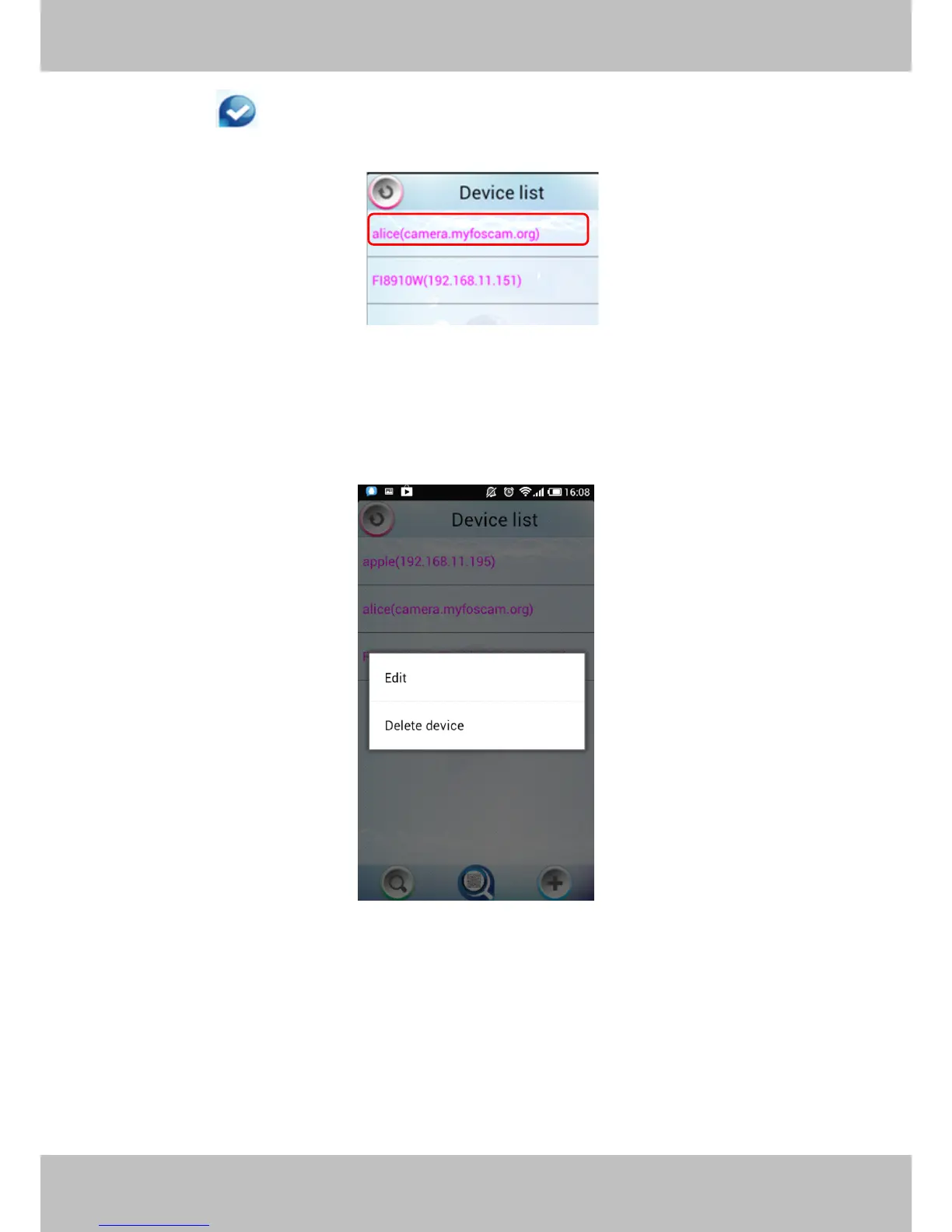
Click the icon to add camera then you can see the camera in the Device List.
.
Select one IP address and click it, then you can enter the surveillance window.
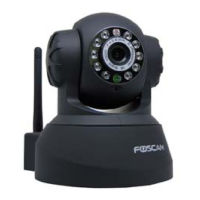
Select one IP address in the Device List and press it for a moment, it pop up the following
screen:
Figure 4.8
Edit:
Edit:
Edit:
Edit: Re- edit the camera ’ s information , such as the Http / Media port, user name and password,
and so on. Click Edit and you can go to Add camera page (Figure 4.7).
Delete
Delete
Delete
Delete device:
device:
device:
device: Delete the camera from the Device List.



 To Next Page