w
w
w
w
w
w
.
.
f
f
o
o
s
s
c
c
a
a
m
m
.
.
c
c
o
o
m
m
22
S
S
h
h
e
e
n
n
z
z
h
h
e
e
n
n
F
F
o
o
s
s
c
c
a
a
m
m
I
I
n
n
t
t
e
e
l
l
l
l
i
i
g
g
e
e
n
n
t
t
T
T
e
e
c
c
h
h
n
n
o
o
l
l
o
o
g
g
y
y
C
C
o
o
.
.
,
,
L
L
i
i
m
m
i
i
t
t
e
e
d
d
T
T
e
e
l
l
:
:
8
8
6
6
7
7
5
5
5
5
2
2
6
6
7
7
4
4
5
5
6
6
6
6
8
8
F
F
a
a
x
x
:
:
8
8
6
6
7
7
5
5
5
5
2
2
6
6
7
7
4
4
5
5
1
1
6
6
8
8
22
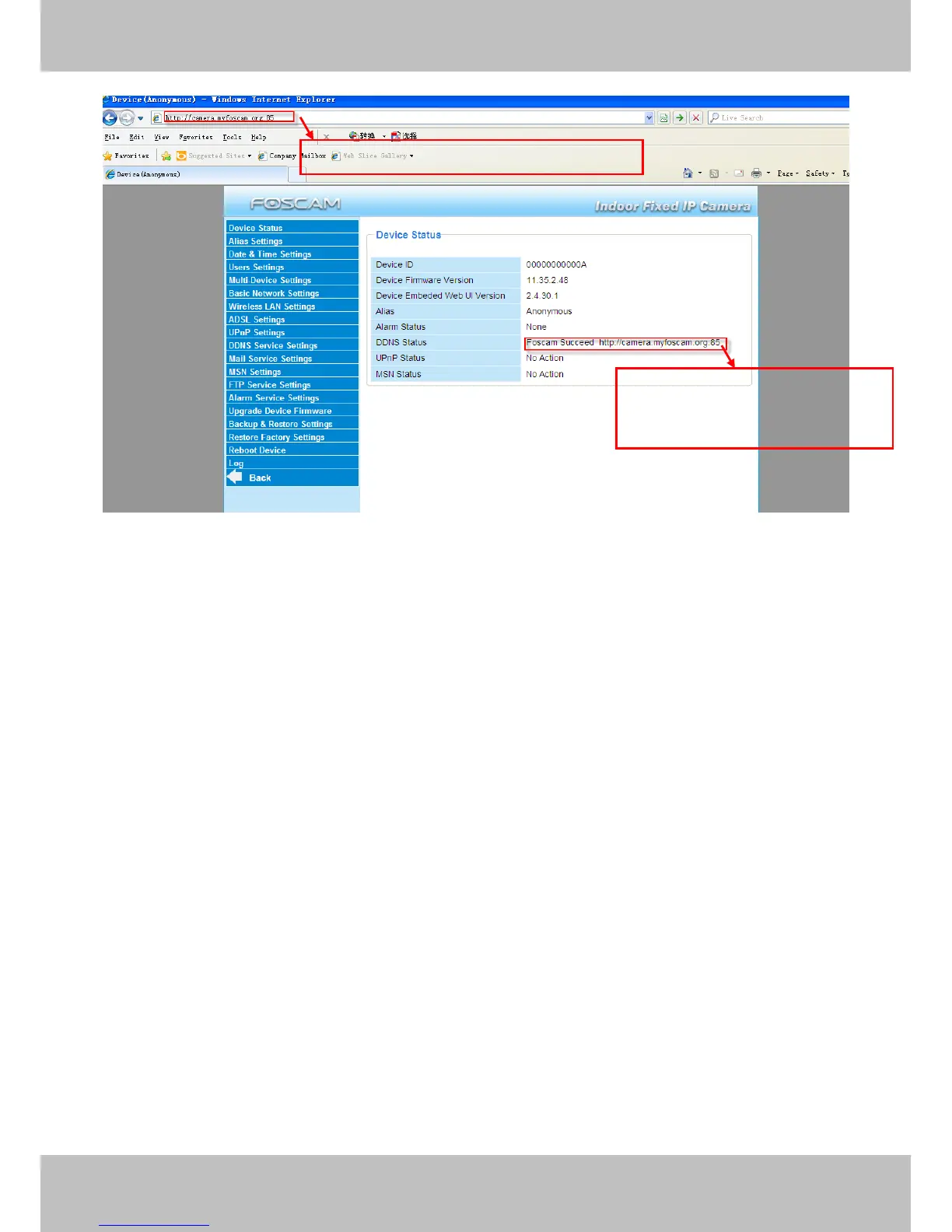
Figure 3.10
If you have several cameras, you can use the same DDNS domain name; you only need to set a
different port number for each camera.
Click Multi-Device Settings. Choose The 2nd Device. Fill in the 2nd camera’s name, DDNS
domain name, port number. Enter user name and password and then choose Add. (Figure 3.11)
NOTE: Here the Host must be entered as the second camera’s DDNS domain name, not its LAN
IP.
Use DDNS domain name and port to login
Make sure each camera you need
add could login with DDNS name
and port



 To Next Page