EasyManua.ls Logo

Foscam FI9821W - Page 90

Foscam FI9821W
104 pages
Print Icon
To Next Page IconTo Next Page
To Previous Page IconTo Previous Page
Loading...
89
w
w
w
w
w
w
w
w
www
www
www
www
www
www
www
www
.foscam.com
.foscam.com
.foscam.com
.foscam.com
.foscam.com
.foscam.com
.foscam.com
.foscam.com
Shenzhen
Shenzhen
Shenzhen
Shenzhen
Shenzhen
Shenzhen
Shenzhen
Shenzhen
Foscam
Foscam
Foscam
Foscam
Foscam
Foscam
Foscam
Foscam
Intelligent
Intelligent
Intelligent
Intelligent
Intelligent
Intelligent
Intelligent
Intelligent
Technology
Technology
Technology
Technology
Technology
Technology
Technology
Technology
Co.,
Co.,
Co.,
Co.,
Co.,
Co.,
Co.,
Co.,
Limited
Limited
Limited
Limited
Limited
Limited
Limited
Limited
Tel:
Tel:
Tel:
Tel:
Tel:
Tel:
Tel:
Tel:
86
86
86
86
86
86
86
86
755
755
755
755
755
755
755
755
2674
2674
2674
2674
2674
2674
2674
2674
5668
5668
5668
5668
5668
5668
5668
5668
Fax:
Fax:
Fax:
Fax:
Fax:
Fax:
Fax:
Fax:
86
86
86
86
86
86
86
86
755
755
755
755
755
755
755
755
2674
2674
2674
2674
2674
2674
2674
2674
5168
5168
5168
5168
5168
5168
5168
5168
89
89
89
89
Step
Step
Step
Step 3:
3:
3:
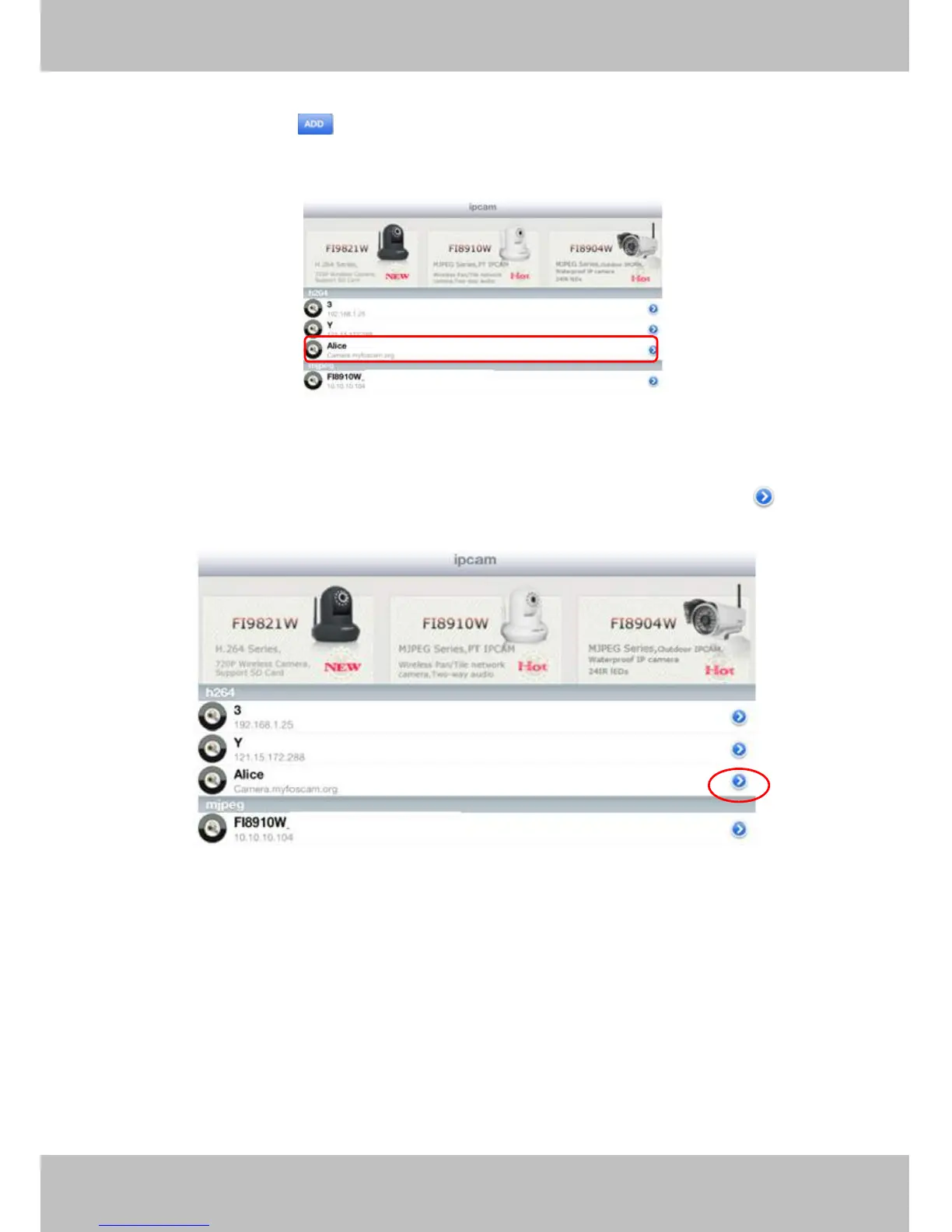
3: Click Add button to add cameras, then you can see the camera name in the “ ip cam table ”
page.
Figure 6 .15
Surveillance
Surveillance
Surveillance
Surveillance windows
windows
windows
windows
Back to “ ipcam table ” page and you can see all cameras that have added. There is a icon after one
camera name, click this icon and you can alter the camera ’ s user name, password, media port and http port.
Figure 6 .16