Step 04: Select the alarm indicator
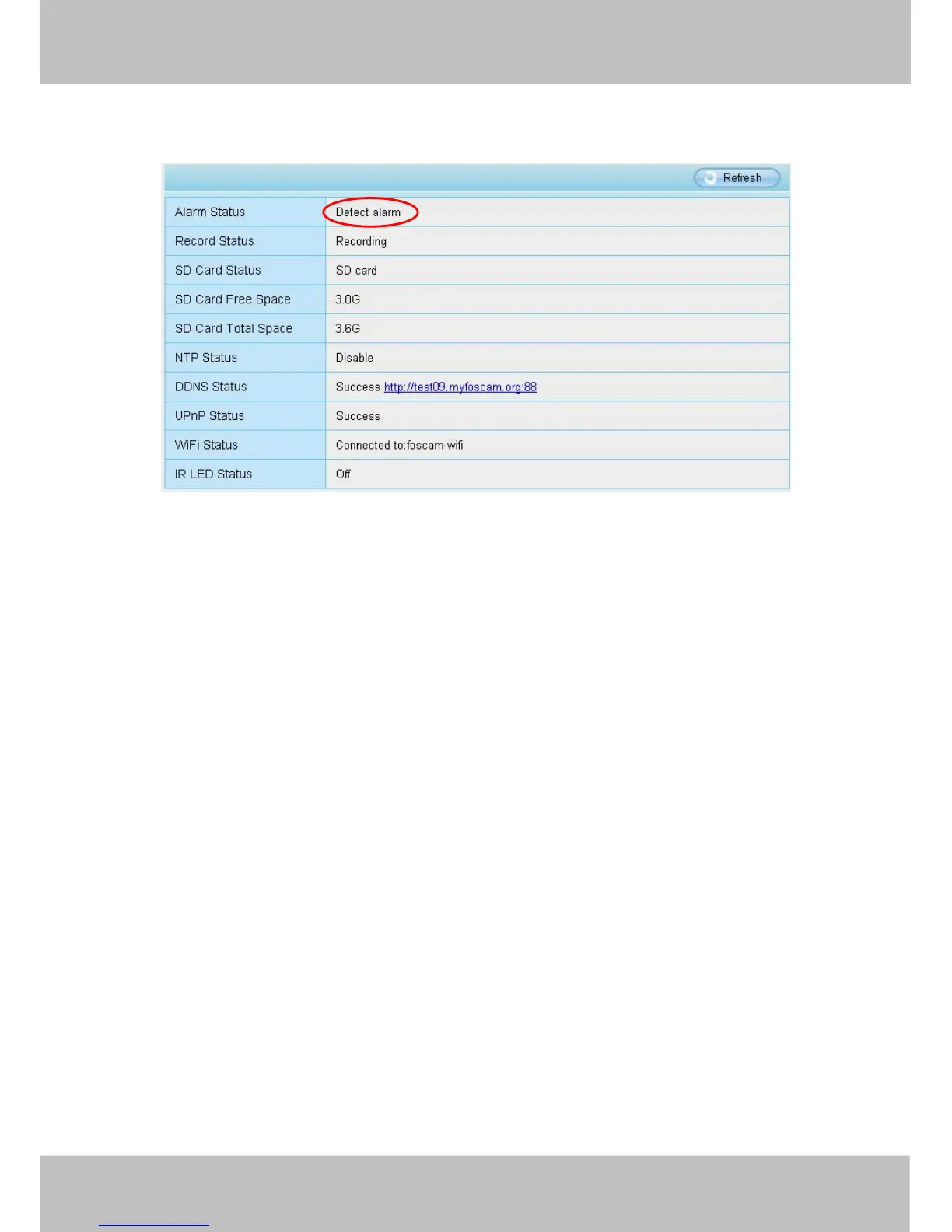
When the motion has been detected, the alarm status will turn to Detect alarm.
There are four alarm indicators:
A Camera Sound and PC Sound
If the camera has connected with a speaker or other audio output device, if you select Camera Sound or PC
Sound, when the motion has been detected, the people around the camera will hear beep alarm sound.
B Send E-mail
If you want to receive alarm emails when motion is detected, you must select Send E-mail and set Mail
Settings first.
C Take Snapshot
If you select this checkbox, when the motion has been detected, the camera will snap the live view window as
a still picture and load it to the FTP. Make sure you have set FTP and set FTP as the storage path in
Video->Snapshot settings panel.
Time interval: The interval time between two pictures.
D IO Output
If IO alarm is triggered and IO alarm output device will always alarm (sound alarm is issued a warning sound,
alarm lights in flash etc.). Click "Clear IO alarm output" , the alarm output device will stop alarming. If IO alarm
is triggered again after alarm interval, IO alarm output device will be restart.
Step 05: Set detect area
Click set detect area and it pop up a window, then you can draw the detection area. Click OK button after
settings. When something moving in the detection area, the camera will alarm.


 To Next Page