44
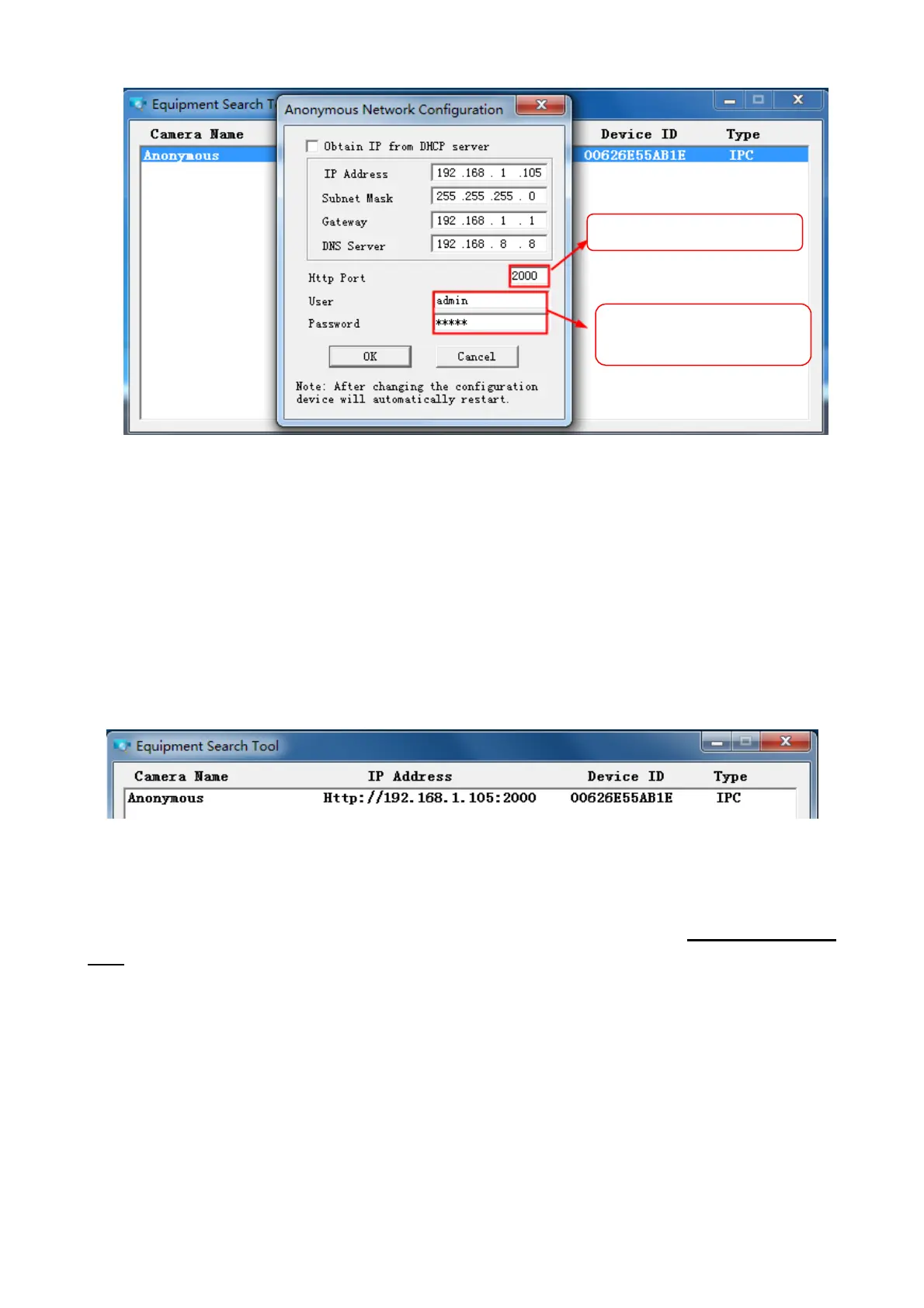
Step 2: Enter the username and password of the Administrator (default username is admin with a blank
password), and click “OK” to apply changes.
Step 3: Wait around 10 seconds, you’ll see that the camera’s LAN IP address has changed. In our
example it was changed to 2000, so we see http://192.168.1.105:2000 in Equipment Search Tool. Also,
the LAN IP address is now fixed at a static IP address of http://192.168.1.105:2000. This IP address will
not change even if the camera is powered off and back on, the camera will remain on this LAN IP
address. This is very important that a static LAN IP address is set, or you may have problems later with
remote access and seeing the camera remotely if the camera loses power and reconnects on a different
LAN IP address. Make sure you set a static LAN IP address!
If the camera cannot be accessed, please make sure the port forwarding is succeed.
HTTPS port: The default port is 443. You can use the url to access the camera: https:// IP + HTTPS
port.
ONVIF port:
By default, the ONVIF port is set to 888. Also, they can be assigned with another port
number between 1 and 65535(except 0 and 65534). But make sure they can not be conflict with other
existing ports.
RTSP port: The default port is 443. Only some IP Cameras have RTSP port.
Note: The Onvif port and RTSP port are showed on Onvif page, you can enable or close the port. Please
refer chapter 4.4.10.
Modif
the Http Port .
Enter the Username and
assword
click O
.


 To Next Page