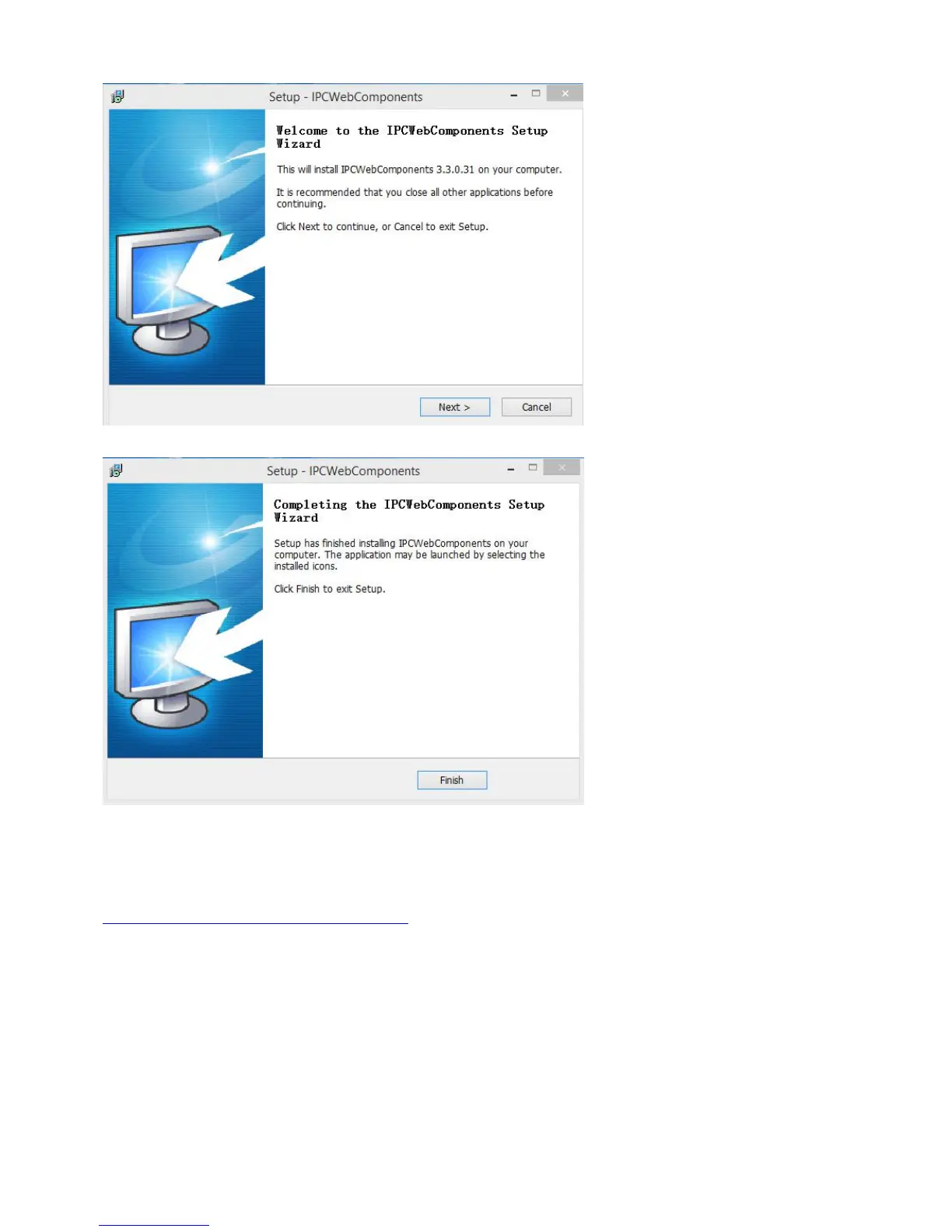
Step 4: Click Finish and reboot IE browser to log in the camera.
Note, for Safari on MAC OSX it’ll show a link “Plugins are not found, click me to download” just above login
windows of the camera. Please click it to download plugin and follow wizard to install. See this link for help if
after installed plugin but still cannot login camera:
http://www.foscam.com/faqs/view.html?id=14
6.1.3 Unable to connect to router wirelessly
After setup wireless configuration, and input the wireless password correctly, save the settings. Normally, after
you disconnect the Ethernet cable, wait for few minutes camera will show up again in Equipment Search Tool
(or show up in router’s DHCP client list/LAN list) with a new IP address. That indicates your camera’s
connected wirelessly.


 To Next Page