錯誤! 使用 [常用] 索引標籤將 Heading 1 套用到您想要在此處顯示的文字。 48
– Or –
Mac: Pull down list from Wi-Fi icon.
2. Windows: Click Connect.
– Or –
Mac: Select the network name.
3. When your device is connected to the network, the Wi-Fi connected device icon displayed on
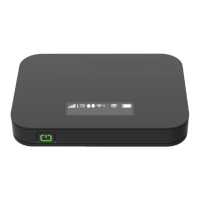
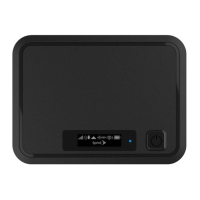
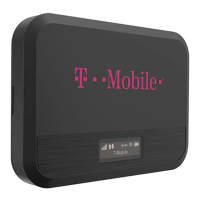
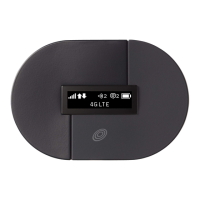
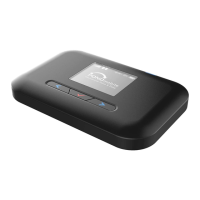
LCD Screen.
My network does not appear in the wireless network list.
Verify that your device’s LCD doesn't display Wi-Fi connected device icon.
Windows: Click Refresh Network List on the left side of the Wireless Network Connection
screen. If that does not work you can try the following:
1. Open Network Connections.
2. Right-click Wireless Network Connection and select Properties.
3. Click the Wireless Networks tab.
4. Delete any unused wireless connections from the Preferred Networks list and click OK.
5. Restart your computer.
Mac: Click the AirPort icon and select Turn Wi-Fi Off. Then click it again and select Turn Wi-Fi
On.
I see the network name but cannot connect to my device.
Check the Wi-Fi Name, Wi-Fi Password in your connection profile. If any of these are incorrect,
you will not be able to connect to the network
How do I disconnect from the network?
1. Open your device’s landing page.
2. Log in as the administrator if you have not already done so.
3. Click Disconnect.
How can I find out how many users are connected to my device?
See the device's LCD. The number of clients (users) currently connected to your device is in the
Wi-Fi connected device icon at the top of the LCD. You can also see the number of clients
currently connected on the Connected Devices page on Web UI.
Where can I find information about Internet connectivity and my Wi-Fi setup?
Open the Settings page on Web UI.


 To Next Page