Chapter 6
Page 25
Chapter 6
Operator Settings and Advanced
Features
6.1 User Options
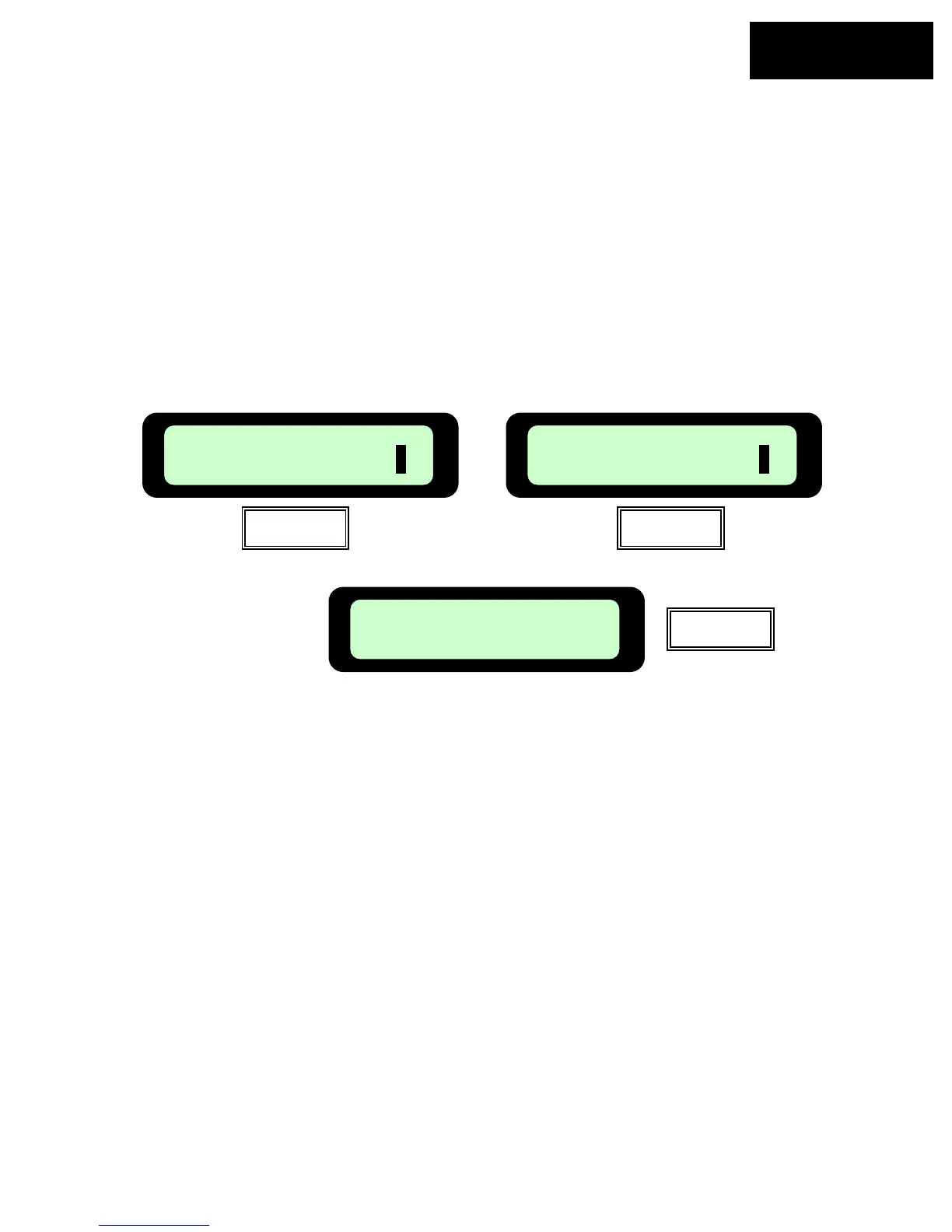
Lifting the Manual Controller from its pocket will change the text display on the LCD to the manual
operating menu, as seen in Figure 6.1. Pressing ‘GO’ once will take you to the next screen, User
Preferences, beginning with ‘Child Guard’. Figure 6.2. Press ‘GO’ to view the menu of user
preferences, beginning with ‘Sound’, Figure 6.3. Using the ‘Up ⇑ Down ⇓’ arrow keys will allow you
to scroll through these menu items. Pressing ‘GO’ will take you to these various preferences.
Figure 6.4
Manual
User Options
User Preferences
Press GO
Figure 6.1 Figure 6.2
Sound On
Press GO
Figure 6.3
The ‘GO’ button is used as a means to select of confirm different menu options or settings. By
pressing the ‘GO’ button, it will generally select or confirm what is shown on the second line of the
LCD text message. There are several settings for which the operator can make changes to or
features to enable/disable. Pressing the ‘C’ button at any time during the menu selection process will
bring you back to the main menu. The following menu options are available to the user and may be
changed as desired; (not all options are available on all models)
User Options User Preferences
1) Child Guard 1) Sound
2) Safety Test 2) Mowing
3) Service (not accessible to user) 3) Language
4) Work Time
5) Learn Edge –(visible only when in Manual
Controller pocket and pivoted to the closed
position) (RL800 US & RL850 Europe)
6) Set Default Edge
7) Wide Scan (RL800 US & RL850 Europe)
8) Anti-Theft (RL800 US & RL850 Europe)




 To Next Page