© 2014 Flanders Scientic, Inc.
11
Return to Table of Contents
Function Menu
SD Aspect Ratio
Toggles between 4:3 and Anamorphic display of Standard Denition source. This function should be set to match the SD
source being viewed. The default setting is 4:3. If used in conjunction with 1:1 pixel mapping this function can also activate
a PAL SD FHA viewing mode.
Full Screen
This function simply stretches any incoming source to ll the entire screen. Unlike the Zoom feature this full screen stretch
does not preserve aspect ratio, but it does keep all of the active video signal present. Though the full screen mode has
many potential uses it was designed primarily for use with rasterizers that generate a 16:10 or 16:9 aspect 1024x768 output.
Enabling Full Screen mode allows the monitor to stretch the image as intended by the rasterizer.
Pixel Zoom
The Pixel Zoom function will generate a positionable and resizable rectangle on screen. The rectangle may be moved left or
right using the H POS rotary knob and up or down using the V POS rotary knob. The Ref POS rotary knob may be used to
change the size of the onscreen rectangle. Using these three rotary knobs you can select any area on screen and then press
down on the F Stop rotary knob to zoom to the selected area. This pixel zoom feature is designed to work with any HD signal
formats. A ashing tally light will be activated on your monitor whenever you are in a zoomed mode as a reminder/warning
that the entire incoming signal is not being shown on the monitor. To exit the zoomed mode simply press down on the F
Stop rotary knob once more. To exit the Pixel Zoom feature entirely simply press the function button assigned to this feature
once more. The Pixel Zoom function allows for an essentially artifact free, high quality zoom on any portion of an HD signal.
LUM Coloring
The F Stop Rotary knob will adjust the upper limit of the upper color coded region. These color coded ranges are retained in
memory so you can exit and reenter LUM Coloring Mode without having to reset your desired threshold levels.
Blue/Red/Green Only
This function activates the monitor’s Blue Only, Red Only, and Green Only modes. The respective channels can be shown
as just that color (Red, Green, Blue) or as monochrome.
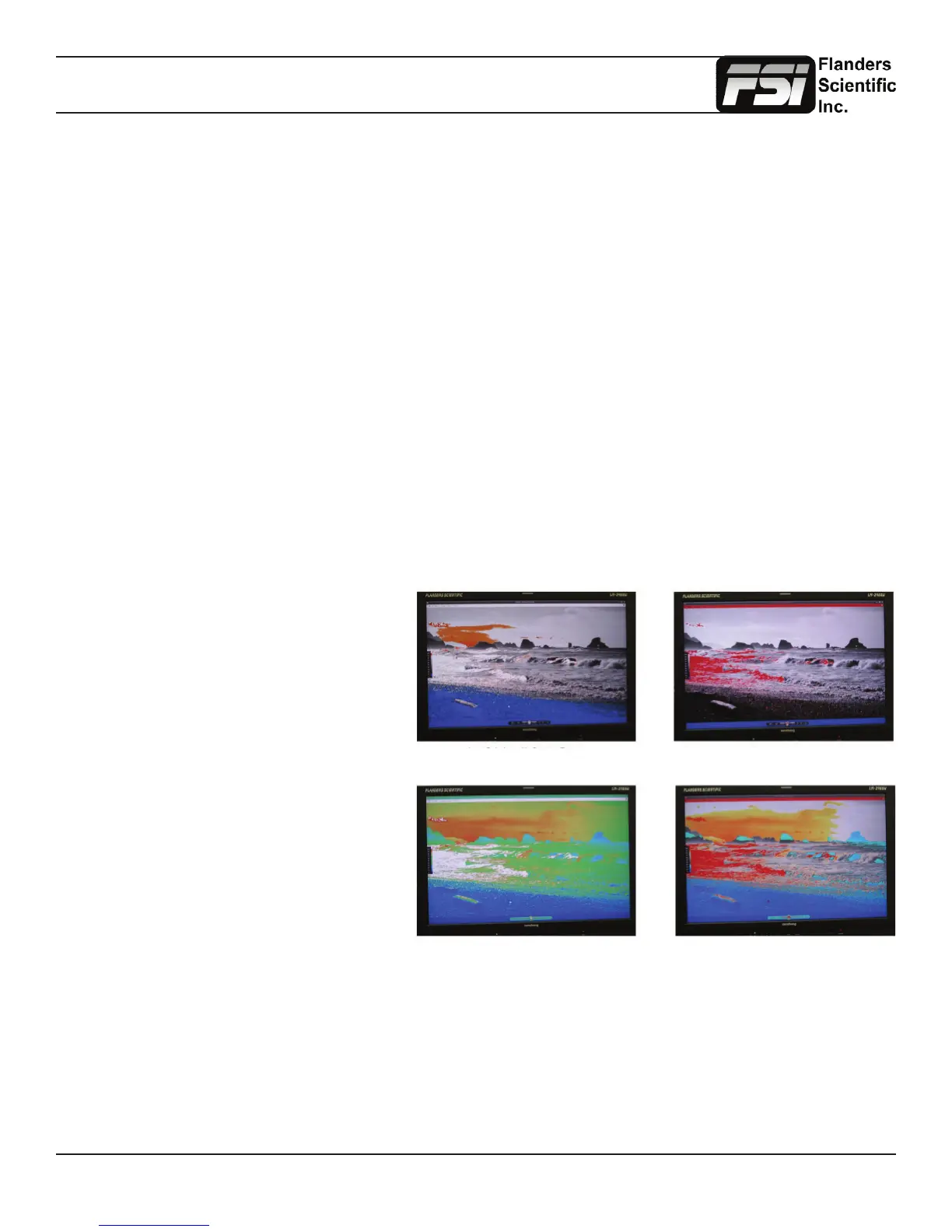
LUM Coloring with Custom Range LUM Coloring with All Legal Levels Shown in Greyscale
Underexposed Areas in Blue
Overexposed Areas in Red
LUM Coloring in Default Mode
Overexposed Areas in White
Underexposed Areas in Black
LUM Coloring with Custom Range
This function generates an articial luminance
map of the incoming source that can be
particularly useful in identifying overexposed
areas in any given shot. An onscreen scale
helps indicate what articial color corresponds
to what luminance level. The scale will follow
the selected Waveform Scale set in the Scopes
& VU Meters Prole 1: you can choose from
IRE, Digital Levels, or Voltage. In its default
conguration the LUM Coloring feature will
highlight all levels above 100IRE as white and
all levels below 0 IRE as black. In default mode
levels between 0 and 100 IRE will be color
coded. However, you can change the range of
these color coded regions to any preferred
setting by using the monitor’s rotary knobs.
The H POS rotary knob will adjust the lower
limit of the lower color coded region. The
V POS rotary knob will adjust the upper limit
of the lower color coded region. The Ref
POS rotary knob will adjust the lower
limit of the upper color coded region.



 To Next Page