59
Advanced Features
3
RECREC
CANCELCANCEL
REC OK?REC OK?
0.3M0.3M
5
Check the saved image size and press the
“MENU/OK” button. The trimmed image is added
as a separate file in the final frame.
58
Y TRIMMING
PLAYBACK MENU
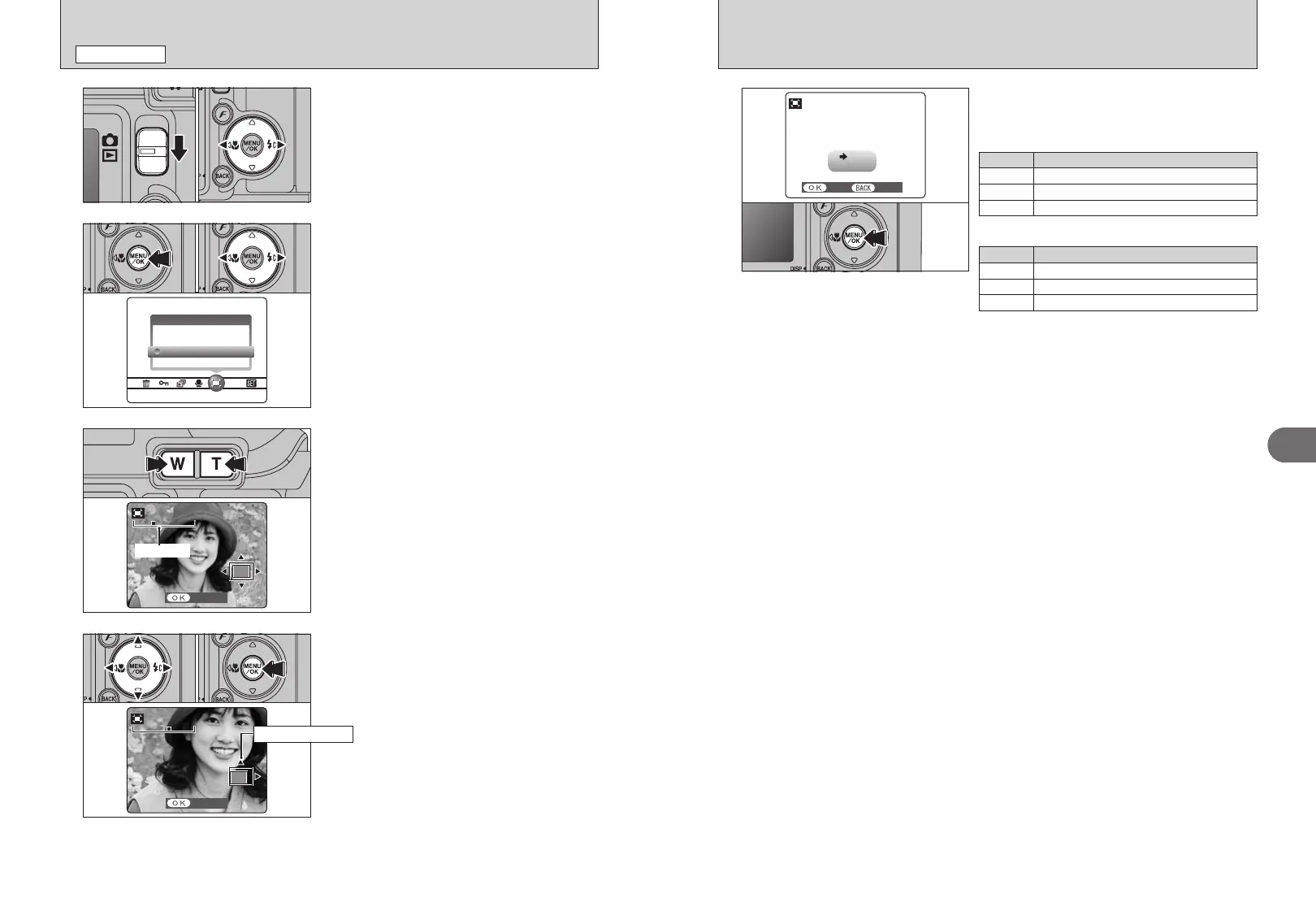
1Set the Mode switch to “w”.
2Press “d” or “c” to select the trimming frame
(file).
1
2
1Press the “MENU/OK” button to display the
menu on the LCD monitor.
2Press “d” or “c” to select “Y” TRIMMING.
3Press the “MENU/OK” button.
02
3
Press the “T” button or “W” button during single-
frame playback to zoom in (enlarge) or out on a still
image. A zoom bar appears.
●
!
Press the “BACK (DISP)” button to return to single-frame
playback.
●
!
Press the “BACK (DISP)” button to return to single-frame
playback.
4
1Press “a”, “b”, “d” or “c” to display another
area.
The current displayed image appears on the
navigation screen.
2Press the “MENU/OK” button to trim the image.
01 02
01 03
Navigation screen
2
1
■ Image sizes (FinePix E500)
Printing at up to 4R (10.2 × 15.2 cm) / A6 size
Sample Uses
Printing at up to 3R (8.9 × 12.7 cm) size
`
To use for e-mail or web site
3
2
■ Image sizes (FinePix E510)
Printing at up to 6R (15.2 × 20.3 cm) / A5 size
Sample Uses
Printing at up to 4R (10.2 × 15.2 cm) / A6 size
`
To use for e-mail or web site
01 02







 To Next Page