22
Printing
Printing via APP
Printing of Android devices Album/ AirPrint for Apple Devices
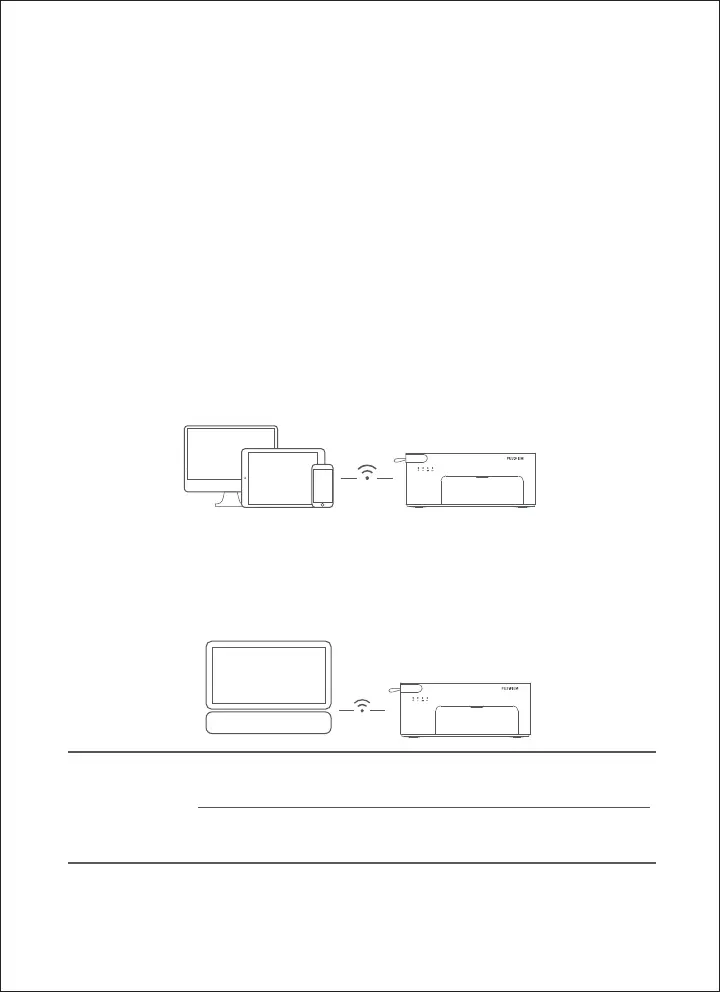
After connecting Wi-Fi through router or direction connection(Wi-Fi),
open the album of Android / Apple device, select the photos > Print.
Note: If you can't find the “Print” in your Android device, you can go to https://mo-
pria.org/zh-cn/print-from-android to download the APP and follow the instruction to print.
Wireless Printing of Windows PC
Click Control panel > Hardware and sound > Device and printer > Add
printer > select "Princiao Smart 2 [xxxx]-WiFi "
Click Settings > Device > Printer and scanner > Add printer or scanner
> select "Princiao Smart 2 [xxxx]-WiFi “
Windows 7/8/8.1
Windows 10
Note: Make sure device and printer are connected to the same Wi-Fi network. The specific
figures for [XXXX] is the last four digits of product SN number, which can be found in the
label at the bottom of the printer.
Please download the driver from the product help page of FUJIFILM
official weibsit and install it. Connect through router or direct connec-
tion (Wi- Fi).
After connecting Wi-Fi through router or direction connection(Wi-Fi),
open FUJIFILM Print APP, you can choose one of the printing mode:
Fast printing / common printing (Photo editable mode) / certificate
photo printing (automatic layout) / template printing.




 To Next Page