EasyManua.ls Logo

Fujitsu ESPRIMO Q556 - User Manual

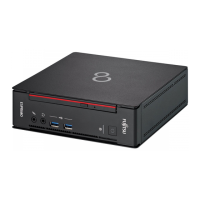
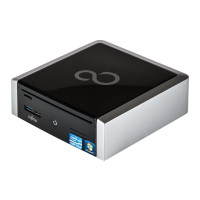
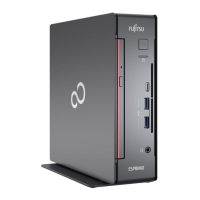
Fujitsu ESPRIMO Q556
108 pages
Print Icon
To Next Page IconTo Next Page
Loading...
System
Operating Manual
FUJITSU Desktop
ESPRIMO Q55x / Q958
ESPRIMO Q956 / Q957

Table of Contents

Questions and Answers

  • L
    Lauren KochAug 5, 2025
    What to do if the monitor remains blank on my Fujitsu ESPRIMO Q556?
    • J
      Jordan BaileyAug 5, 2025
      If the monitor remains blank, first ensure it is switched on. If power saving is active, press any key or deactivate the screen saver, entering your password if prompted. Also, check the brightness control; it might be set too low. Ensure the power and monitor cables are correctly connected to both the Fujitsu Desktop and the power outlet. If the issue persists, restart the system, press F8 during boot to enter Safe Mode, and set the correct monitor values as detailed in your monitor's manual. The causes could be a switched off monitor, activated power saving, brightness control set to dark, disconnected power or monitor cables, or incorrect monitor settings.
  • U
    udurhamAug 9, 2025
    Why is the power-on indicator unlit on my Fujitsu ESPRIMO Q556?
    • T
      Tamara SmithAug 9, 2025
      If the power-on indicator is unlit after switching on your Fujitsu Desktop, it could be due to a faulty mains voltage supply or an overloaded internal power supply. Check that the power cable is properly plugged into both the device and a grounded mains outlet. If that doesn't work, unplug the device from the mains socket, wait about 3 minutes, then plug it back in and switch the device on.
  • C
    Craig SmithAug 13, 2025
    What to do if Fujitsu ESPRIMO Q556 cannot be switched off with the On/Off switch?
    • M
      Mrs. Rhonda Rodriguez DVMAug 13, 2025
      If you can't switch off your Fujitsu Desktop with the On/Off switch due to a system crash, press and hold the On/Off switch for at least 4 seconds until the device switches off. Be aware that this action could lead to data loss because the operating system is not shut down properly.
  • Z
    Zachary ThomasAug 17, 2025
    How to fix no mouse pointer displayed on the monitor of Fujitsu ESPRIMO Q556?
    • K
      Kimberly GrayAug 18, 2025
      If no mouse pointer is displayed on the monitor of your Fujitsu Desktop, the mouse may not be properly connected. Shut down the operating system correctly, switch off the device, and check that the mouse cable is properly connected. If you're using an adapter or extension lead, check the plug-in connection. Ensure only one mouse is connected before switching the device back on.
  • J
    James WalkerAug 22, 2025
    What to do if SmartCard reader is not recognised on Fujitsu ESPRIMO Q556?
    • M
      Michael SchneiderAug 22, 2025
      If your Fujitsu Desktop's SmartCard reader is not recognized, it might be due to incorrect chip card insertion, a forgotten PIN, or a lost SmartCard. Ensure the SmartCard is inserted correctly with the chip facing upwards and that it complies with ISO standard 7816-1, -2, -3, and -4. If you've forgotten your PIN or lost your SmartCard and are working in a network, contact your system administrator.
  • L
    lhaleyAug 27, 2025
    How to correct the date and time on my Fujitsu Desktop?
    • C
      chavezvalerieAug 27, 2025
      If the date and time are incorrect on your Fujitsu Desktop, it means they are set incorrectly. You can correct this by setting the accurate time and date within your operating system or via the BIOS Setup.
  • B
    Brett EstradaAug 30, 2025
    What to do if user and/or supervisor SmartCard lost on Fujitsu Desktop?
    • C
      Carlos CastanedaAug 30, 2025
      If you have lost your User SmartCard, you can continue working with the Supervisor SmartCard and initialise a new User SmartCard or deactivate the SystemLock function. If you have lost the Supervisor SmartCard, you can also continue working, but you no longer have all rights and cannot initialise another Supervisor-SmartCard. If you have lost both SmartCards, you cannot boot your system. Please contact our Service Desk. You must provide proof of ownership for the device. Then the Service Desk will refer you to our service partner, who will unlock your device (for a charge).

Summary

FUJITSU Desktop Overview

Your ESPRIMO

Ports and Operating Elements

Front Ports and Elements

Describes front ports and operating elements on the device.

Rear Ports

Describes rear ports and operating elements on the device.

Important Notes and Safety

Safety Notes

General safety precautions for device operation and handling.

Getting Started: Initial Setup

Initial Setup Steps

Outlines the basic steps to prepare the device for first use.

Device Setup and Positioning

Connecting Cables and Peripherals

Connecting the Power Cable

Steps to properly connect the device to a power source.

Device Ports and External Connections

Device Ports Overview

Identifies and describes the available input/output ports on the device.

Initial Device Power-On

First Power-On and Software Installation

Process of the first power-on and initial software installation.

Switching On Monitor and Machine

Steps for powering on the computer and its display.

Software Installation Guide

Installing System Software

Guidance on installing system software and drivers.

Operating Your ESPRIMO System

Powering the Device On

Procedure for turning the computer system on.

Powering the Device Off

Procedure for properly shutting down the computer system.

Keyboard and Key Functions

Essential Key Combinations

Details on essential keys and their combined functions.

BIOS Setup Utility Operations

Navigating BIOS Setup

How to navigate and use the BIOS setup interface.

Exiting BIOS Setup

Procedures for saving or discarding changes and exiting BIOS.

Security and Data Protection

Property and Data Protection

Security features and methods to protect the device and data.

BIOS Security Functions

Security options available within the BIOS Setup Utility.

Troubleshooting and Problem Solving

Getting Help for Problems

Guidance on what to do when encountering unresolved computer issues.

Common Troubleshooting Scenarios

Common problems and their solutions.

Device and Monitor Issues

Device Not Switching Off

Troubleshooting steps for when the device fails to power off.

Blank Monitor Screen

Solutions for a blank or unresponsive display screen.

Input and Recognition Problems

Mouse Pointer Not Displayed

Steps to resolve issues with the mouse cursor not appearing.

System Expansions and Upgrades

Casing Cover Procedures

Drive Cage Installation and Removal

Drive Installation Procedures

Removing Optical Drive

Removing Second Hard Disk

SmartCard Reader and Palm Sensor

2.5-inch Hard Disk Procedures

Fan Installation and Removal

M.2 Module Procedures

Lithium Battery Replacement

Changing the Lithium Battery

Instructions for replacing the CMOS lithium battery.

Bottom Casing Cover Procedures

Memory Module Installation

Installing and Removing Memory Modules

Guide for installing and removing RAM modules.

Technical Specifications

Fujitsu ESPRIMO Q556 Specifications

General IconGeneral
Tcase66 °C
Bus typeDMI3
SteppingS0
Tjunction- °C
Processor cache3 MB
Processor cores2
Processor modeli3-6100T
System bus rate8 GT/s
Processor familyIntel® Core™ i3
Processor seriesIntel Core i3-6100 Desktop series
Processor socketLGA 1151 (Socket H4)
Processor threads4
Processor codenameSkylake
Number of QPI links-
Processor frequency3.2 GHz
Processor cache typeSmart Cache
Configurable TDP-down- W
Processor lithography14 nm
Processor manufacturerIntel
Processor front side bus- MHz
PCI Express slots version3.0
Processor operating modes64-bit
ECC supported by processorYes
PCI Express configurations2x8, 1x8+2x4, 1x16
Thermal Design Power (TDP)35 W
Number of processors installed1
Maximum number of PCI Express lanes16
Memory types supported by processorDDR3L-SDRAM, DDR4-SDRAM
Memory voltage supported by processor1.35 V
Memory clock speeds supported by processor1333, 1600, 1866, 2133 MHz
Memory bandwidth supported by processor (max)34.1 GB/s
Maximum internal memory supported by processor64 GB
On-board graphics card ID1912
Discrete graphics card modelNot available
On-board graphics card modelIntel® HD Graphics 530
On-board graphics card familyIntel® HD Graphics
Maximum on-board graphics card memory1.74 GB
On-board graphics card OpenGL version4.4
On-board graphics card base frequency350 MHz
On-board graphics card DirectX version12.0
On-board graphics card dynamic frequency (max)950 MHz
Number of displays supported (on-board graphics)3
Scalability1S
Processor codeSR2HE
Processor ARK ID90734
Processor package size37.5 x 37.5 mm
Supported instruction setsSSE4.1, AVX 2.0, SSE4.2
Intel® Turbo Boost TechnologyNo
Thermal solution specificationPCG 2015A
Intel Secure Key Technology version1.00
Intel Stable Image Platform Program (SIPP) version0.00
Memory slots2x DIMM
Internal memory4 GB
Memory channelsDual-channel
Memory clock speed2133 MHz
Internal memory typeDDR4-SDRAM
Maximum internal memory32 GB
Memory layout (slots x size)1 x 4 GB
SSD capacityThe Solid State Drive's storage capacity in Gigabytes.
SSD interfaceSATA III
Storage mediaSSD
Optical drive typeDVD Super Multi
Total storage capacity128 GB
Intel segment taggingHome Office, Small Business
Trial softwareOffice 365
Wi-Fi standardsWi-Fi 5 (802.11ac)
Bluetooth version4.1
Cabling technology10/100/1000Base-T(X)
Ethernet LAN data rates10, 100, 1000 Mbit/s
USB 2.0 ports quantityUSB 2.0 ports have a data transmission speed of 480 Mbps, and are backwards compatible with USB 1.1 ports. You can connect all kinds of peripheral devices to them.
USB 3.2 Gen 1 (3.1 Gen 1) Type-C ports quantity0
Volume2 L
Chassis typeMini PC
Product colorBlack
Placement supportedHorizontal/Vertical
Cable lock slot typeKensington
BIOS typeUEFI AMI
Audio chipRealtek ALC671
Motherboard chipsetIntel® H110
Audio output channels5.1 channels
Password protection typeBIOS, HDD, Supervisor, User
Power supply65 W
Power supply input voltage100 - 240 V
Power supply input frequency50 - 60 Hz
Operating temperature (T-T)10 - 35 °C
Operating relative humidity (H-H)5 - 85 %
Sustainability certificatesBlue Angel, RoHS, EPEAT Gold, ENERGY STAR
CertificationCE, FCC Class B, cCSAus, WEEE, Microsoft Operating Systems (HCT / HCL entry / WHQL), China RoHS
Interface adapters includedDisplayPort female - DVI-D female
Weight and Dimensions IconWeight and Dimensions
Depth190 mm
Width185 mm
Height54 mm
Weight1600 g
Package depth208 mm
Package width500 mm
Package height290 mm

Related product manuals