Connecting to the NAS
32 Fujitsu
Administering the NAS via a Web browser under
Windows
The NAS Web administration page can be accessed by the following methods:
► Find the NAS via the Connect Fujitsu Finder and click on Connect.
► Open a web browser and enter http://[NAS IP]:8080.
i
The default NAS IP is 169.254.100.100:8080. If the NAS has been configured to use
DHCP, then the Fujitsu Finder can be used to check the IP address of the NAS. Make sure
that the NAS is connected to the same subnet as the computer that is running Fujitsu
Finder. If it is not possible to search for the IP address of the NAS, please try connecting
the NAS directly to the computer and restarting the Fujitsu Finder.
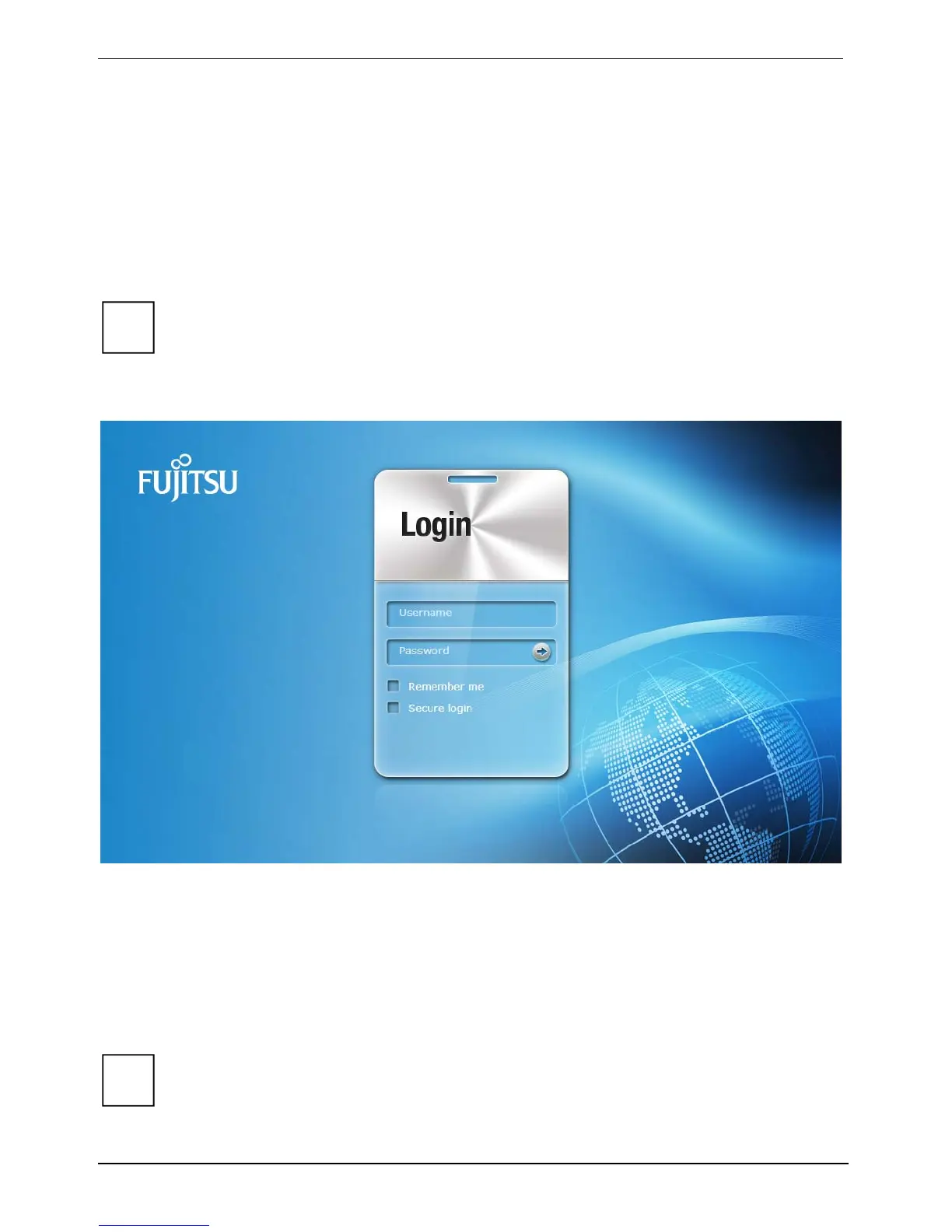
► Enter the user name and password to log in.
– Default user name: admin
– Default password: admin
The NAS supports encrypted SSL login. This allows the server to be configured and managed over
and encrypted data link.
► To use this function, check the Secure Login option on the administration page before logging in
to the server.
i
If the NAS is situated behind a NAT gateway and it is necessary to allow access to the
NAS using secure login over the Internet, then Port 443 must be open on the NAT and
mapped to the LAN IP of the NAS.


 To Next Page