24
Recording
EN
Formatting a disc
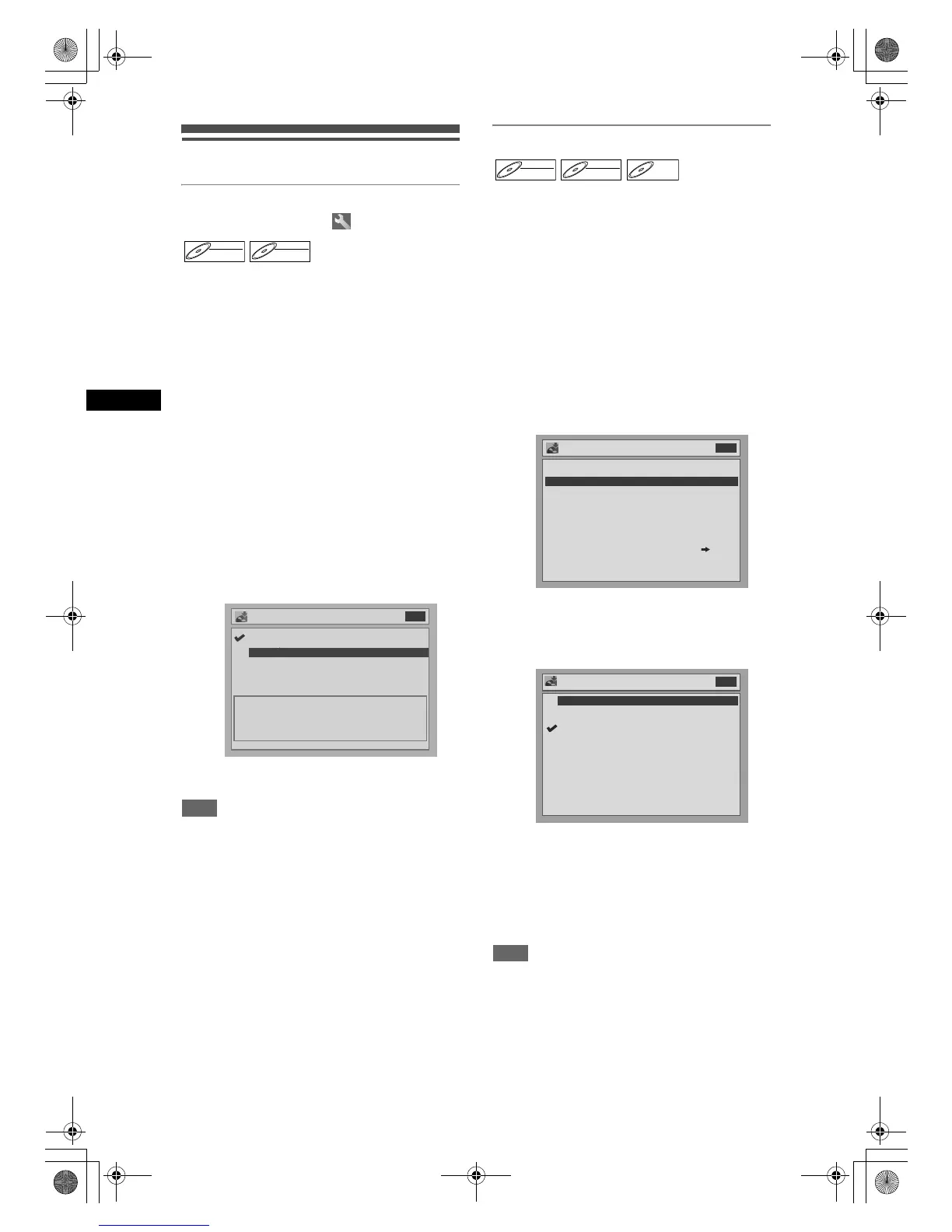
Choosing the recording format of a
blank DVD-RW disc
When inserting a blank disc, the unit automatically
starts to initialise the disc. You can also manually
format a DVD-RW disc once it has been used. After
formatting, you can record on the disc with the
recording format selected in the Setting menu.
1 In stop mode, press [SETUP].
2 If you select “Advanced Setting
Menu,” proceed to step 3.
If you select “Easy Setting Menu,”
proceed to step 4.
3 Select “Recording” using
[Cursor U / D], then press [ENTER].
4 Select “DVD-RW Recording Format”
using [Cursor U / D], then press
[ENTER].
5 Select “Video mode” or “VR mode”
using [Cursor U / D], then press
[ENTER].
6 Press [SETUP] to exit.
Note
• The recording format setting is effective only for
DVD-RW discs. You cannot change the recording
format for a DVD-R disc. DVD-R discs are always in
Video mode.
• You cannot mix two formats on one DVD-RW disc.
If you insert a disc that has been recorded before,
the recording format cannot be changed even if you
change it in the Setting menu.
• The unit is not compatible with DVD+RW / R discs.
If a blank DVD+R or DVD+RW disc is inserted, the
error message (“Disc Error”) will appear.
• A Playlist is created automatically during recording
on a DVD-RW disc in VR mode.
Setting Auto Chapter
The unit inserts a chapter mark periodically (every 10
minutes by default) during recording. Using the Auto
Chapter menu, you can set this function off or change
the time period.
1 In stop mode, press [SETUP].
2 Select “Advanced Setting Menu”
using [Cursor U / D], then press
[ENTER].
If it has already appeared, proceed to step 3.
3 Select “Recording” using
[Cursor U / D], then press [ENTER].
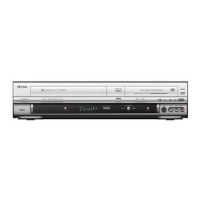
4 Select “Auto Chapter” using
[Cursor U / D], then press [ENTER].
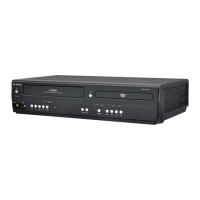
5 If you wish to set “Auto Chapter”
OFF, select “OFF” using
[Cursor U / D], then press [ENTER].
If you wish to change the time period
for Auto Chapter, select the required
time period using [Cursor U / D],
then press [ENTER].
6 Press [SETUP] to exit.
Note
• You cannot set or clear chapter markers on DVD-R
discs. (See page 50.)
DVD-RWDVD-RW
Video
DVD-RWDVD-RW
VR
DVD-RW Recording Format
Video mode
VR mode
Video mode
DVD Player Compatibility mode.
VR mode
Editing possibility mode.
VR mode
DVD-RW Recording Format
Video mode
VR mode
Video mode
DVD Player Compatibility mode.
VR mode
Editing possibility mode.
VR mode
DVD
DVD-RWDVD-RW
Video
DVD-RWDVD-RW
VR
DVD-RDVD-R
DVD-
Recording
DVD-RW Recording Format Video mode
Timer Programming
Auto Finalise
Auto Chapter 10 minutes
DVD
Bilingual Recording Audio
External input Audio
Dubbing Mode
Main
Stereo
VCR DVD
Auto Chapter
OFF
5 minutes
10 minutes
15 minutes
30 minutes
60 minutes
OFF
Auto Chapter
OFF
5 minutes
10 minutes
15 minutes
30 minutes
60 minutes
OFF
DVD
DRV_B2737_B2734.book Page 24 Thursday, March 31, 2005 10:04 PM


 To Next Page