22
EN
6 Select the position number you want to use
using [the Number buttons] or [K \ L], then
press [0].
• You can select position number 1-99.
•With [the Number buttons], you only need to enter the
last 2-digit numbers.
7 Select “System” using [K \ L], then press [1].
8 Select “L” or “BG” using [K \ L], then press [0].
• If your system is SECAM-L, select “L”.
• If your system is PAL-B/G, select “BG”.
9 Select “Channel” using [K \ L], then press [1].
10 Press [K \ L] to start scanning.
• The tuner will begin to search up or down automatically.
When a channel is found, the unit will stop searching
and the picture will appear on the TV screen.
• You can select a desired channel number using
[the Number buttons]. Refer to the following Channel
Plan table and press the three digits to select the
channel number. (To select channel 4, press [0] first and
then press [0] and [4]. Or press [4] and then “– – 4”
appears and wait for 2 seconds.)
• If desired channel is found, press [0].
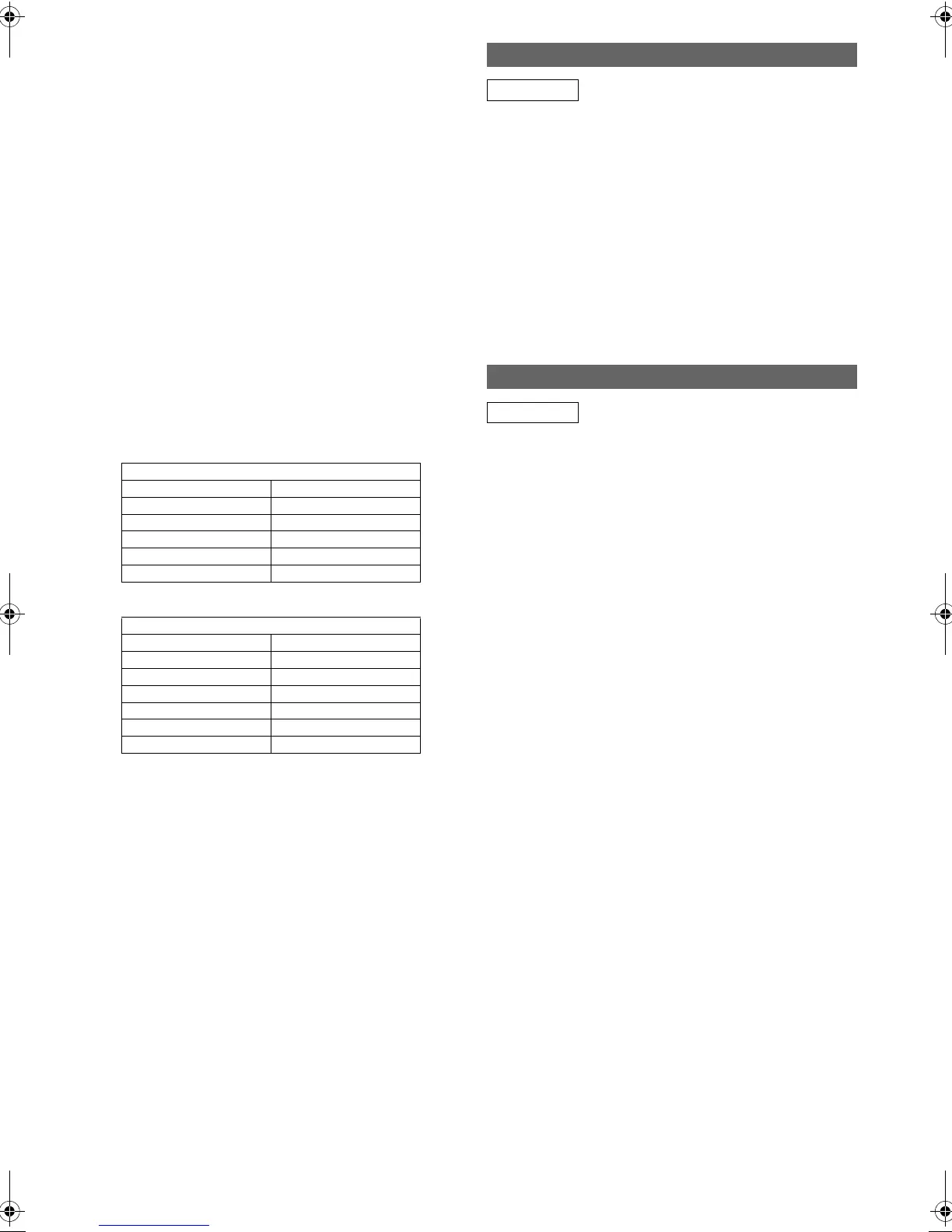
[L (SECAM-L)]
[BG (PAL-B/G)]
This unit can receive the Hyper and Oscar frequency
bands.
• If you want to decode scrambled signals, select
“Decoder” using [K \ L], then press [1]. Select “ON”
using [K \ L], then press [0].
• If “Skip” is set to “ON”, select “Skip” using [K \ L], then
press [1]. Select “OFF” using [K \ L], then press [0].
• To store another channel, repeat steps
5 to 10.
11 Press [SETUP] to exit.
You can set the unit to skip channels. You can no longer
receive or watch when you access channels using
[PROG. G\H].
1 Follow steps 1 to 4 in “Manual Tuning
(ANALOG)” on page 21.
2 Select “Position” using [K \ L], then press [1].
3 Select the position number using
[the Number buttons] or [K \ L], then press [0].
4 Select “Skip” using [K \ L], then press [1].
5 Select “ON” using [K \ L], then press [0].
• To skip another channel, repeat steps 2 to 5.
6 Press [SETUP] to exit.
You can replace two channels.
1 In stop mode, press [SETUP]. Select “General
Setting” using [K \ L], then press [ENTER\OK].
2 Select “Channel” using [K \ L], then press
[ENTER\OK].
3 Select “ANALOG Channel Setup” using [K \ L],
then press [ENTER\OK].
4 Select “Move” using [K \ L], then press
[ENTER\OK].
5 Select the position number to change the
channel using [K \ L], then press [ENTER\OK].
You cannot select a position number where “– – –”
appears next to the number, because “Skip” is set to “ON”
for that position number.
6 Move the channel to another position number
using [K \ L], then press [ENTER\OK].
• To move another channel, repeat steps 5 to 6.
7 Press [SETUP] to exit.
Channel Plan
CH Indication TV Channel
1 – 10 F1 – F10
21 – 69 E21 – E69
74 – 86 B – Q
90 – 106 S4 – S20
121 – 141 S21 – S41
Channel Plan
CH Indication TV Channel
2 – 12 E2 - E12
13 – 20 A – H (only ITALY)
21 – 69 E21 – E69
74 – 78 X, Y, Z, Z+1, Z+2
80 – 99, 100 S1 – S20, GAP
121 – 141 S21 – S41
Skip a Preset Channel
ANALOG
Move
ANALOG
E3TF0ED_EN.book Page 22 Wednesday, March 17, 2010 11:20 AM




 To Next Page