48
EN
1 During playback, press [PAUSE F].
2 Press [SKIP H \ G] repeatedly.
Each time you press [SKIP G], playback will go forward
one frame (or step) at a time with the sound muted.
To go backward one frame (or step), press [SKIP H].
Press and hold [SKIP G] to continue going forward.
To continue going backward, press and hold [SKIP H].
3 Press [PLAY B] to resume playback.
Note
• Only step by step forward is available when playing back
media with DivX
®
files.
1 During playback, press [PAUSE F], then press
[FWD D] or [REV E].
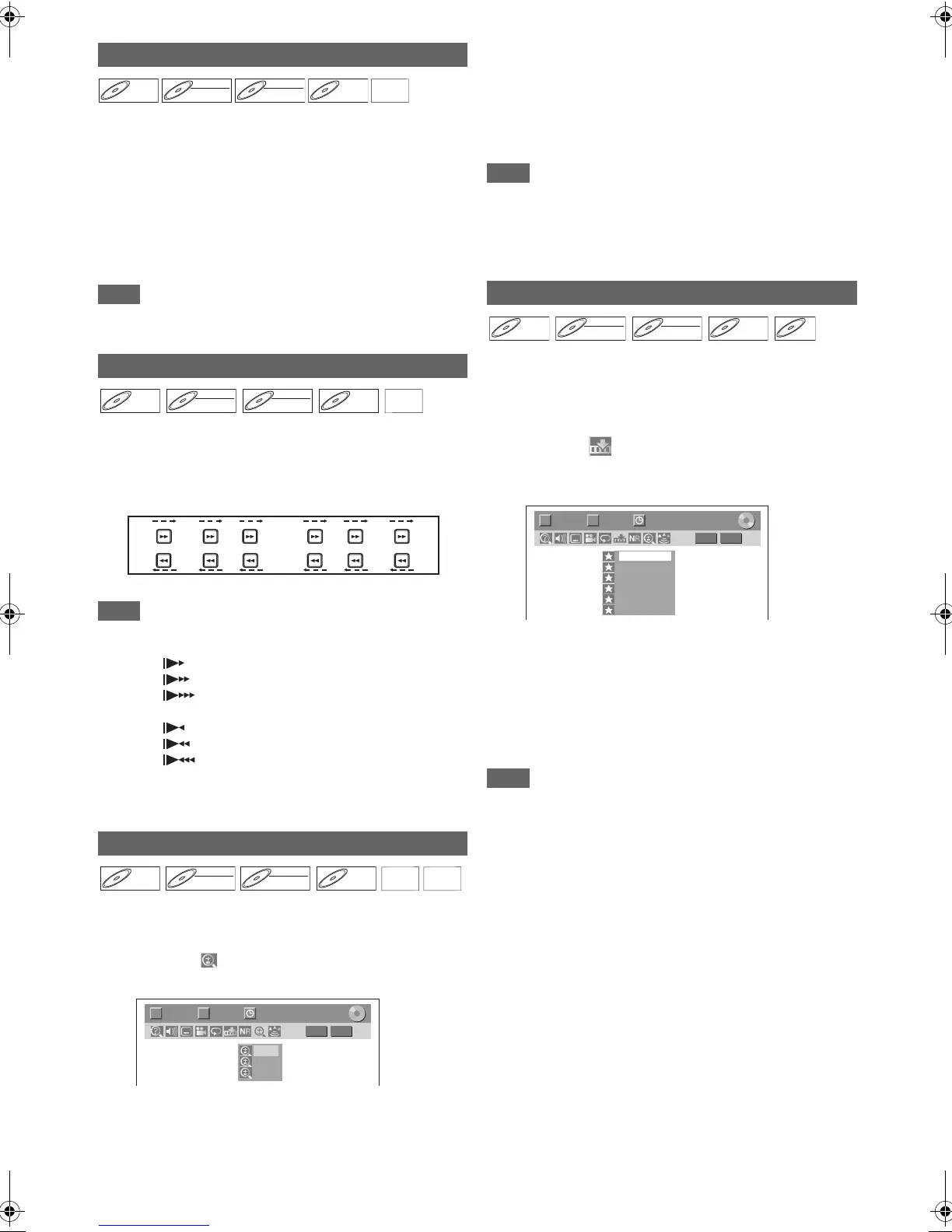
Each time you press [FWD D] or [REV E], the
approximate speed changes as follows.
(The sound will remain muted.)
To return to normal playback, press [PLAY B].
Note
• Forward / reverse speeds are indicated with icons as follows.
Forward (Approx. Speed):
1/16x:
1/8x:
1/3x:
Reverse (Approx. Speed):
1/16x:
1/8x:
1/4x:
•For some DivX
®
files, Slow forward may not function.
• Only slow forward is available when playing back media with
DivX
®
files.
1 During playback, press [DISPLAY] to bring up
the display menu.
2 Select the icon using [0 \ 1] to display the
selection menu.
Four options are available, “x1.0”, “x1.2”, “x1.5” and
“x2.0”. These are displayed excluding the current zoom
rate.
3 Select the desired zoom factor to zoom using
[K \ L], then press [ENTER\OK].
The zoom area is displayed.
4 Select the desired zoom position using
[K \ L \ 0 \ 1], then press [ENTER\OK].
Zoom playback will start.
Note
• To cancel the zoom function, select “x1.0” using [K \ L],
then press [ENTER\OK].
• If selecting a smaller factor than that currently selected, the
zoom area is not displayed.
• You cannot slide the zoomed picture on some JPEG files.
You can assign a specific point on a disc to return later.
1 During playback, press [DISPLAY] to bring up
the display menu.
If the display menu is already shown, skip to step 2.
2 Select the icon using [0 \ 1] to display the
marker list.
e.g.) DVD-video
3 Select the desired marker number using [K \ L].
When the disc reaches the desired point, press
[ENTER\OK].
The title (track) number and the time are displayed.
4 To return to the marker, select the desired
marker number using [K \ L], then press
[ENTER\OK].
Note
• To clear a marker, select the marker number you want to
clear, then press [CLEAR].
• You can mark up to 6 points.
• All markers are erased when you perform the following
operations.
- Opening the disc tray
- Turning off the power
- Making additional recording on the disc (DVD only)
- Editing any title (DVD only)
- Changing the mode between Original and Playlist. (VR
mode DVD-RW disc only)
Step by Step Playback
Slow Forward / Slow Reverse Playback
Zoom
DVD-V
DVD-V DVD-RW
DVD-RW
Video
DVD-RW
DVD-RW
VR
DVD-R
DVD-R
DivX
®
DivX
®
DVD-V
DVD-V DVD-RW
DVD-RW
Video
DVD-RW
DVD-RW
VR
DVD-R
DVD-R
DivX
®
DivX
®
REV
FWD
REV
FWD
REV
FWD
REV
FWD
REV
FWD
REV
FWD
1
/8x
1
/
1
6x
1
/8x
1
/
1
6x
1
/3x
1
/4x
Pause
DVD-V
DVD-V DVD-RW
DVD-RW
Video
DVD-RW
DVD-RW
VR
DVD-R
DVD-R
JPEG
JPEG
DivX
®
DivX
®
1/ 5 1/ 5
DVD
0:01:00 / 1:23:45
Video
T C
× 1.2
× 1.5
× 2.0
Marker Setup
DVD-V
DVD-V DVD-RW
DVD-RW
Video
DVD-RW
DVD-RW
VR
DVD-R
DVD-R CD
CD
1/ 5 1/ 5
DVD
---
---
---
---
---
---
1
2
3
4
5
6
0:01:00 / 1:23:45
Video
T C
E9TF0ED_EN.book Page 48 Wednesday, March 17, 2010 1:32 PM


 To Next Page