6
2.4. DISPLAY
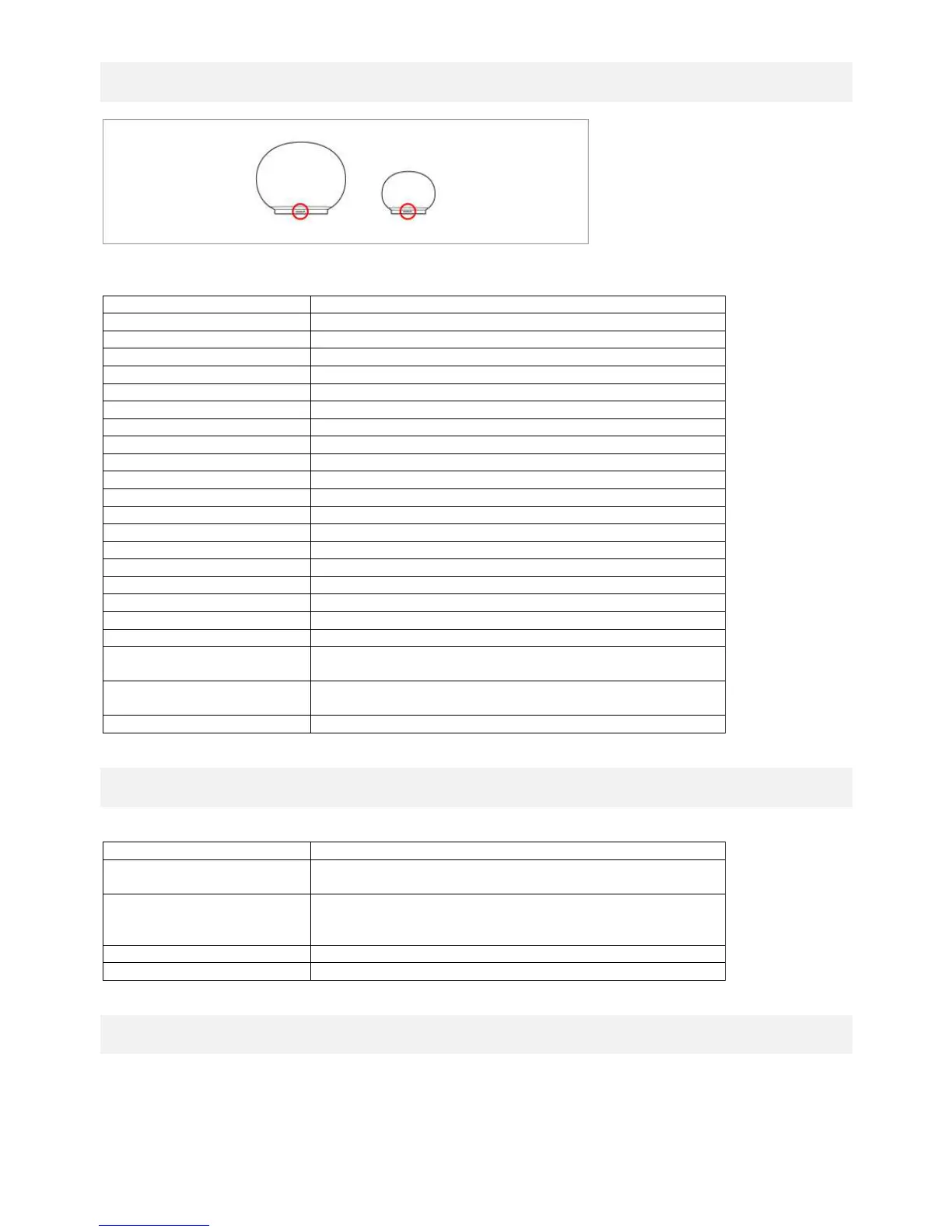
Figure 2: The color of the Geneva logo shows the operation status of the device.
black Device is powered off
yellow Device is starting up
green AirPlay, DLNA, connected to the Wi-Fi network
green (blinking) AirPlay, DLNA, waiting to connect to the Wi-Fi network
blue Bluetooth, connected
blue (blinking) Bluetooth, connecting or pairing
pink Line-In
Only with AeroSphère Base
red Audio CD (AeroSphère Base)
light blue FM or DAB+ (AeroSphère Base)
pink Line-In (AeroSphère Base)
red (blinking) Waiting to connect to audio CD
light blue (blinking) Waiting to connect to FM or DAB+
pink (blinking) Waiting to connect to Line-in from the Base
green / yellow (blinking) Failed to connect to a Wi-Fi network
green (blinking 3 times) At this moment, successfully connected to the Wi-Fi network
green
(repeated short single blink)
Wi-Fi setup in progress (WPS method)
green
(repeated short double blink)
Wi-Fi setup in progress (webpage or WAC method)
changing colors Software update in progress
2.5. BACK PANEL
WPS setup (push button once)
WAC setup / Network webpage setup (hold button for 10
sec)
Analog audio input ( stereo ), 3.5 mm connector
AC power input (100 - 240 VAC, 50/60 Hz)
2.6. PLAYING MUSIC WITH LINE-IN
The 3.5 mm analog audio input on the back of the AeroSphère speaker can be used for external audio sources.
Press “LINE-IN” on the remote control. There are two "LINE-IN" buttons on the remote control: the upper "LINE-IN"
button selects the analog audio input on the AeroSphère speaker, the lower "LINE-IN" button selects the analog
audio input of the AeroSphère Base.



 To Next Page