9
4.2. MAIN SCREEN
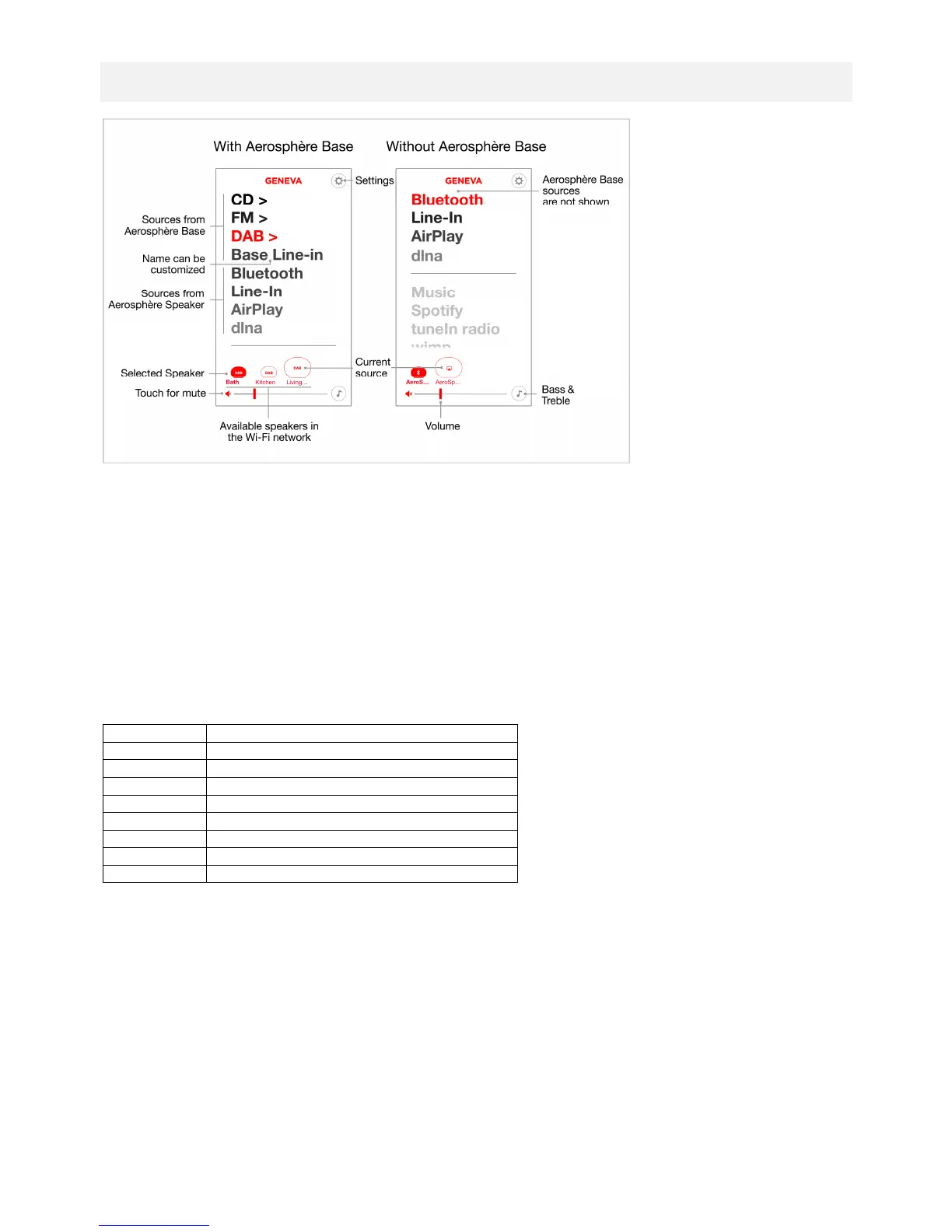
Figure 6: The main screen with an AeroSphère Base (left), and without an AeroSphère Base (right).
Starting the app
When the app starts, it will automatically find all AeroSphère products in the Wi-Fi network. If no products are
discovered, learn more in the troubleshooting section.
In the main menu, first select the speaker icon, then the audio source. The CD, FM and DAB sources are only
shown if you have an AeroSphère Base in your home network.
How to select a music source
1. Select a speaker at the bottom
2. Select one of the music sources, for example “FM”
3. The current music source of a speaker can be seen inside the speaker icon
4. The GENEVA logo of the speaker indicates the current music source with a color.
Current music source of an AeroSphère speaker - color of GENEVA logo
Line-In (AeroSphère Base)
Customizing the speaker name
The name of the speaker can be changed in Settings ("Bath", "Kitchen", "Living Room").



 To Next Page