G-PLAY Installation Guide
Pa
e 20
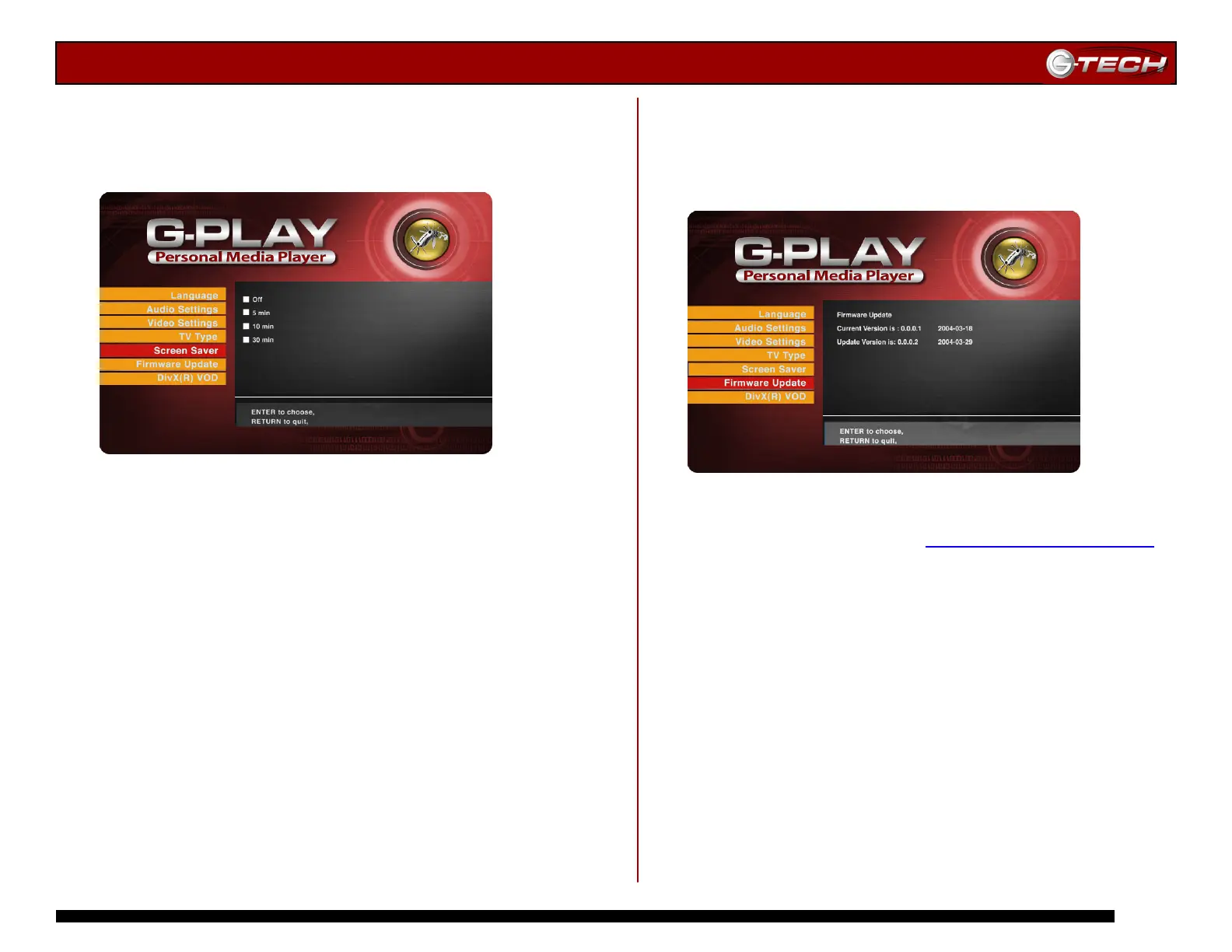
14.8 Screen Saver
This menu enables you to select the amount of time that
G-PLAY can be inactive before launching the screen saver
function.
Use the ▲▼ Navigation Buttons to select the time interval
you wish and then press Play/Enter to confirm your choice.
Press the Home button to save your changes.
14.9 Firmware Update
A nice feature of G-PLAY is the ability to easily update the
system firmware to enable new features. When new
firmware for G-PLAY becomes available, it will be posted in
the Support section on the G-Tech website.
Follow the directions below to update G-PLAY’s firmware.
1) Download new firmware at
www.g-technology.com/support
2) Connect G-PLAY to your computer.
3) Copy the firmware to the Firmware folder on G-PLAY.
4) Connect G-PLAY to your TV/monitor.
5) Use the ▲▼ Navigation Buttons to select the new
firmware you downloaded and then press Play/Enter to
confirm your choice.
The firmware update will take approximately 1 minute. Once
the update has completed, turn off G-PLAY and remove the
power adapter. Wait 30 seconds before reconnecting the
power adapter and powering G-PLAY back on. The new
firmware is now active.
Note: DO NOT power off G-PLAY during the firmware update process!
Doing so may render G-PLAY inoperable. If this should happen,
contact G-Tech Support or your reseller for assistance.













 To Next Page