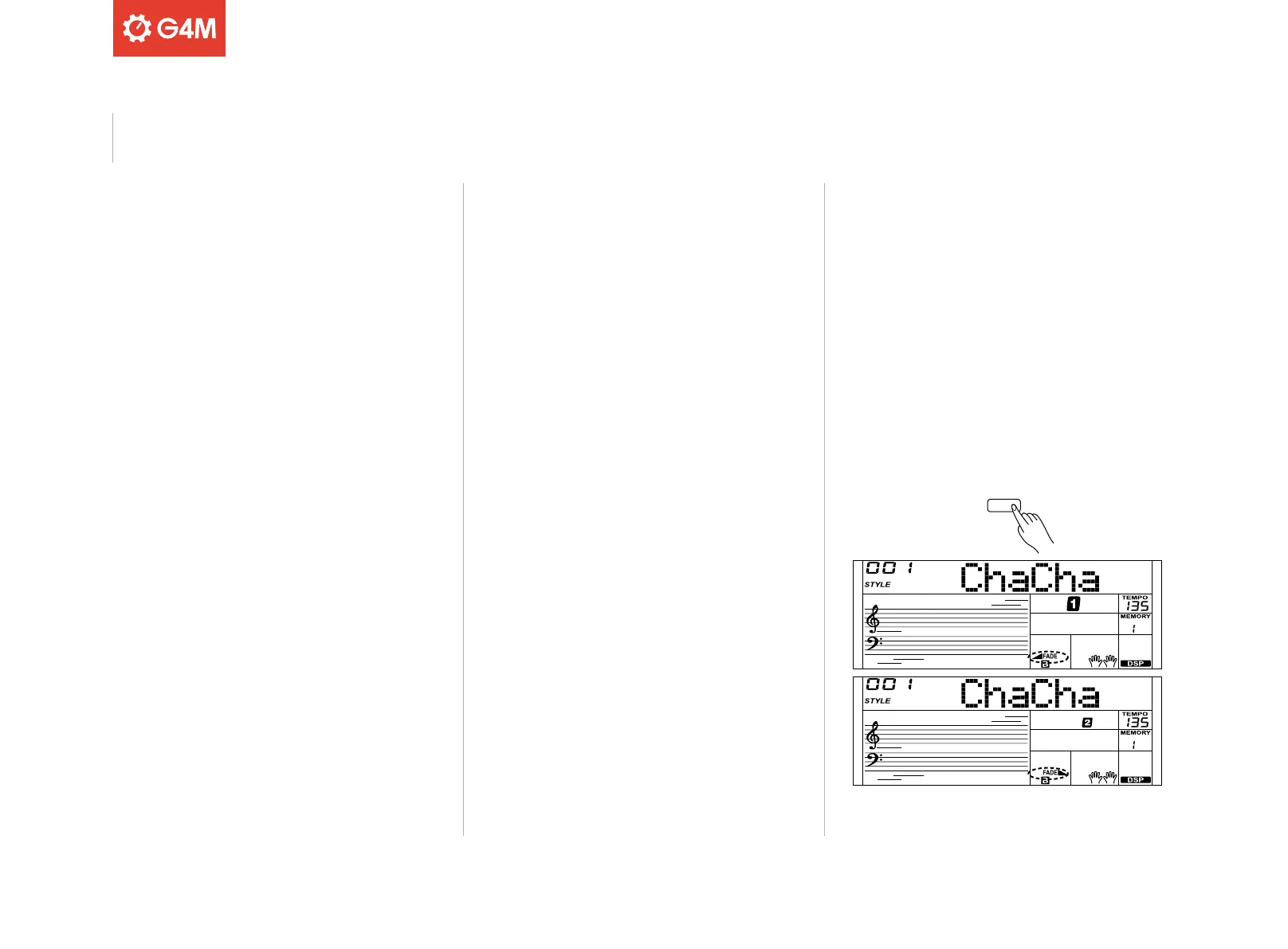
FADE
FILL A FILL B
FINGERED
CHORD
FINGERED
18
ACCOMPANIMENT SECTIONS
There are various types of Auto Accompaniments sections that allow
you to vary the arrangement of the accompaniment being played:
1. INTRO
When the intro is finished, the accompaniment will automatically lead
into to the main section.
2. MAIN (A, B)
The main pattern of the song will be played continuously until
another section is selected
3. FILL (A, B)
Automatically add a fill to your performance. When the fill is finished,
the accompaniment reverts to the main section.
4. ENDING
Use this section to appropriately end your performance. When the
ending section finishes, the accompaniment automatically stops. The
length of the ending diers depending on the style selected.
FADE IN/OUT
Styles can be started and finished with a fade, producing a smoother
performance.
Before starting the style, press the [FADE] button. “< FADE” will be
shown on the display.
To fade out a style, press the [FADE] button during your performance. “>
FADE” will be shown on the display until the performance stops.
The default fade in/out time is around 10 seconds.
The auto accompaniment feature puts a whole backing band at your
fingertips. In this mode, all you have to do is play the chords with your
left hand and the accompaniment will automatically play along in the
style selected, instantly following the chords you play.
SELECTING A RHYTHM STYLE
The keyboard has 180 rhythms or playing “styles” (refer to the style list
for details.)
Press the [STYLES] button to enter Style mode, use the number keypad
or the [
^
]/[^] buttons to select the required style to be played.
Auto Accompaniment



 To Next Page