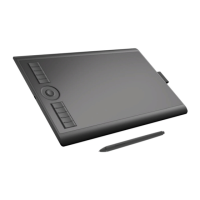
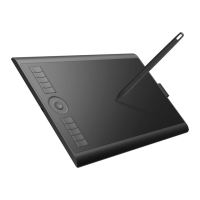
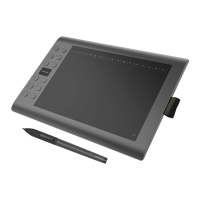
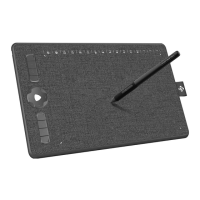
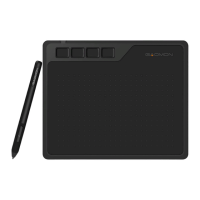
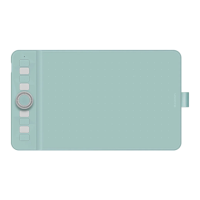
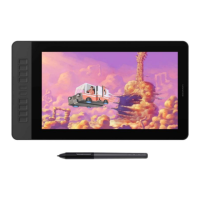
This document is the user manual for the GAOMON M10K 2018 drawing tablet. It provides comprehensive information on the tablet's features, installation, usage, and troubleshooting.
Function Description:
The GAOMON M10K 2018 is a professional battery-free drawing tablet designed to enhance efficiency in painting and creative work. It allows users to draw and write freely, mimicking the experience of a pen on paper with various lines and colors. The tablet is compatible with Windows 7 or later and macOS 10.12 or later, making it versatile for a wide range of users and software environments.
Important Technical Specifications:
Tablet (M10K 2018):
- Touch Technology: Battery-free EMR (Electromagnetic Resonance)
- Working Area: 255.06 x 159.84 mm (10 x 6.25 inches)
- Dimension: 360 x 240 x 10.5 mm
- Net Weight: 695g
- Touch Resolution: 5080 LPI (Lines Per Inch)
- Report Rate: 233 PPS (Points Per Second)
- Accuracy: ±0.3mm
- Pen Sensing Height: 10mm
- Interface: Micro USB
- Express Keys: 11 + Touch Ring
- OS Support: Windows 7 or later, macOS 10.12 or later
Digital Pen (AP31):
- Dimension: 163 x Φ10.8 mm
- Weight: 10.5g
- Sensitivity Pressure: 8192 Levels
Usage Features:
Product Overview:
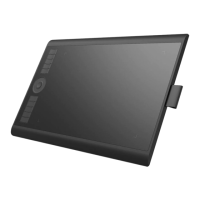
The tablet features Express Keys and a Touch Ring for customizable shortcuts, an Anti-slip Mat for stability, a Name Plate, a Micro USB port for connection, and a Pen Jacket for storing the digital pen. The working area is clearly defined for drawing and writing.
Packing List:
The product comes with the Pen AP31, Pen Nibs, a Pen Nib Clip, a Felt Pouch for Nibs, a USB Cable, a Pen Case, and a Quick Start Guide.
Tablet Connection:
The tablet connects to the computer via a USB cable.
Driver Installation:
Users need to download the driver from the GAOMON website. A grey driver icon in the system tray indicates successful installation. The icon turns orange when the tablet is connected and recognized, signifying readiness for use. It's crucial to uninstall other similar product drivers and close graphics/anti-virus software before installation to prevent conflicts.
Digital Pen Overview (AP31):
The digital pen has three main parts:
- Upper button: Default function is the Right mouse key.
- Lower button: Default function is the Eraser.
- Pen nib: Functions as the Left mouse key.
Pen Nib Replacement:
Nibs wear out over time and can be replaced using the included pen nib clip to pull out the old nib and insert a new one until it stops.
Function Setting:
Device Connection Prompt:
The driver interface provides clear indicators for device connection status: "No Device Detected" or "Device connected."
Working Area Setting:
- Using Multiple Monitors: Users can select a specific monitor to map the tablet's active area to, especially in extended display mode. In mirror mode, the tablet maps to all monitors simultaneously.
- Defining Working Area: Users can choose "Full Area" (default) or "Custom Area" by dragging corners of a graphic to define the mapped screen area.
- Rotate Working Area: The tablet's working area can be rotated (0°, 90°, 180°, 270°) to accommodate left-handed or right-handed operation.
Shortcuts Keys Function Setting:
Express Keys can be customized. Default values are shown by hovering over or clicking a key. Users can select functions from a pop-up dialog box, which are saved automatically. Press Keys can be enabled or disabled. Customization options include Keyboard Key, Mouse Key, Switch Functions, Multimedia, Show/Hide, Launch the Program, and No Function.
Similar to Express Keys, the pen buttons can be customized by selecting desired functions from a pop-up dialog box, with settings saved automatically. Options include Mouse Left-click, Right-click, Middle Mouse Button, Double-left Click, Wheel Forward, and Wheel Backward.
Pressure Sensitivity Setting:
The pressure sensitivity curve can be adjusted by dragging points. Dragging to the upper left increases sensitivity, while dragging to the lower right decreases it.
Pen Pressure Testing:
A dedicated test area allows users to apply gradual pressure to the stylus on the screen to verify the pressure level.
Enable the Windows Ink Feature:
The tablet supports Windows Ink, providing extensive pen input support for applications like Microsoft Office, Windows Journal, Adobe Photoshop CC, and SketchBook 6.
Mouse Mode (Only for specific models):
When enabled, the cursor moves relative to pen movement, similar to a mouse. This allows clicking icons or selecting options at the screen edge without moving the pen to the working area's edge.
Customize Press Keys and Pressure Curve for Different Programs:
Users can customize press key functions and pressure curves for specific applications. These settings are automatically saved for each program.
Data Export and Import:
The driver allows exporting and importing custom configuration data, which is useful for using the tablet with different software or avoiding repeated settings. This feature backs up all device settings, which can be restored on any computer.
Maintenance Features:
Precautions:
- Read the manual carefully and keep it for future reference.
- Unplug the power cord before cleaning; use a soft, damp cloth, no detergents.
- Avoid exposing the product to water or other liquids to prevent malfunction or electrical shock.
- Keep the tablet away from children to prevent choking hazards from pen nibs or side switches.
- Power off the tablet where electronic devices are not allowed (e.g., airplanes) to prevent interference.
- Do not disassemble or modify the tablet or pen to avoid heat, ignition, shock, or injury; this will void the warranty.
- Ensure repairmen use manufacturer-specified substitute components.
- Do not insert foreign material into USB ports or other openings to prevent malfunction, burnout, or electrical shock.
Troubleshooting:
The manual includes a troubleshooting section for common issues:
- No pressure in graphics software but cursor moves: Suggests uninstalling other tablet drivers or closing drawing software during driver installation, then reinstalling and restarting the computer.
- Pen does not work: Check if the original pen is used and if the driver is correctly installed.
- Press Keys does not work: Verify if Press Keys function is enabled in the driver and if they are correctly defined.
- Computer can't enter sleep mode: Advise against leaving the pen on the tablet surface when not in use.
- Side button of the pen doesn't work: Ensure the nib is not touching the tablet surface and is more than 10mm away when pressing the side button.
- Computer can't recognize the tablet: Check if the USB port is functional and try another USB port.
For further assistance, users are directed to GAOMON's FAQ list and question page.
GAOMON TECHNOLOGY CORPORATION provides contact details for after-sales service, including Facebook, Twitter, email, and their official website.


 To Next Page
 General