EasyManua.ls Logo

GAOMON M1220 - User Manual

GAOMON M1220
26 pages
Print Icon
To Next Page IconTo Next Page
Loading...
User Manual
M1220
Windows 7 or later, mac OS 10.12 or later, Android 6.0 or later

Other manuals for GAOMON M1220

Questions and Answers

  • V
    Veronica StevensonJul 29, 2025
    How to fix no pressure in GAOMON M1220 software?
    • G
      gmillerJul 29, 2025
      If there's no pressure sensitivity in your graphics software while the cursor moves with your GAOMON Graphics Tablet, you may have installed other tablet drivers or opened the drawing software during driver installation. Uninstall all drivers, close the drawing software, and reinstall the driver. Restarting your computer after installation is recommended.
  • M
    Matthew EricksonAug 7, 2025
    What to do if GAOMON M1220 prevents computer from sleeping?
    • M
      Mary NelsonAug 7, 2025
      If your computer isn’t entering sleep mode when using your GAOMON Graphics Tablet, avoid placing the pen on the tablet surface when not in use, as this can prevent the computer from sleeping.
  • S
    Samantha SmallAug 17, 2025
    Why doesn't the side button on my GAOMON M1220 pen work?
    • Z
      Zachary ColonAug 17, 2025
      If the side button on your GAOMON Graphics Tablet pen isn't working, ensure that the pen nib isn't touching the tablet surface when pressing the side button, and that the distance between the nib and the surface is more than 10mm.

Summary

Safety Precautions

Handling and Usage Guidelines

Essential safety precautions for using the GAOMON M1220 tablet, covering handling, liquid exposure, and device integrity.

Product Overview

Tablet Introduction

Introduction to the GAOMON M1220 drawing tablet, highlighting its features and benefits for artists.

Product and Accessories

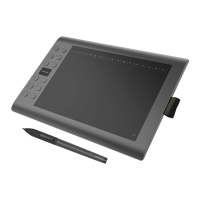
Details the physical components and accessories included with the GAOMON M1220 graphics tablet.

Multimedia Bar Features

Explains the functions of the multimedia bar for media control and other shortcuts.

Packing List

Lists all items provided in the GAOMON M1220 package, ensuring users know what to expect.

Tablet Connectivity

Step-by-step guide on how to physically connect the GAOMON M1220 tablet to your computer.

Driver Installation

Instructions for installing the GAOMON M1220 driver, including supported operating systems.

Connecting to Android Devices

Guide for connecting the GAOMON M1220 tablet to Android phones and tablets using OTG.

Digital Pen and Nib Care

Overview of the digital pen's features and instructions for replacing worn-out pen nibs.

Function Settings

Device Connection Status

Explains the status indicators for device connection and recognition in the GAOMON driver.

Working Area Setup

How to set up the tablet's active area mapping to your monitor(s) in different modes.

Express Key Customization

Instructions for assigning custom functions to the express keys on the GAOMON M1220 tablet.

Radial Controller and Wheel Modes

Details on using the Windows Radial and Wheel modes for enhanced control and shortcuts.

Multimedia Bar Settings

Enabling or disabling the multimedia bar functions within the GAOMON driver software.

Pen Button Functionality

Guide to customizing the functions assigned to the buttons on the GAOMON M1220's digital pen.

Pen Pressure Sensitivity

How to adjust the pen's pressure sensitivity curve for personalized drawing experience.

Pen Pressure Calibration

Procedure for testing the pen's pressure sensitivity levels to ensure proper calibration.

Windows Ink Feature

Enabling the Windows Ink feature for improved pen input support in compatible applications.

Mouse Mode Functionality

Instructions on activating and using the mouse mode for cursor control with the pen.

Program-Specific Settings

How to customize press keys and pressure curves for individual applications.

Configuration Data Management

Enables exporting and importing custom configuration data for easy backup and transfer.

Technical Specifications

Device Specifications

Detailed technical specifications for the GAOMON M1220 tablet and its digital pen.

Troubleshooting Guide

Common Issues and Solutions

Troubleshooting guide for common problems encountered with the GAOMON M1220 tablet and driver.

After-Sales Support

Contact Information

Provides contact details for GAOMON customer support, including website and email.

GAOMON M1220 Specifications

General IconGeneral
Active Area10 x 6.25 inches
Pressure Sensitivity8192 levels
Report Rate266 PPS
Resolution5080 LPI
ConnectivityUSB
Pen TypeBattery-free Pen
Pen TechnologyElectromagnetic resonance
CompatibilityWindows, macOS
Tilt Support±60 degrees

Related product manuals