i.
ii.
iii.
iv.
From the home screen, swipe down.
Select settings. (or press the brightness icon directly).
Go to ‘’Bright screen display‘’.
Go to ‘’Screen brightness‘’ to select your desired brightness.
Adjust the screen brightness by tapping the ‘’-‘’ or ‘’+ ‘’button.
From the home screen, swipe down.
Select settings.
Go to ‘’Bright screen display’’.
Go to ‘’Duration bright screen’’ to select your desired time.
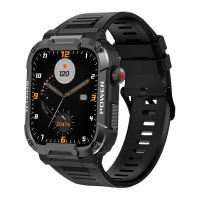
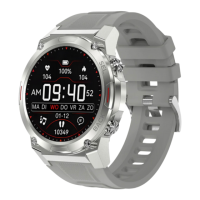
Press either button on the right to light up the screen. If there is no further
operation, the screen will automatically turn off after five seconds. You can
adjust the ''Duration bright screen'' of the GARD PRO in the settings of your
GARD PRO.
a. Adjust duration bright screen:
b. Adjust the brightness of your screen:
c. Tilt to activate the screen:
d. Always on function:
ULTRA 2+
PAGE 04
4. SCREEN ACTIVITY AND DISPLAY
i.
ii.
iii.
iv.
i.
ii.
iii.
iv.
At the bottom of the FitCloudPro app, go to ‘’Device‘’.
Select ‘’Up to wake up‘’.
Turn on the feature. The gray bar will turn orange when the feature is on.
Then you can select a start and end time. This prevents the GARD PRO
when you are lightly sleeping, for example.
i.
ii.
iii.
iv.
From the home screen, swipe down.
Select ‘’settings’’.
Go to ‘’Bright screen display‘’.
Go to ‘’Screen clock‘’. Then select how you want the ‘’Always on‘’ feature
displayed.
NOTE: These functions require a lot of battery power. This will reduce the
battery life considerably.


 To Next Page