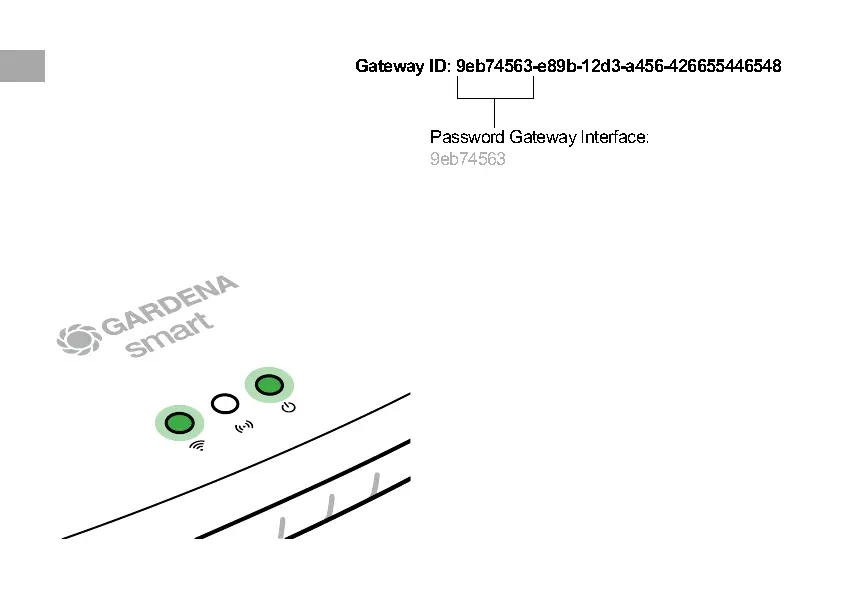
3. Login using the first eight digits of
your Gateway ID as the password
(see graphic).
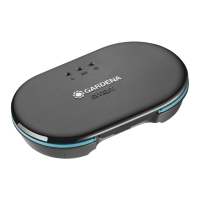
The Gateway ID is located on the
bottom side of the Gateway.
4. Select your home Wi-Fi network
under Wi-Fi Network.
Then your Gateway is connected
with the Internet.
Password Gateway Interface:
Gateway ID: 9eb74563-e89b-12d3-a456-426655446548
5. Enter your network password and confirm your
settings. Wait until the Internet LED illuminates
green permanently.
The software for your Gateway is now being
updated.This process can take up to
15 minutes (depending on your Internet
connection).
Once the Internet LED and the Power LED
illuminate green permanently, your Gateway is
up to date. It can now be included in the App.
6. Download the GARDENA smart system App
from the Google Play Store.
7. Follow the instructions in the App.
EN
16




 To Next Page