Smart Features
LTE Connected Features
NOTE: The Bounce watch has certain features that require an LTE Subscription and must be set up using the
Garmin Jr. app. For subscription information, go to garmin.com/subscriptions.
The features listed here require an active LTE Subscription and LTE connection.
• Assistance
• LiveTrack
• Text and voice messaging
• Weather
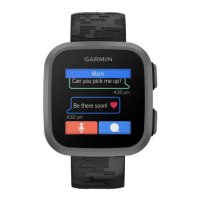
Sending a Message from the Watch
Before you can send messages from the watch, you must activate your LTE Subscription (LTE Connected
Features, page10).
1 Press .
2 Select > Contacts.
3 Select a contact.
4 Select .
5 Select an option:
• To send a text message, select .
NOTE: The list of messages and message text can be customized in the Garmin Jr. app (Managing Preset
Text Messages, page8).
• To send an emoji, select .
• To send a sound emoji, select .
6 Select an emoji or message.
7 Select Send.
Sending a Voice Message from the Watch
Before you can send messages from the watch, you must activate your LTE Subscription (LTE Connected
Features, page10).
1 Press .
2 Select > Contacts.
3 Select a contact.
4 Select > .
5 Record your message.
6 Select to stop recording.
NOTE: The watch automatically limits your recording time to approximately 20 seconds.
7 Select an option:
• Select to play back the message before sending it.
• Select Cancel to delete the message and try again.
• Select Send to send the message.
10 Smart Features





 To Next Page