• To add an open-ended warm up to your workout, select
Warm Up
> On
.
• To add an open-ended cool down to your workout, select
Cool Down > On.
Starting an Interval Workout
1
Select > Training
> Intervals > Do Workout
.
2
Select .
3
When your interval workout has a warm up, select to
begin the first interval.
4
Follow the on-screen instructions.
When you complete all of the intervals, a message appears.
Stopping a Workout
• At any time, select to end a workout step.
• At any time, select to stop the timer.
• At any time, select > Cancel Workout to end the
workout.
Using
Virtual Partner
®
The
Virtual Partner feature is a training tool designed to help you
meet your goals. You can set the Virtual Partner pace or speed
to help you reach your training target.
1
Select > Settings
> Activity Settings > Data Screens >
Virtual Partner > Status > On
.
2
Select
Set Pace or Set Speed.
You can use pace or speed as your running format.
3
Go for a run.
4
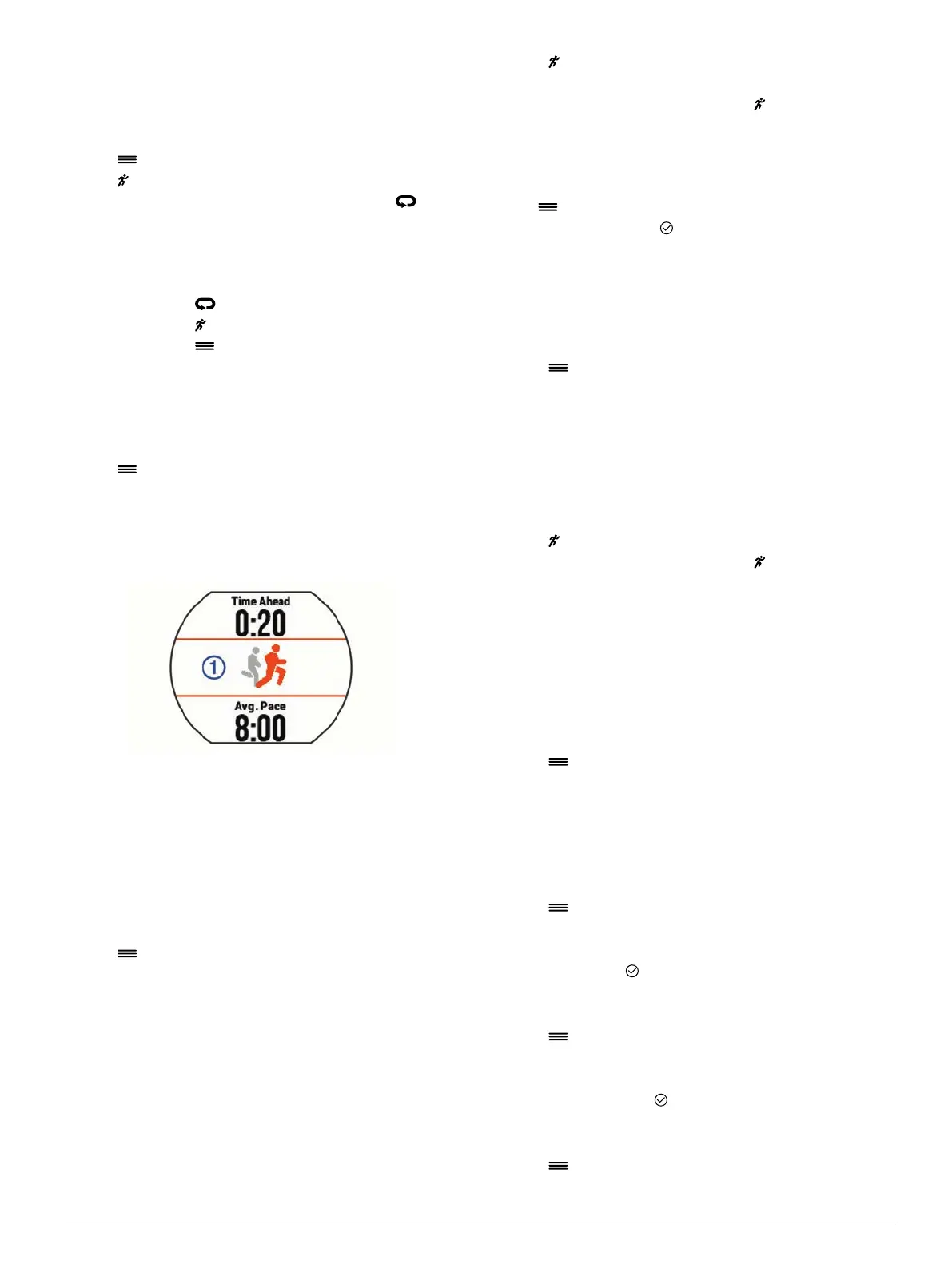
Scroll to the
Virtual Partner screen to see who is leading.
5
If necessary, hold the Virtual Partner banner
À
to adjust
Virtual Partner pace or speed during your run.
Setting a Training Target
The training target feature works with the Virtual Partner feature
so you can train toward a set distance, distance and time,
distance and pace, or distance and speed goal. This feature can
be used with the running, cycling, and other single sport activity
profiles (excludes swimming). During your training activity, the
device gives you real-time feedback about how close you are to
achieving your training target.
1
Select > Training > Set a Target.
2
Select an option:
• Select Distance Only to select a preset distance or enter
a custom distance.
• Select Distance and Time to select a distance and time
target.
You can enter the time target, use prediction (based on
your VO2 max. estimate), or use your personal record
time.
• Select Distance and Pace or Distance and Speed to
select a distance and pace or speed target.
The training target screen displays your estimated finish time.
The estimated finish time is based on your current
performance and the time remaining.
3
Select to start the timer.
4
If necessary, swipe to view the Virtual Partner
screen.
5
After you complete your activity, select > Save.
A summary screen appears indicating that you finished
ahead of or behind the target.
Cancelling a Training Target
1
During the activity, swipe to view the target screen.
2
Hold .
3
Select Cancel Target > .
Racing a Previous Activity
You can race a previously recorded or downloaded activity. This
feature can be used with the running, cycling, and other single
sport activity profiles (excludes swimming). This feature works
with the Virtual Partner feature so you can see how far ahead or
behind you are during the activity.
1
Select > Training
> Race an Activity
.
2
Select an option:
• Select
From History to select a previously recorded
activity from your device.
• Select
Downloaded to select an activity you downloaded
from your Garmin Connect account.
3
Select the activity.
The
Virtual Partner screen displays your estimated finish
time.
4
Select to start the timer.
5
After you complete your activity, select > Save.
A summary screen appears indicating that you finished the
race ahead of or behind the previously recorded or
downloaded activity.
Personal Records
When you complete an activity, the device displays any new
personal records you achieved during that activity. Personal
records include your fastest time over several typical race
distances and longest run or ride.
Viewing Your Personal Records
1
Select > My Stats > Records.
2
Select a sport.
3
Select a record.
4
Select
View Record.
Restoring a Personal Record
You can set each personal record back to the one previously
recorded.
1
Select > My Stats > Records.
2
Select a sport.
3
Select a record to restore.
4
Select Previous > .
NOTE:
This does not delete any saved activities.
Clearing a Personal Record
1
Select > My Stats > Records.
2
Select a sport.
3
Select a record to delete.
4
Select Clear Record > .
NOTE:
This does not delete any saved activities.
Clearing All Personal Records
1
Select > My Stats > Records.
NOTE:
This does not delete any saved activities.
Training 3


 To Next Page