A
B
Going to a Destination
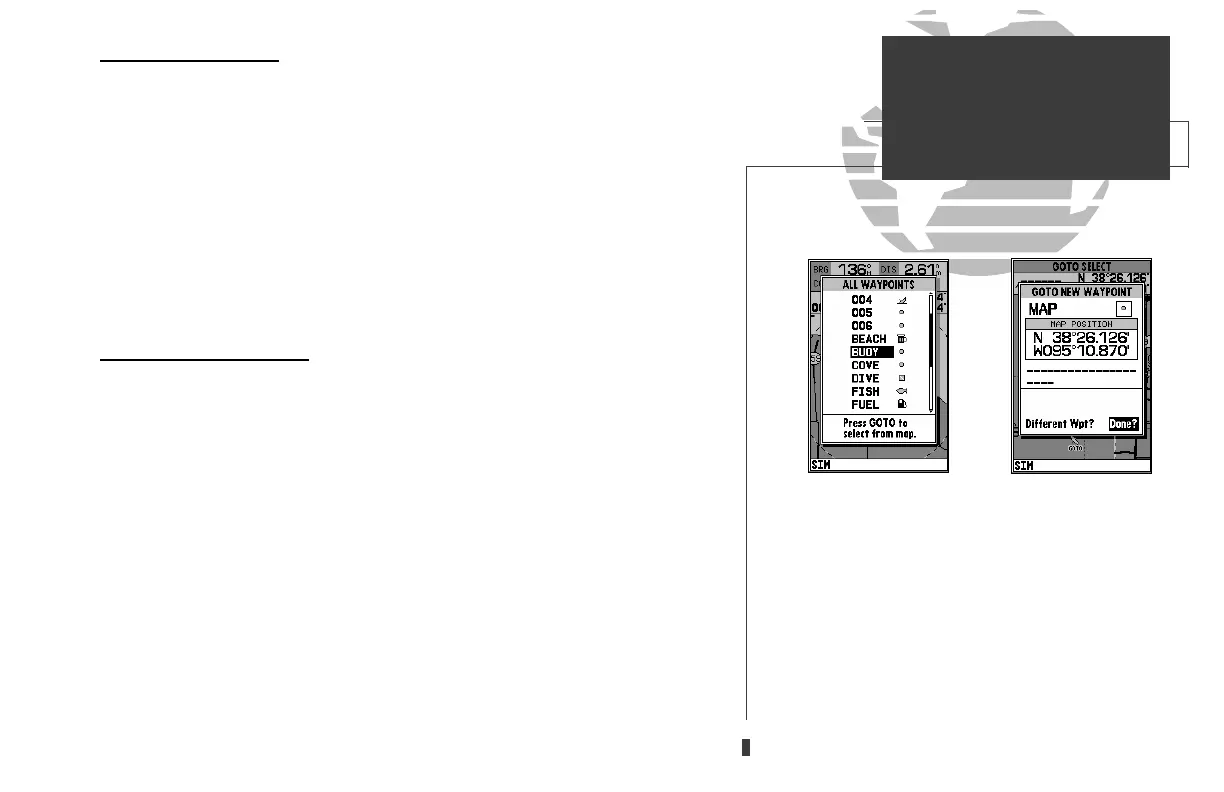
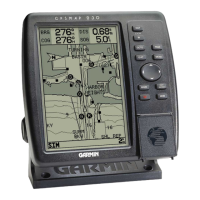
The GPSMAP 230 provides four ways to navigate to a destination: GOTO,
MOB, TracBack and route navigation. The most basic method of selecting a
destination is the GOTO function, which lets you select a waypoint as your desti-
nation and quickly sets a direct course from your present position. The
G
key
can be used in three ways: from a list of waypoints, directly from the map display
and from a list of GOTO options. Pressing the
G
key once displays a list of all
waypoints in memory, from which you can select a single destination waypoint.
To activate a GOTO from the waypoint list:
1. Press the
G
key.
2. Select a waypoint and press
T
.
Selecting a GOTO On Map
Pressing the
G
key twice allows you to graphically select an on-screen way-
point, navaid, or cursor position as a destination. A graphical GOTO may be used
to select one of three options from the map display: an existing waypoint, an on-
screen navaid, or a cursor position. If you are selecting a navaid or a new position
as the GOTO destination, the GPSMAP 230 will automatically create or move the
waypoint named ‘MAP’ at the navaid or map position.
To activate a GOTO from the map display:
1. Press the
G
key twice.
2. To select an existing user waypoint, highlight the waypoint on screen and press
T
.
3. To select a navaid, highlight the navaid on screen and press
T
. The ‘GOTO NEW
WAYPOINT’ page will appear, displaying the navaid position as a ‘MAP’ waypoint, with
the navaid symbol and text as the default icon and waypoint comment. Press
T
to
save the waypoint and begin navigation.
4. To select a cursor position as your destination, move the arrow cursor to the desired
position and press
T
. The ‘GOTO NEW WAYPOINT’ page will appear and display the
position as the ‘MAP’ waypoint. Press
T
to save the waypoint and begin navigation.
43
A. Press GOTO once to select a destination from a list
of waypoints.
B. Press GOTO twice to select a destination waypoint
with the map cursor. If you are not selecting an
existing waypoint as your destination, a new way-
point named ‘MAP’ will be created. Keep in mind
that the MAP waypoint will be overwritten for each
MAP GOTO. This allows you to navigate to on-
screen navaids without permanently storing the
navaid as a waypoint. If you want to save the MAP
waypoint, rename it following the steps on page 39.
SECTION
7
GOTO/MOB
Selecting a
GOTO Destination
update on 230.qxd 1/12/00 11:22 AM Page 43





 To Next Page