Getting Started
WARNING
See the Important Safety and Product Information guide in the
product box for product warnings and other important
information.
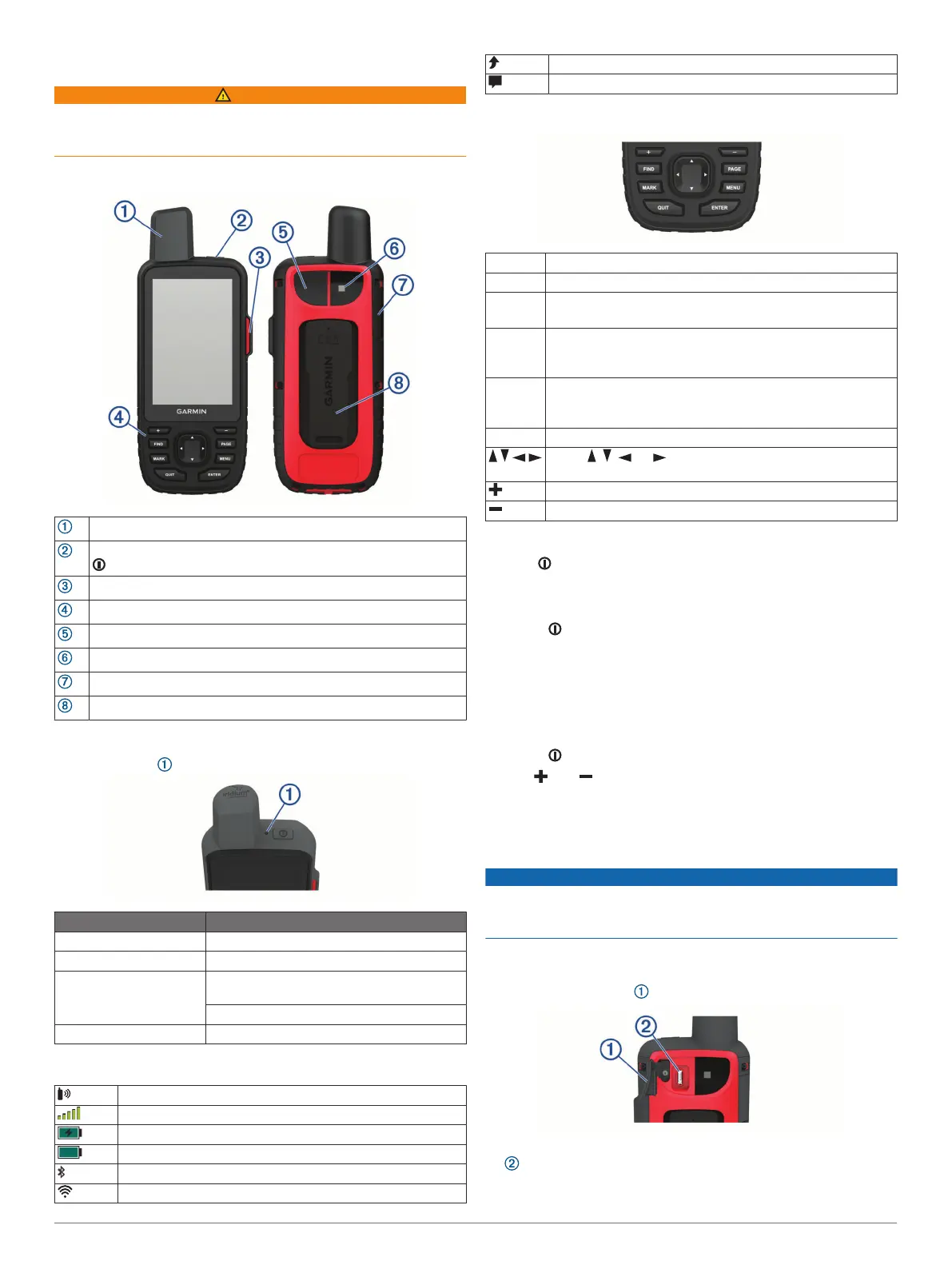
Device Overview
Internal Iridium
®
and GNSS antenna
Power button
SOS button
Buttons
Micro-USB port (under weather cap)
Flashlight
microSD
®
card slot (under weather cap)
Mounting spine
Status LED
The status LED indicates the device status.
LED Activity Status
Double flashing green You have an unread message.
Flashing green The device is in expedition mode.
Flashing red The device does not have a clear view of the
sky.
The device is below 10% battery power.
Alternating red and green The device is in SOS mode.
Status Icons
ANT+
®
technology status
GPS signal strength
Charging battery
Charging complete
Bluetooth
®
technology status
Wi-fi status
Sending inReach
®
messages
Unread inReach messages
Keys
FIND Select to open the search menu.
MARK Select to save your current location as a waypoint.
QUIT Select to cancel or return to the previous menu or page.
Select to scroll through the main pages.
ENTER Select to select options and acknowledge messages.
Select to control the current activity recording (from the Map,
Compass, Altimeter, and Trip Computer pages).
MENU Select to open the options menu for the page that is
currently open.
Select twice to open the main menu (from any page).
PAGE Select to scroll through the main pages.
Select , , , or to select menu options and move the
map cursor.
Select to zoom in on the map.
Select to zoom out on the map.
Turning On the Device
Hold .
Locking the Keys
You can lock the keys to prevent inadvertent key presses.
Select > Lock Keys.
Turning On the Backlight
Select any key to turn on the backlight.
The backlight turns on automatically when alerts and
messages are displayed.
Adjusting the Backlight
1
Select to open the status page.
2
Use and to adjust the brightness.
TIP: You can select NV to reduce the backlight intensity for
compatibility with night vision goggles.
Charging the Device
NOTICE
To prevent corrosion, thoroughly dry the USB port, the weather
cap, and the surrounding area before charging or connecting to
a computer.
NOTE: The device does not charge when it is outside the
approved temperature range (Specifications, page 18).
1
Lift the weather cap .
2
Plug the small end of the power cable into the charging port
on the device.
3
Plug the other end of the power cable into a compatible AC
power adapter.
Getting Started 1














 To Next Page