Changes made to data such as collections, waypoints,
routes, and tracks update automatically.
You can now sync your data to your GPSMAP 66i device.
Contacts
You can add, delete, and edit contacts on the device.
Adding a Contact
1
Select Contacts > New Contact.
2
Select an item to edit.
3
Enter the new information.
Editing a Contact
1
Select Contacts.
2
Select a contact.
3
Select an item to edit.
4
Enter the new information.
Deleting a Contact
1
Select Contacts.
2
Select a contact.
3
Select MENU > Delete Contact.
Using the Main Pages
The information needed to operate this device is found on the
main menu, map, compass, and trip computer pages.
1
Select PAGE.
2
Select the active main page.
Opening the Main Menu
The main menu gives you access to tools and setup screens for
waypoints, activities, routes, and more (Main Menu Tools,
page 10, Setup Menu, page 13).
From any page, select MENU twice.
Map
represents your location on the map. As you travel, moves
and displays your path. Depending on your zoom level, waypoint
names and symbols may appear on the map. You can zoom in
on the map to see more detail. When you are navigating to a
destination, your route is marked with a colored line on the map.
Changing the Map Orientation
1
From the map, select MENU.
2
Select Map Setup > Orientation.
3
Select an option:
• Select North Up to show north at the top of the page.
• Select Track Up to show your current direction of travel at
the top of the page.
• Select Automotive Mode to show an automotive
perspective with the direction of travel at the top.
Measuring Distance on the Map
You can measure the distance between multiple locations.
1
From the map, move the cursor to a location.
2
Select MENU > Measure Distance.
3
Select additional locations on the map.
Map Page Settings
From the map, select MENU.
Stop Navigation: Stops navigating the current route.
Map Setup: Enables you to open additional map settings (Map
Settings, page 4).
Measure Distance: Allows you to measure the distance
between multiple locations (Measuring Distance on the Map,
page 4).
Restore Defaults: Restores the map to factory default settings.
Map Settings
From the map, select MENU, and select Map Setup.
Configure Maps: Enables or disables the maps currently
loaded on the device.
Orientation: Adjusts how the map is shown on the page
(Changing the Map Orientation, page 4).
Dashboard: Sets a dashboard to display on the map. Each
dashboard shows different information about your route or
your location.
Guidance Text: Sets when the guidance text is shown on the
map.
Advanced Setup: Enables you to open advanced map settings
(Advanced Map Settings, page 4).
Advanced Map Settings
From the map, select MENU, and select Map Setup >
Advanced Setup.
Auto Zoom: Automatically selects the appropriate zoom level
for optimal use on your map. When Off is selected, you must
zoom in or out manually.
Detail: Selects the amount of detail shown on the map. Showing
more detail may cause the map to redraw more slowly.
Shaded Relief: Shows detail relief on the map (if available) or
turns off shading.
Vehicle: Sets the position icon, which represents your position
on the map. The default icon is a small blue triangle.
Zoom Levels: Adjusts the zoom level at which map items
appear. The map items do not appear when the map zoom
level is higher than the selected level.
Text Size: Selects the text size for map items.
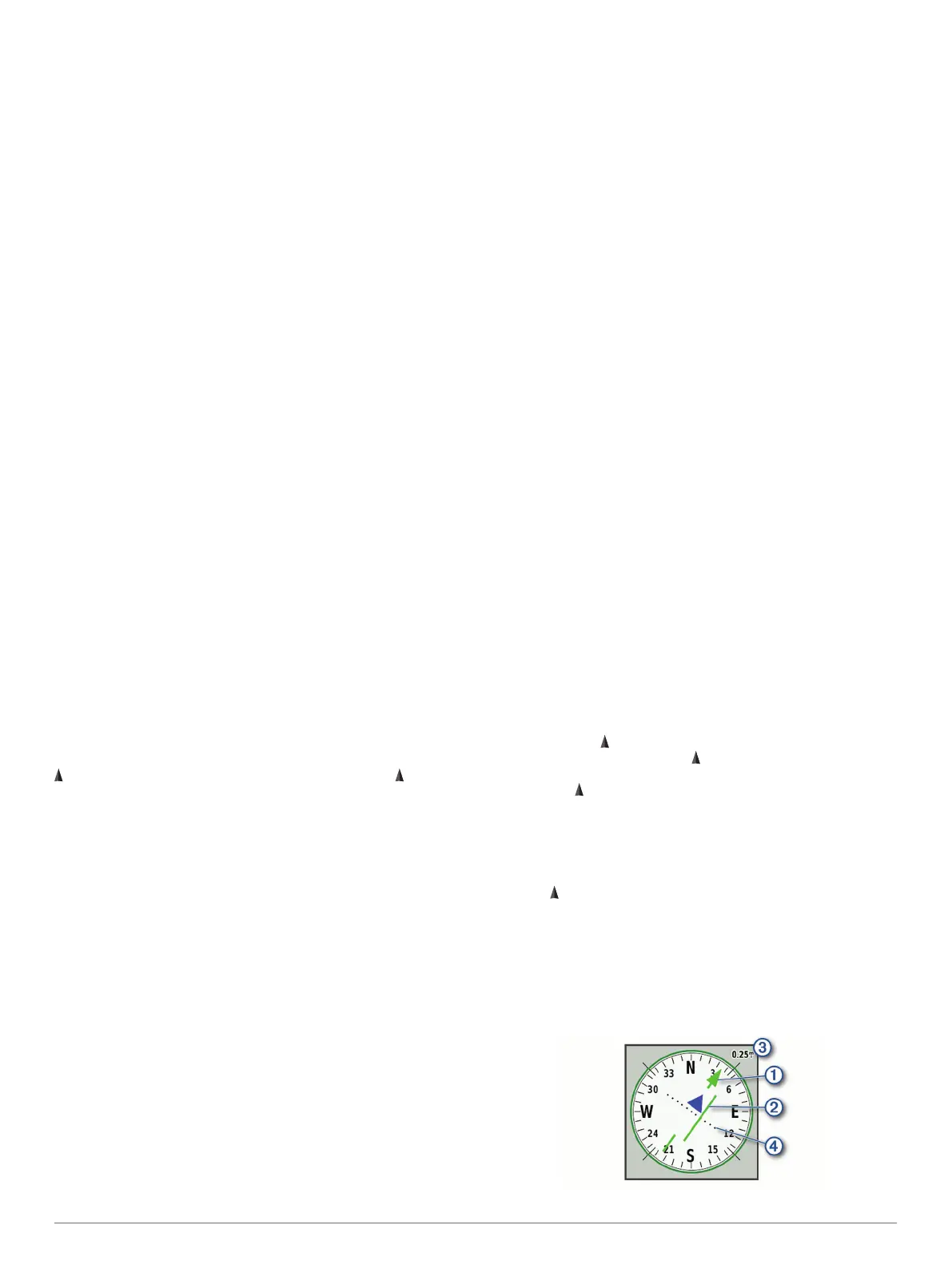
Compass
When navigating, points to your destination, regardless of the
direction you are moving. When points toward the top of the
electronic compass, you are traveling directly toward your
destination. If points any other direction, turn until it points
toward the top of the compass.
Using the Compass
You can use the compass to navigate an active route.
1
Hold the device level.
2
Follow to your destination.
Course Pointer
The course pointer is most useful when you are navigating on
water or where there are no major obstacles in your path. It can
also help you avoid hazards near the course, such as shoals or
submerged rocks.
To enable the course pointer, from the compass, select MENU >
Heading Setup > Go To Line (Pointer) > Course (CDI).
4 Contacts














 To Next Page