Devices
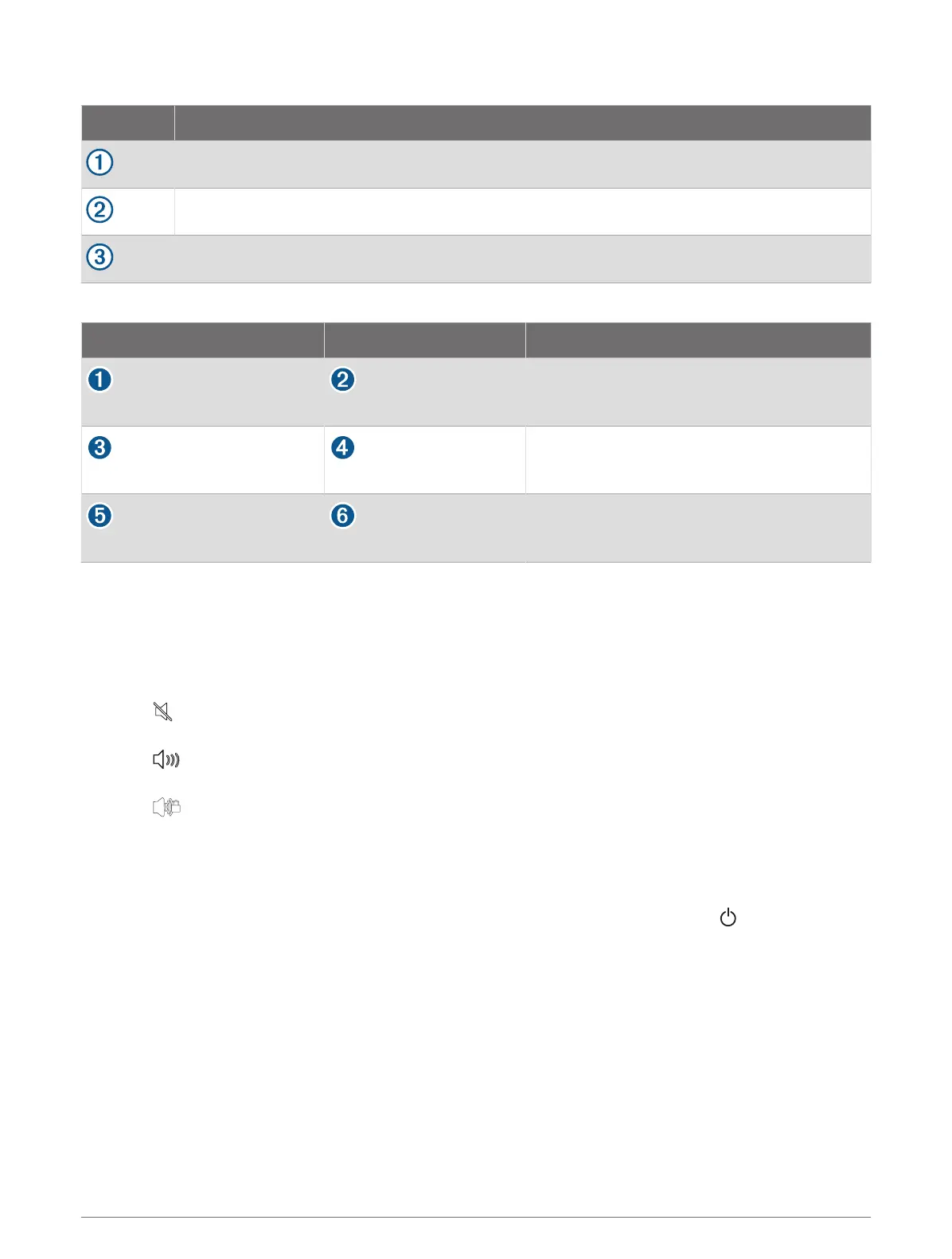
Item Device
HDMI source, such as a Chromecast device
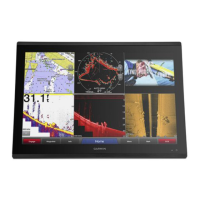
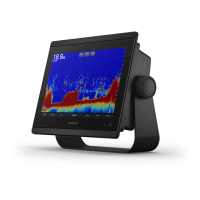
GPSMAP chartplotter
Monitor, such as a computer or television
Connections
From To Cable
HDMI source's HDMI OUT port Chartplotter's HDMI IN port
Garmin HDMI Cable
Chartplotter's HDMI OUT port Monitor's HDMI IN port
Garmin HDMI Cable
Chartplotter's USB OTG/USB port HDMI source's USB port
GPSMAP USB OTG adapter cable to power the
HDMI source, if possible (2.5W maximum)
Controlling HDMI Audio
You can control the audio for HDMI video sources.
1 From an HDMI video source, select Options.
2 Select an option:
• To turn off the audio, select Off.
The icon appears on the video screen.
• To play the HDMI audio, select On.
The icon appears on the video screen.
• To always play the HDMI audio, even when you are not viewing the HDMI video, select Always On.
The icon appears on the video screen.
Pairing the GC
™
100 Camera with a Garmin Chartplotter
Before you can connect a wireless device to the chartplotter wireless network, you must configure the
chartplotter Wi‑Fi network (Setting Up the Wi‑Fi Network, page26).
1 With the camera within an unobstructed 76m (250ft.) of the chartplotter, quickly press three times.
2 On the chartplotter, select Settings > Communications > Wireless Devices > Garmin Camera > Start.
3 Follow the on-screen instructions.
Viewing Video 165





 To Next Page