EasyManua.ls Logo

Garmin NUVI - User Manual

Garmin NUVI
3 pages
Print Icon
To Next Page IconTo Next Page
Loading...
Collecting location data with a Garmin Nuvi
Introduction
The Garmin Nuvi line of GPS devices includes a number of inexpensive entry level devices which are
more than adequate for the type of data collection we are trying to accomplish. These instructions focus
on setting up the Nuvi, using it to collect waypoints and tracks, and getting the data out of the Nuvi so
it can be archived and used.
Beware: using the Nuvi as a data logging device can make it less than useful for finding directions. In
the section on setup, I will discuss the setup options and their pros and cons.
I provide two methods for getting data out of the GPS. One involves importing the data directly into
Google Earth (which is a free download from Google, http://earth.google.com/). The other is more
work, but retains copies of the GPX files from the GPS. GPX is the standard interchange format for
GPS data and by copying these files directly, you are archiving the actual data from the GPS. It's easy
to load the data into Google Earth from GPX files later.
Setting up the Nuvi
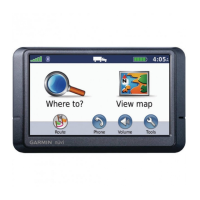
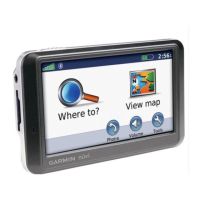
When the Nuvi starts up, it ends up in the Top Menu Screen. In this screen, you will see a signal
strength symbol in the upper right, a battery level & time indicator in the upper right. There are two
large icons in the middle. Where Too? which can be used to enter addresses, find Places Of Interest
(POIs) and so forth. View Map allows you to see where the GPS thinks you are on the map.
The bottom two icons are Volume (self explanatory) and Tools. The tools menu is where many useful
settings may be found.
Signal Strength
There is more to the signal strength than just a display of bars. With your GPS is on, place your finger
on the bars and hold it there for 8 seconds or so. Most Nuvis will switch to a more detailed signal
screen. This screen shows 1) your current latitude and longitude, 2) your current speed, 3) your
approximate elevation (Elevation is not a strong point of consumer GPS units), 4) what satellites the
GPS can see, 5) their signal strength, 6) and an indication of the circular error (10 feet is best, but not
always achievable on overcast days.) When a GPS has just been started up, it may take a little while to
acquire satellites and bring the circular error down, so be patient. This screen will give you some
visibility into what it's doing. If it's taking a long time, try standing with the GPS outside of your car.
Settings
Select Tools in the main screen, then Settings, then Navigation. Select Route preference and look at the
options.
The first three options (Faster, Shorter, Less Fuel) all are associated with the ability of the GPS to
provide routes on the road grid.
The fourth option (Off Road) will always provide an as the crow flies route. However, if you don't need
navigation, there are good reasons to select Off Road mode.
Garmin GPS units have a “feature” called snap to road. When they see you are near a road on the built
in maps, but not quite on it, they will adjust your apparent position to be on the road. This is fine if
appearances are all that matter. The problem is that they also adjust the data that is recorded, meaning
that you won't get data about where you really were, but only about what roads are close in the Garmin


Other manuals for Garmin NUVI

Question and Answer IconNeed help?

Do you have a question about the Garmin NUVI and is the answer not in the manual?

Summary

Introduction to Garmin Nuvi Data Collection

Setting Up Your Garmin Nuvi

Understanding Signal Strength

Configuring Garmin Nuvi Settings

Using the Nuvi for Tracking and Waypoints

Recording GPX Tracks

Tracks record your travel path as a blue line, saved in GPX files.

Recording Waypoints

Save specific points of interest with custom names for later reference.

Extracting Data to Google Earth

Direct Import to Google Earth

Connect Nuvi via USB and import tracks/waypoints directly into Google Earth.

Archiving GPX Files

Saving GPX Files to Hard Drive

Copy GPX files from the Nuvi's internal memory to your computer for backup.

Loading GPX Files Later

Cleaning Nuvi Data

Resetting Trip Log and Favorites

Clear trip logs and favorites from the Nuvi for a fresh start.

Summary

Introduction to Garmin Nuvi Data Collection

Setting Up Your Garmin Nuvi

Understanding Signal Strength

Configuring Garmin Nuvi Settings

Using the Nuvi for Tracking and Waypoints

Recording GPX Tracks

Tracks record your travel path as a blue line, saved in GPX files.

Recording Waypoints

Save specific points of interest with custom names for later reference.

Extracting Data to Google Earth

Direct Import to Google Earth

Connect Nuvi via USB and import tracks/waypoints directly into Google Earth.

Archiving GPX Files

Saving GPX Files to Hard Drive

Copy GPX files from the Nuvi's internal memory to your computer for backup.

Loading GPX Files Later

Cleaning Nuvi Data

Resetting Trip Log and Favorites

Clear trip logs and favorites from the Nuvi for a fresh start.

Overview

The Garmin Nuvi is a line of inexpensive entry-level GPS devices designed for collecting location data, specifically waypoints and tracks. It can also provide navigation, though its primary focus in this manual is data logging.

Function Description:

The Nuvi's core function is to record geographical coordinates as tracks and waypoints. Tracks are continuous lines representing the path traveled, while waypoints are specific, named points of interest. The device can also display your current location on a map and offer navigation routes.

Important Technical Specifications (Inferred/Derived):

  • Connectivity: Features a mini-USB port for connecting to a computer (PC or Mac) using a standard USB-mini cable.
  • Storage: Includes internal flash memory (referred to as the "Garmin" drive) where GPS coordinate files (GPX format) are stored. Optionally supports an SD card for additional storage, though GPS tracks are not typically stored there.
  • Data Format: Records data in GPX (GPS eXchange Format) files, which is a standard interchange format for GPS data.
  • Display: Features a touchscreen interface for interaction, including a keyboard display for naming waypoints.
  • Power: Battery-powered, with a battery level indicator on the top menu screen.
  • Satellite Reception: Utilizes GPS satellites to determine location, speed, and approximate elevation. Includes a signal strength indicator and a detailed signal screen showing the number of visible satellites, their signal strength, and circular error (ideally 10 feet).

Usage Features:

  • Top Menu Screen: The main interface upon startup, displaying signal strength, battery level, time, and large icons for "Where Too?" (address entry, POI search), "View Map," "Volume," and "Tools."
  • Signal Strength Screen: Accessible by holding a finger on the signal bars for 8 seconds. Displays current latitude, longitude, speed, approximate elevation, visible satellites, their signal strength, and circular error. Useful for monitoring GPS performance and troubleshooting satellite acquisition.
  • Navigation Settings: Found under "Tools" > "Settings" > "Navigation." Offers "Route preference" options:
    • Faster, Shorter, Less Fuel: Standard navigation modes that provide routes based on the road grid.
    • Off Road: Provides "as the crow flies" routes. This mode is highly recommended for data logging, especially for mapping projects like OpenStreetMap, because it disables the "snap to road" feature.
  • Snap to Road Feature: A default Garmin feature that adjusts your recorded position to the nearest road on built-in maps, even if you are not precisely on it. Selecting "Off Road" mode disables this, ensuring more accurate data recording of your actual path.
  • Recording Tracks (GPX tracks): As you drive, a blue line on the screen graphically represents your path. This track is automatically recorded into a GPX file on the device.
  • Recording Waypoints:
    • Tap the car icon on the screen to bring up the "Location" screen.
    • Select "Save Location" at the bottom.
    • Use the on-screen keyboard to enter a name for the waypoint.
    • Press "Done" to save the waypoint and its name to the GPX file.
    • If you accidentally get the vertical map view, you can still select "Save," but the GPS will generate a default name for the waypoint.
  • Data Transfer (Directly into Google Earth):
    1. Connect the Nuvi to a computer via USB.
    2. The Nuvi appears as an external disk drive (Garmin drive).
    3. Start Google Earth.
    4. Go to "Tools" > "GPS" > "Import" tab > select "Garmin."
    5. Click "Import" to transfer tracks and waypoints directly.
    6. Eject the Garmin drives from the computer before disconnecting.
  • Data Transfer (Keeping GPX files on Hard Drive):
    1. Connect the Nuvi to a computer via USB.
    2. Navigate to the Garmin\GPX directory on the Garmin flash drive.
    3. Copy current.gpx (and any other GPX files in the archive directory for longer trips) to a directory on your hard drive. It is recommended to organize these files into subdirectories with descriptive names (locales, dates, etc.).
    4. Eject the Garmin drives from the computer before disconnecting.
  • Loading GPX files into Google Earth (Later):
    1. Start Google Earth.
    2. Go to "Tools" > "GPS" > "Import From File."
    3. Navigate to and select the desired GPX file.

Maintenance Features:

  • Cleaning Data from the Nuvi: This process ensures clean, distinct tracks for subsequent trips.
    1. From the top menu screen, select "Tools."
    2. In the Tools screen, select "My Data."
    3. Select "Clear Trip Log," then confirm with "yes."
    4. Select "Delete Favorites," then "Select All."
    5. (Optional) Uncheck any favorites you wish to keep.
    6. Select "Delete," then confirm with "yes."
    7. The Garmin is now cleared and ready for new data collection.

Garmin NUVI Specifications

General IconGeneral
BrandGarmin
ModelNUVI
CategoryGPS
LanguageEnglish

Videos

How To Replace Your Garmin Nuvi Battery

Related product manuals