Viewing Widgets
Your device is preloaded with several widgets, and more are available when you pair your device with a phone or
other compatible device.
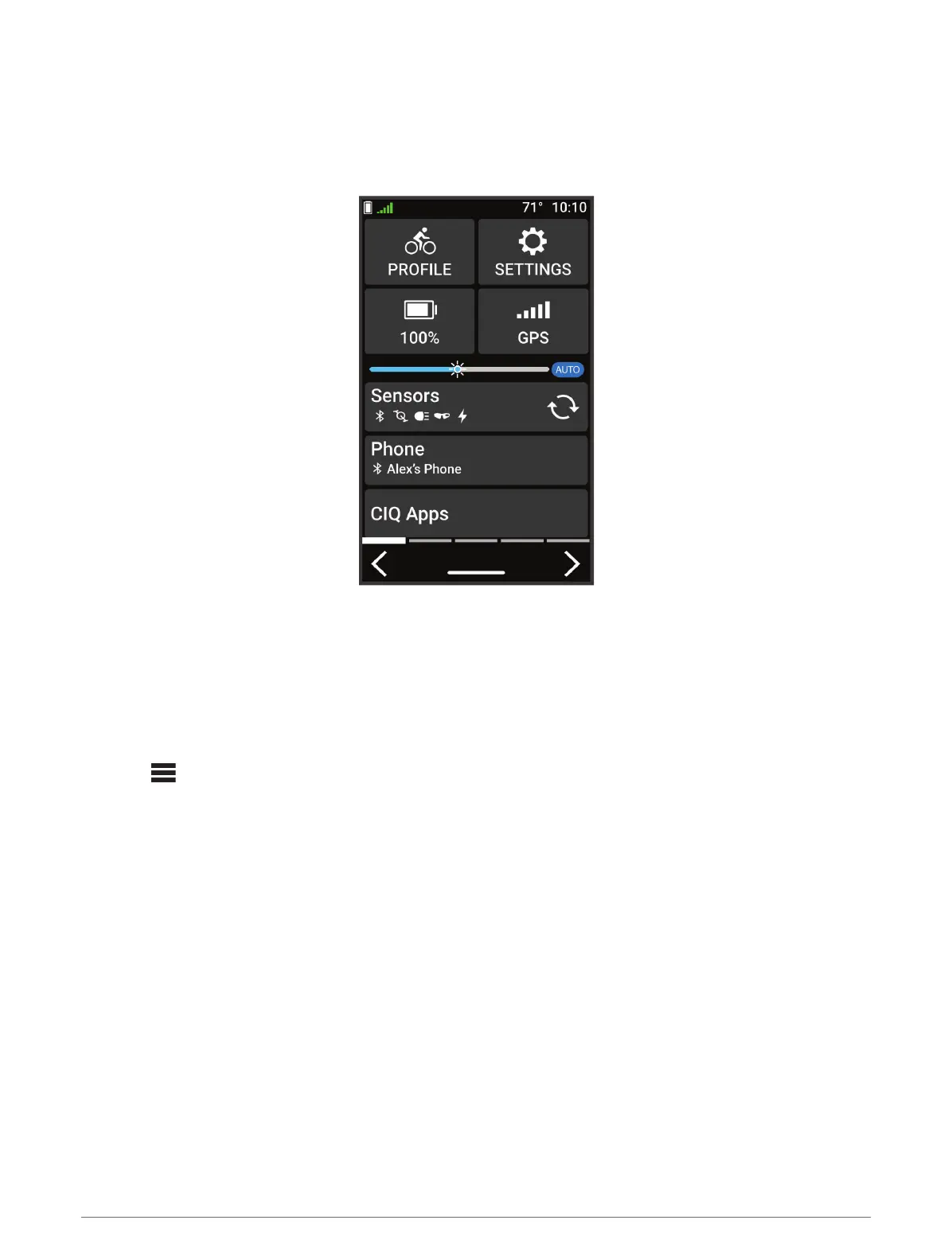
1 From the home screen, swipe down from the top of the screen.
The settings widget appears. A flashing icon means the device is searching for a signal. A solid icon means
the signal was found or the sensor is connected. You can select any icon to change the settings.
2 Swipe left or right to view more widgets.
The next time you swipe down to view the widgets, the last widget you viewed appears.
Customizing the Varia Device Settings with Your Edge 1030
Before you can customize Varia device settings with your Edge device, you must pair the devices.
1 Select > Sensors > Lights.
2 Select an option:
• Select Enable to enable the light network.
• Select Network Options > Test Lights to verify that each light in your network is set up correctly (Testing
the Light Network, page 12).
• Select a light to view device information and customize each light in your network (Light Network Settings,
page 13).
Testing the Light Network
1 From the Sensors menu, select Lights > Network Options > Test Lights.
2 Select a light to test.
The light blinks when it is connected.
12 The Varia RCT715 and Your Edge 1030 Series


 To Next Page
 Loading...