CHAPTER 9: Customizing Your Notebook www.gateway.com
100
Changing the colors on your Windows desktop
You can change the colors of Windows desktop items, such as the background
color and dialog box title bars.
To change desktop colors:
1 Right-click any empty space on the desktop, then click Properties. The
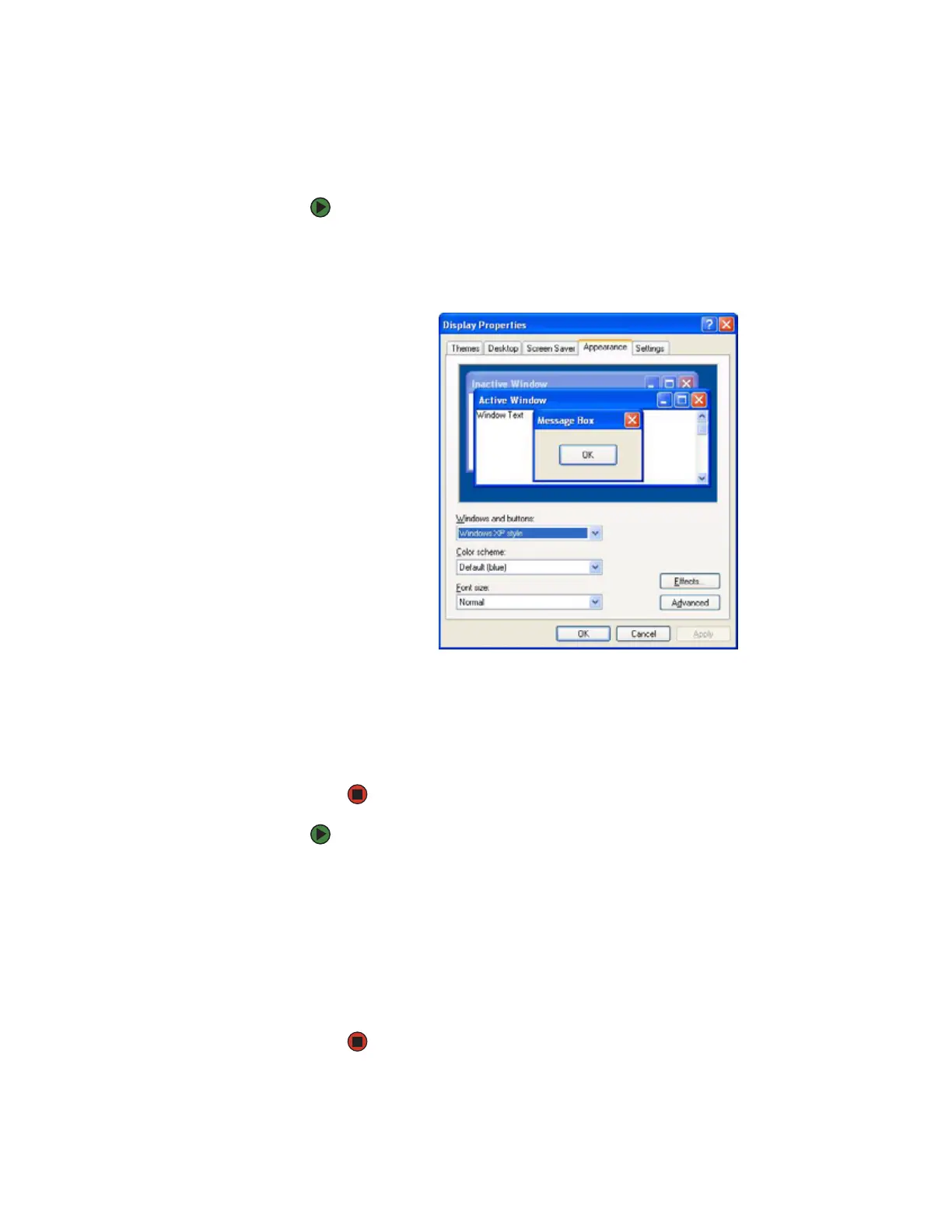
Display Properties dialog box opens.
2 Click the Appearance tab.
3 Click the arrow button to open the Color scheme list, click the color
scheme you want, then click OK. The new colors appear on your desktop.
- OR -
If you want to create a new color scheme as part of a desktop theme, see
the following procedure.
To create a new color scheme as part of a desktop theme:
1 Click Advanced. The Advanced Appearance dialog box opens.
2 Click the arrow button to open the Item list, then click the item you want
to change.
3 Change the color or font settings for the item.
4 Click OK, then click the Themes tab.
5 Click Save As, type a name for the new theme, then click OK twice. The
new colors appear on your desktop.











 To Next Page