CHAPTER 10: Maintaining Your Notebook www.gateway.com
114
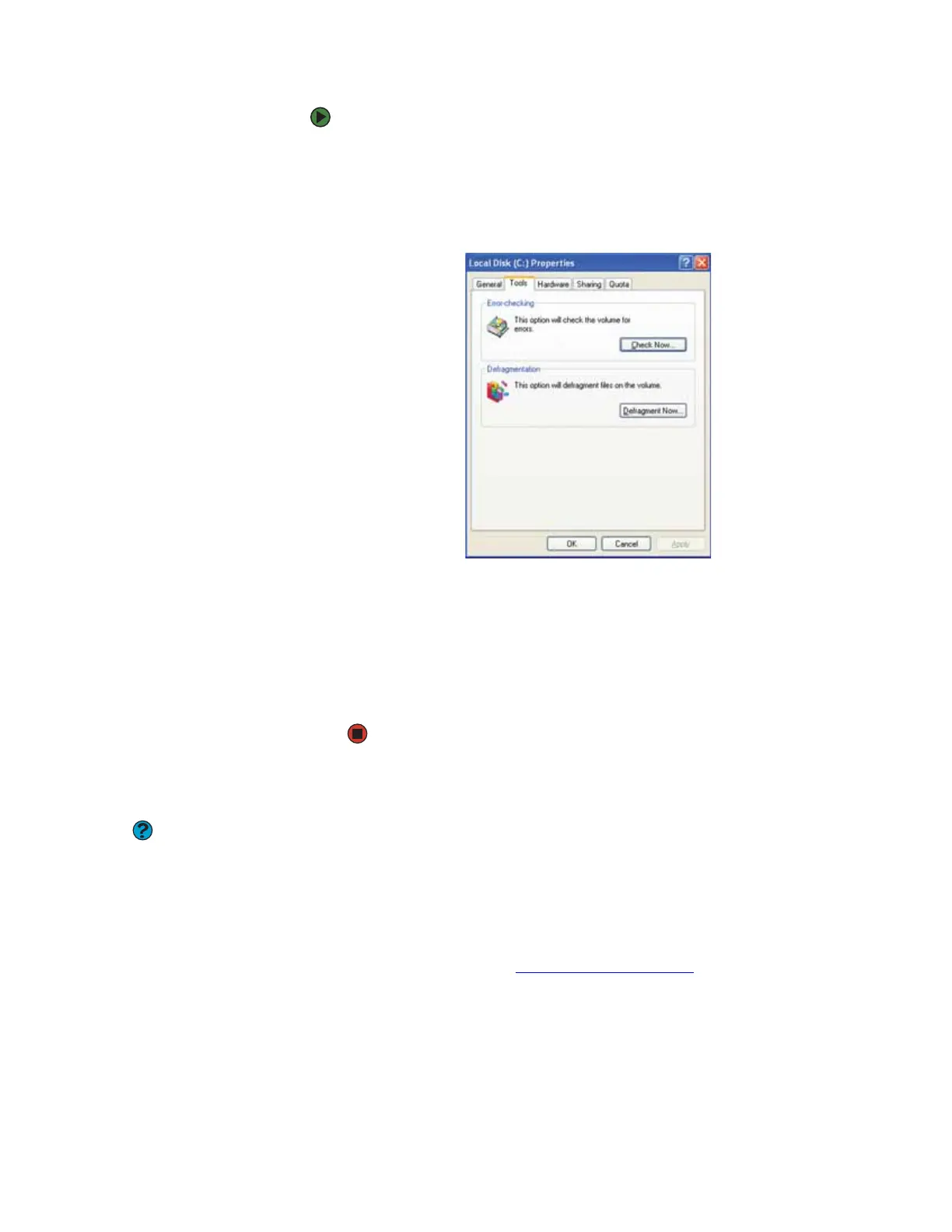
To defragment the hard drive:
1 Click Start, then click My Computer. The My Computer window opens.
2 Right-click the hard drive that you want to defragment, for example Local
Disk (C:), then click Properties. The Properties dialog box opens.
3 Click the Tools tab.
4 Click Defragment Now.
5 If Disk Defragmenter does not start automatically, click Defragment.
Disk Defragmenter shows its progress on the notebook display. When
finished, Disk Defragmenter asks if you want to quit the program.
6 Click Close, then click the X in the top-right corner to close the Disk
Defragmenter window.
Backing up files
Help and Support
For more information about backing up
files, click Start, then click Help and
Support. Type the keyword saving files
in the Search box, then click the arrow.
Backing up files and removing them from the hard drive frees space for new
files on the hard drive. Backing up also protects you from losing important
information if the hard drive fails or you accidentally delete files.
You should back up your files regularly to a writable CD or DVD (if you have a
recordable drive) or to a network storage device. Use a backup device, such as
a recordable drive or network storage, to do a complete hard drive backup. If
you do not have a high-capacity backup device and you want to purchase one,
visit the Accessories Store at accessories.gateway.com
.











 To Next Page