Working with files and folders
www.gateway.com
15
Working with files and folders
You can organize your files and programs to suit your preferences much like you
would store information in a file cabinet. You can store these files in folders and
copy, move, and delete the information just as you would reorganize and throw
away information in a file cabinet.
Viewing drives
Help and Support
For more information about files and
folders, click Start, then click Help and
Support. Type the keyword files and
folders in the Search box, then click the
arrow.
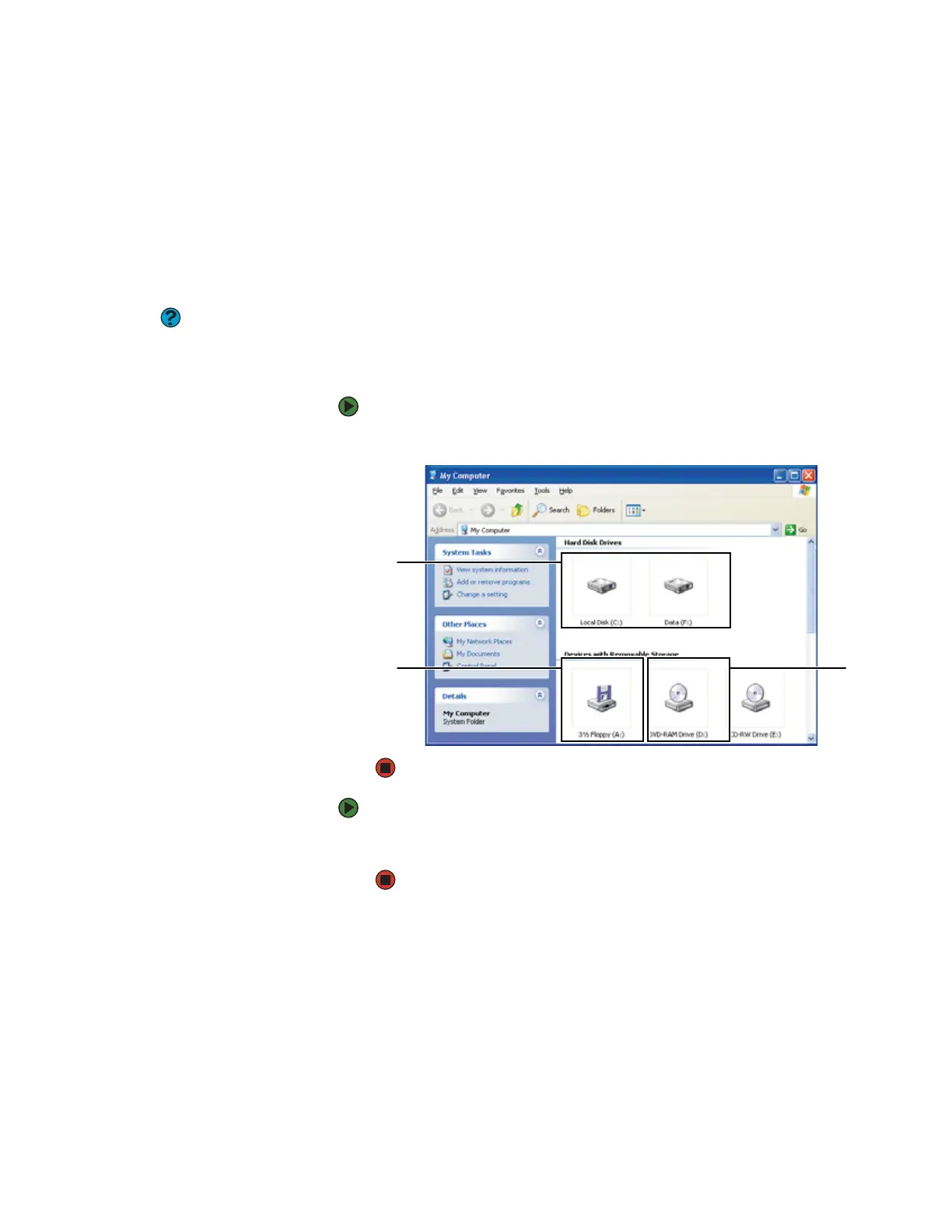
Drives are like file cabinets because they hold files and folders. A notebook
almost always has more than one drive. Each drive has a letter, usually Local
Disk (C:) for the hard drive and DVD (D:) for the optical drive. You may also have
more drives such as a memory card reader.
To view the drives on your notebook:
■ Click Start, then click My Computer on the Start menu.
To see the files and folders on a drive:
■ Double-click the drive icon. If you do not see the contents of a drive after
you double-click its icon, click Show the contents of this drive.
Disc
drive
Hard
drives
Diskette
drive











 To Next Page