GCI E84 Emulator Getting Started Manual Version 2.4a
GCI E84 Emulator Getting Started Manual
12
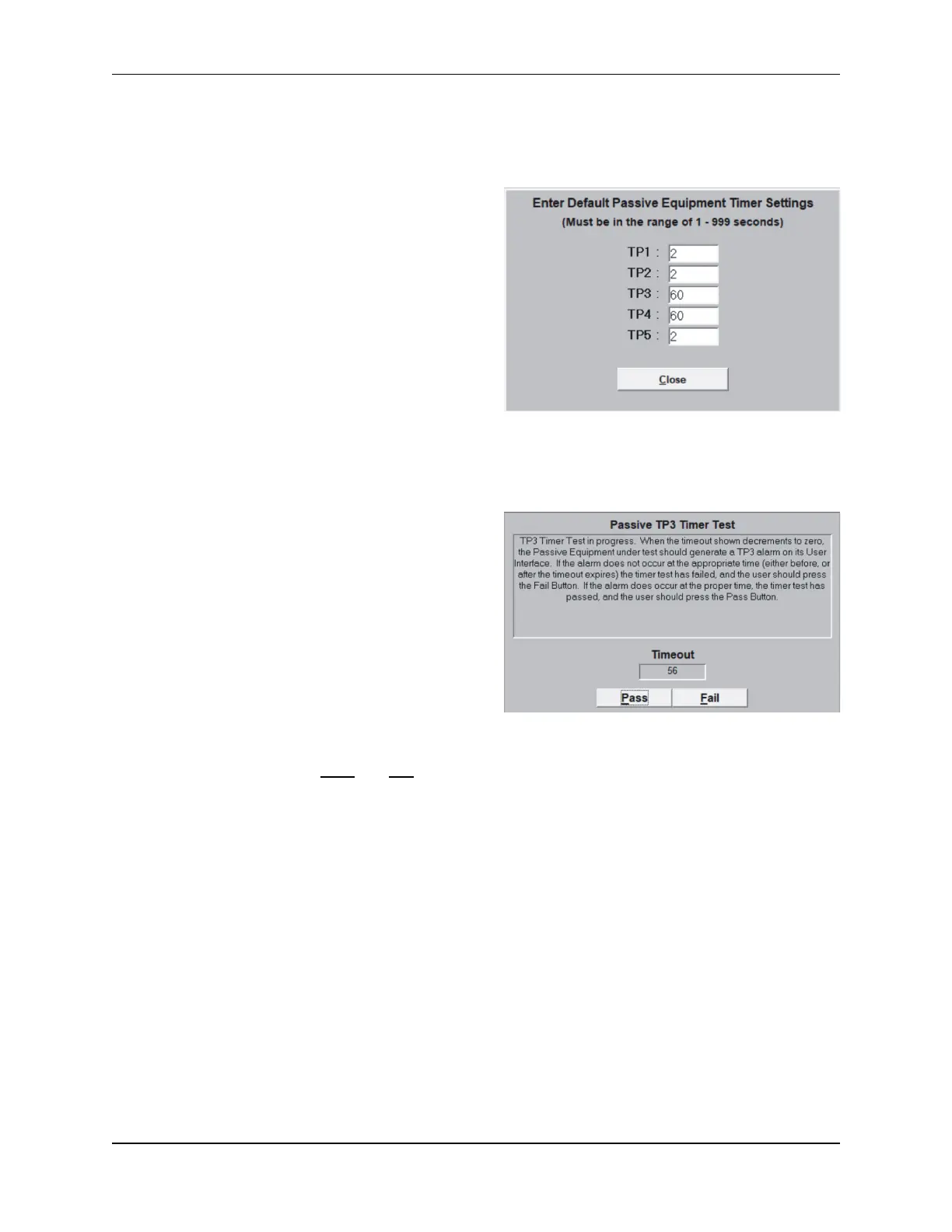
Timer Test Pass/Fail Screen
Default Timer Settings Screen
(TP3) on seeing the FOUP loaded. If the FOUP is not positioned properly on the Load Port before the
timeout expires, the process equipment will report an error.
Default Timer Settings Screen
The E84 Emulator uses timer information entered by
the user during Active and Passive mode Functionality
Test A to inform the user of the time available to
complete the required action. If the user does not run
Functionality Test A, the E84 Emulator uses the default
timer values defined by the E84 specification. It is
therefor very important that the user select the
Functionality Test A during test setup.
When the Operator Action Required Screen is
displayed, the value entered for the applicable timer
setting is displayed on the Operator Action Required
Screen. The display will decrement that timer value
each second, showing the user the remaining time
available to complete the required action.
Operator Prompted Pass / Fail Screen
Some Functionality tests (specifically the Timer tests)
require the user to mark the final Pass/Fail status of the
test based on feedback (unavailable to the E84
Emulator) from the equipment being tested. For
example, when testing passive equipment timeout
settings, the E84 Emulator will force a timeout error by
not following the specified handshaking signals. The
passive equipment being tested is required to issue a
timeout alarm on its user interface. The details of this
timeout alarm are not reported through the handshaking
interface. The user is required to make the final
Pass/Fail determination. The user is prompted for the
Pass/Fail status of the test through a special Timer Test
Screen. This screen provides the user with details on how to determine the Pass/Fail status of the test,
along with two option buttons (Pass and Fail) to mark the actual test results.
Test NOTES Field
A NOTES entry field is provided for each Static and Functionality test. The notes field is a free format field
(maximum of 32,768 characters) where the user can make notes concerning the current test. These notes
are stored along with the rest of the test details when the user saves the test from the associated Test
Setup Screen.
Five option buttons are displayed at the bottom of the Automated Test Screen. These buttons allow the
user to: go back to the previous test, run the current test, advance to the next test, abort the current test,
and abort all active mode testing.



 To Next Page