Page 15
Stepper drivers
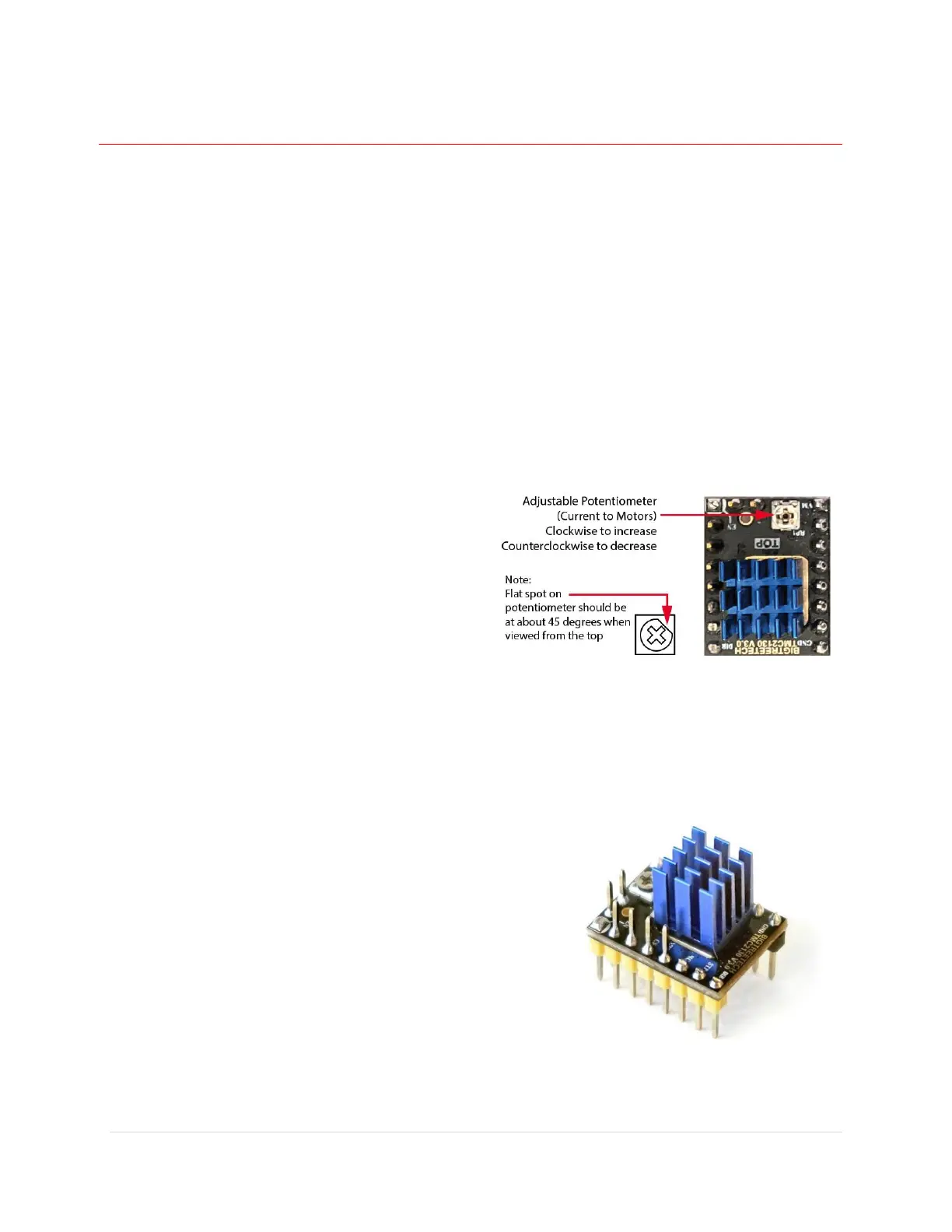
The gMax 2 Pro uses TMC2130 stepper drivers. The drivers have an adjustable potentiometer on the
top for adjusting the maximum current. You can also adjust the current to the drivers from the LCD
screen.
Make sure you have proper cooling in the electronics case or the drivers can and will overheat. When
the drivers overheat the firmware will automatically reduce the power to the drivers, in 50ma
increments, to avoid damage but this could lead to lost steps.
NOTE: Whenever you are adjusting any of the electronics, turn off the printer, unplug it and wait a few
minutes to ensure the power has drained from the system.
Refer to the wiring diagram for more information on which axis is controlled by which driver.
Adjusting the Power
We recommend using a ceramic screwdriver when
adjusting the stepper drivers to avoid damage to the
electronics.
The potentiometer will have a small flat spot on it
which should be turned to about a 45 degree angle.
Turn Clockwise to increase current (power) and
counter clockwise to decrease it.
Note: The driver current is also set via the firmware. See “Driver Current” in the “LCD Breakdown >
Parameters” section of this guide.
Replacing a Stepper Driver
If you need to replace a stepper driver, it can be pulled out of its
socket. You may need to loosen the bolt holding the electronics
to the frame to allow you to swing out the electronics for easier
access.
We recommend rocking the driver slightly back in forth while
pulling it out.
If you need to unplug the motor wire for easier access make
sure to pull on the connector and not the wires or you risk
pulling the wires out.
Install the new driver in the same orientation or you risk damaging the machine.


 To Next Page