Page 6
Using Your Printer
Start from SD, USB or Host Software
Once you have sliced your file in your preferred software you are ready to print. For information on
slicing refer to the gCreate website or the slicing software webpages for tips and tricks.
• Put your *.gcode file on the SD card included with your printer and slide this in the left side of
the LCD screen. Then go to “Print > TFT SD” and select your file.
• Connect the printer to your computer using the supplied USB cable. The USB slot can be found
on the left side of the electronics case. Once connected you can send files to the printer from
Simplify3D, Cura, Pronterface or PrusaSlicer. These “host” software’s allow you to track
progress, send commands or control the printer.
• If you have the gTouch controller you can connect this via USB and operate the printer from the
secondary touch screen. You will have to put the touchscreen into “Classic Marlin” mode by
pressing the touchscreen for 3 seconds and selecting “Marlin”.
Heated Bed Operation
Setting Temperatures and Fan
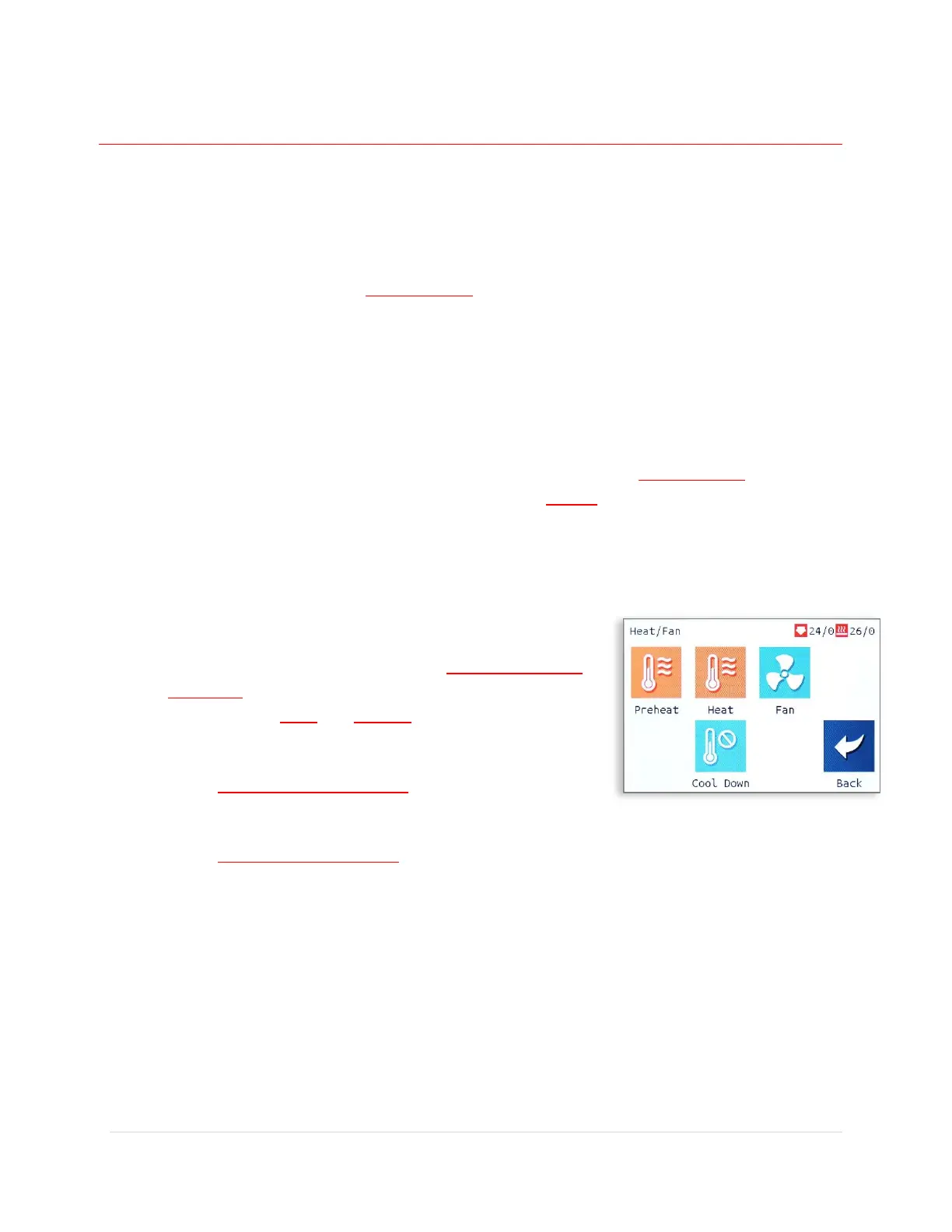
You can set temperatures to the hotend or heated bed from the LCD
screen.
• To select a defined temperature, go to “Menu > Heat/Fan
> Preheat”. Make sure if you only want to heat the hotend
to switch from “Both” to “Hotend” or the printer will throw
an error.
• Go to “Menu > Heat/Fan > Heat” or just click the nozzle
icon from the main screen to pick a specific temperature.
• Go to “Menu > Heat/Fan > Fan” to set the fan speed.
Removing Prints
1. If the bed is acrylic, after the print finishes you can immediately remove it.


 To Next Page