24
Size
The size setting refers to the image resolution in pixels. A
higher image resolution allows you to print that image in
larger sizes without degrading the image quality.
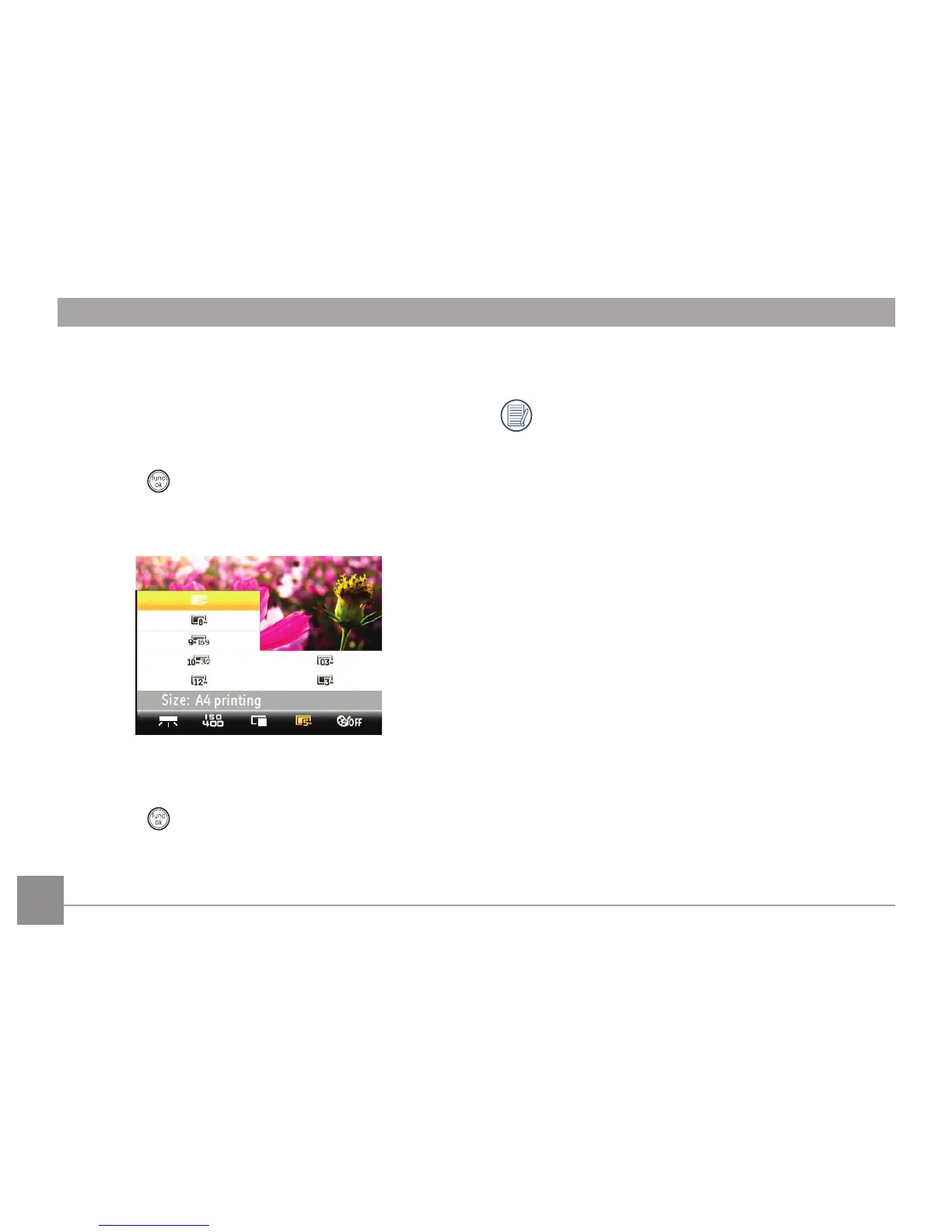
To set the image size, do the following:
1. Press the
button to enter the Function menu.
2. Use the
Left/Right navigation buttons to go to the Size
function.
3. Use the Up/Down navigation buttons to select desired
resolution.
4. Press the
button to conrm your setting.
5. The number of available shots is displayed on the screen.
The bigger the number of recorded pixels is, the better
the image quality becomes. As the number of recorded
pixels becomes smaller, you will be able to record more
frames on a memory card.


 To Next Page