66 67
CONNECTIONS
Connecting to a PC
Use the USB cable and ArcSoft software (CD-ROM) supplied
with your camera to copy (transfer) pictures to a computer.
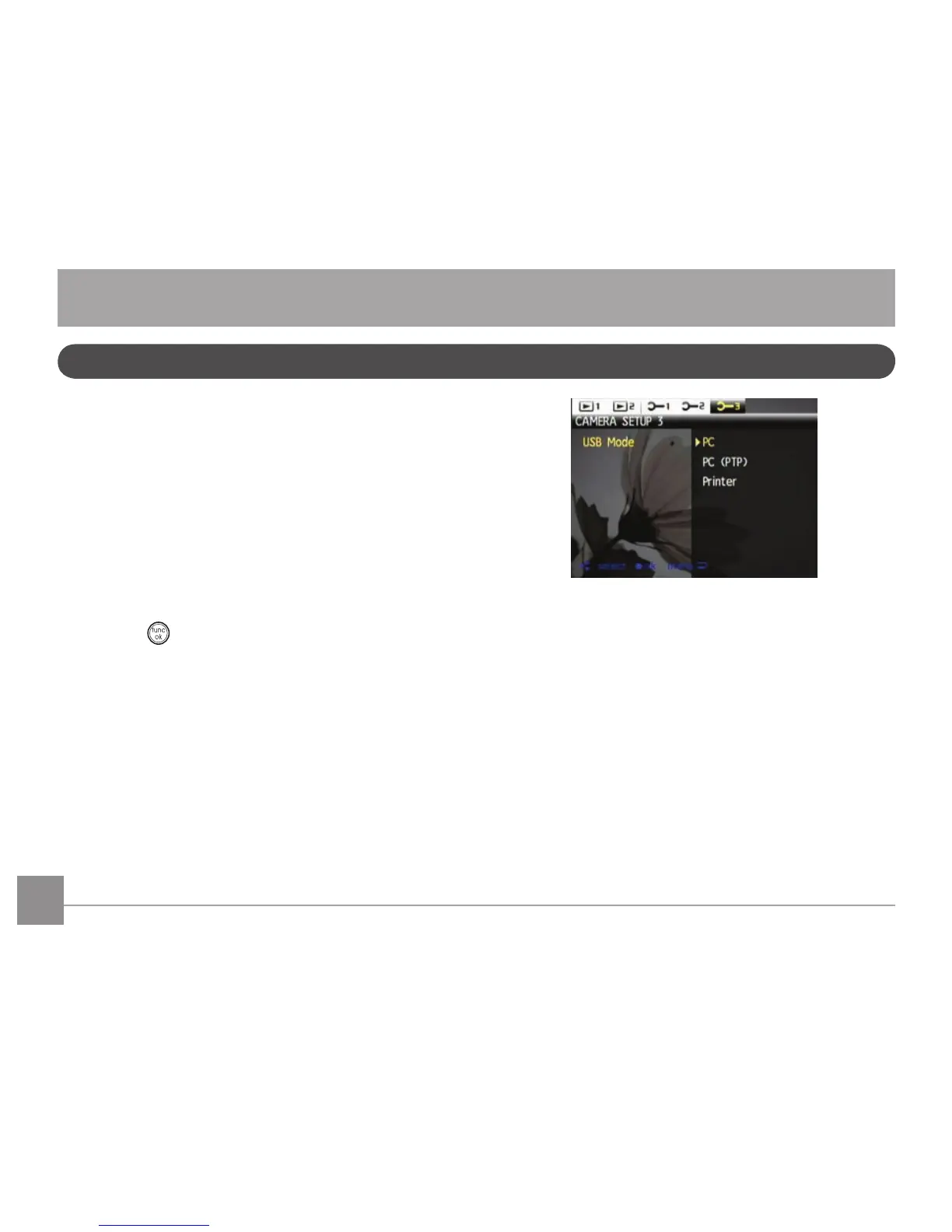
Setting the USB mode
Since the camera’s USB port can be set to connect with either
a PC or a Printer, the following steps will allow you to ensure
that the camera is correctly congured to connect with a PC.
1. Go to the camera setting menu, select USB connection
with the Up/Down button, and press the Right button.
2. Use the
Up/Down navigation buttons to select PC.
3. Press the button to conrm the setting.
TransferringlestoyourPC
The computer will automatically detect the camera as a
removable drive. Double-click My Computer icon on the
desktop to locate the removable drive and to copy the folders
and les in the drive to a directory on your PC as you would
copy any typical folder or le.


 To Next Page